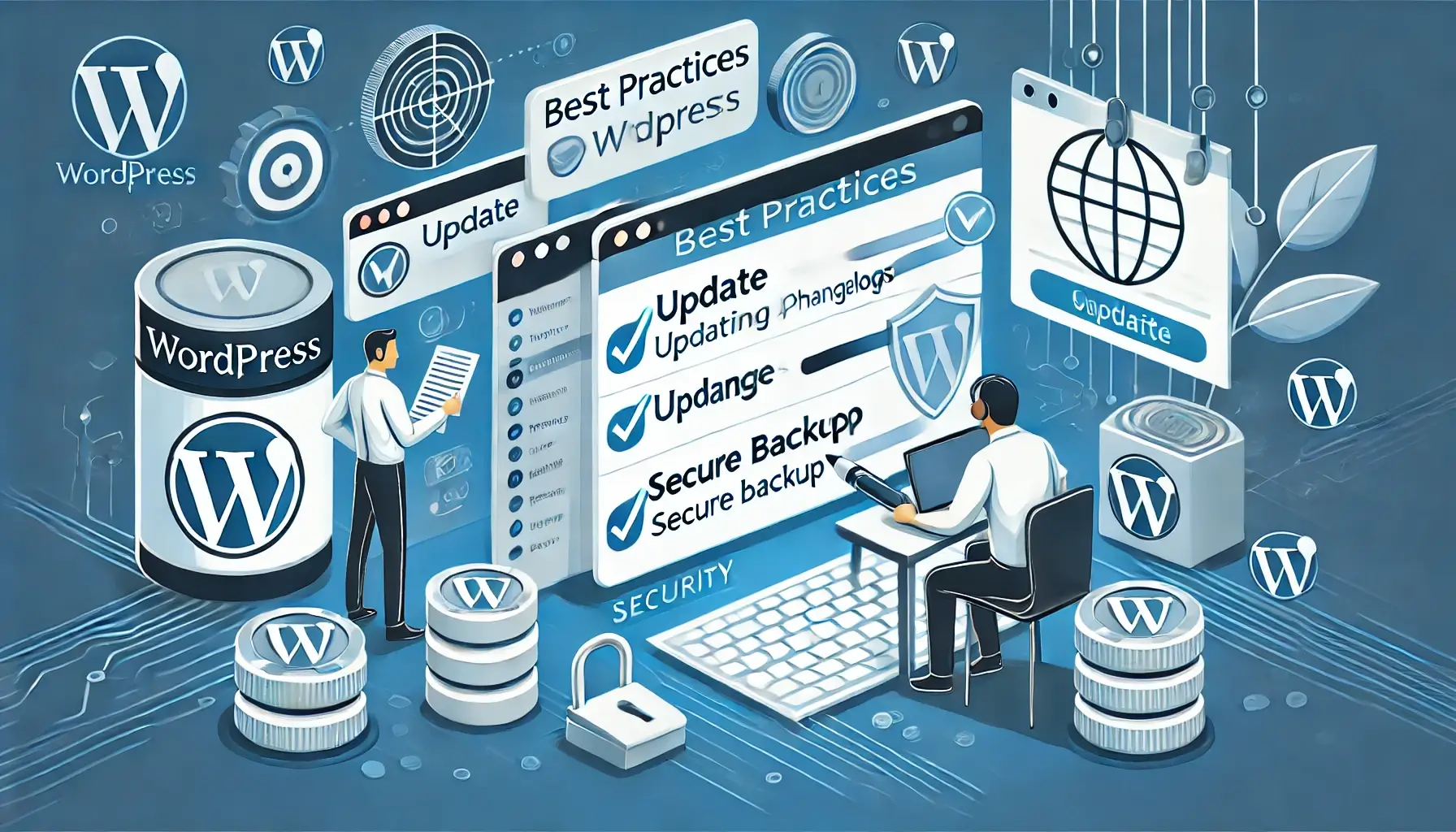
Keeping your WordPress site and plugins updated is critical for security, performance, and compatibility. Neglecting updates can expose your site to vulnerabilities, cause slowdowns, or even lead to website crashes. This guide will walk you through the best practices to update WordPress and plugins safely and efficiently.
1. Understand the Importance of Updates
Updates often include:
- Security Patches: Closing vulnerabilities to prevent hacking attempts.
- New Features: Enhancing functionality and improving user experience.
- Bug Fixes: Resolving issues that could affect your site's performance.
- Compatibility Improvements: Ensuring your site works with the latest technologies and other plugins.
Neglecting updates can make your site an easy target for cyber threats.
2. Backup Your Site Before Updating
Before performing any update, back up your:
- Database: To save posts, pages, and settings.
- Files: To secure your theme, plugins, and media uploads.
Use tools like UpdraftPlus or BackupBuddy to automate backups. Ensure backups are stored both locally and on cloud platforms like Google Drive or Dropbox.
3. Update in a Staging Environment
Avoid updating directly on the live site. Instead:
- Create a staging environment using plugins like WP Staging or hosting providers that offer built-in staging.
- Test updates to identify issues before applying them to the live site.
This minimizes the risk of downtime or broken functionality.
4. Prioritize Security Updates
WordPress often categorizes updates as major or minor:
- Minor Updates: Focus on security fixes and are generally safe to apply immediately.
- Major Updates: Contain significant changes and require thorough testing.
Always prioritize security updates to protect your site from vulnerabilities.
5. Keep Themes and Plugins Updated
Plugins and themes often release updates for:
- Compatibility with the latest WordPress version.
- Enhanced features.
- Security patches.
To update:
- Navigate to Dashboard > Updates in WordPress.
- Select the plugins or themes to update and click Update Plugins.
- Check the changelog for each plugin/theme to understand what’s being updated.
6. Update Plugins and WordPress Separately
When updating both WordPress and plugins:
- Update WordPress core first.
- Update plugins one by one to identify potential conflicts.
After each update, test your site for issues.
7. Turn Off Auto-Updates for Critical Plugins
While auto-updates are convenient, they may lead to compatibility issues. Turn off auto-updates for:
- Plugins integral to site functionality.
- Custom-developed plugins.
Instead, manually review and update these plugins.
8. Regularly Monitor Your Site Post-Update
After updating, verify your site’s:
- Pages and posts display correctly.
- Features (e.g., forms, sliders) work as expected.
- Speed and performance remain optimal.
Use tools like Google PageSpeed Insights to assess performance.
9. Use Reliable Update Management Tools
For multi-site management or ease of use, consider tools like:
- ManageWP: Centralized management for multiple WordPress sites.
- InfiniteWP: Schedule updates for plugins, themes, and core WordPress.
- iThemes Sync: Monitor and update sites remotely.
Conclusion
Updating WordPress and plugins is essential to maintaining a secure, fast, and functional website. By following these best practices—backing up data, using staging environments, and testing thoroughly—you can minimize risks and ensure a smooth updating process. For professional assistance with managing WordPress updates, contact WebCareSG.