Common Website Errors You Should Know About (And How to Fix Them)
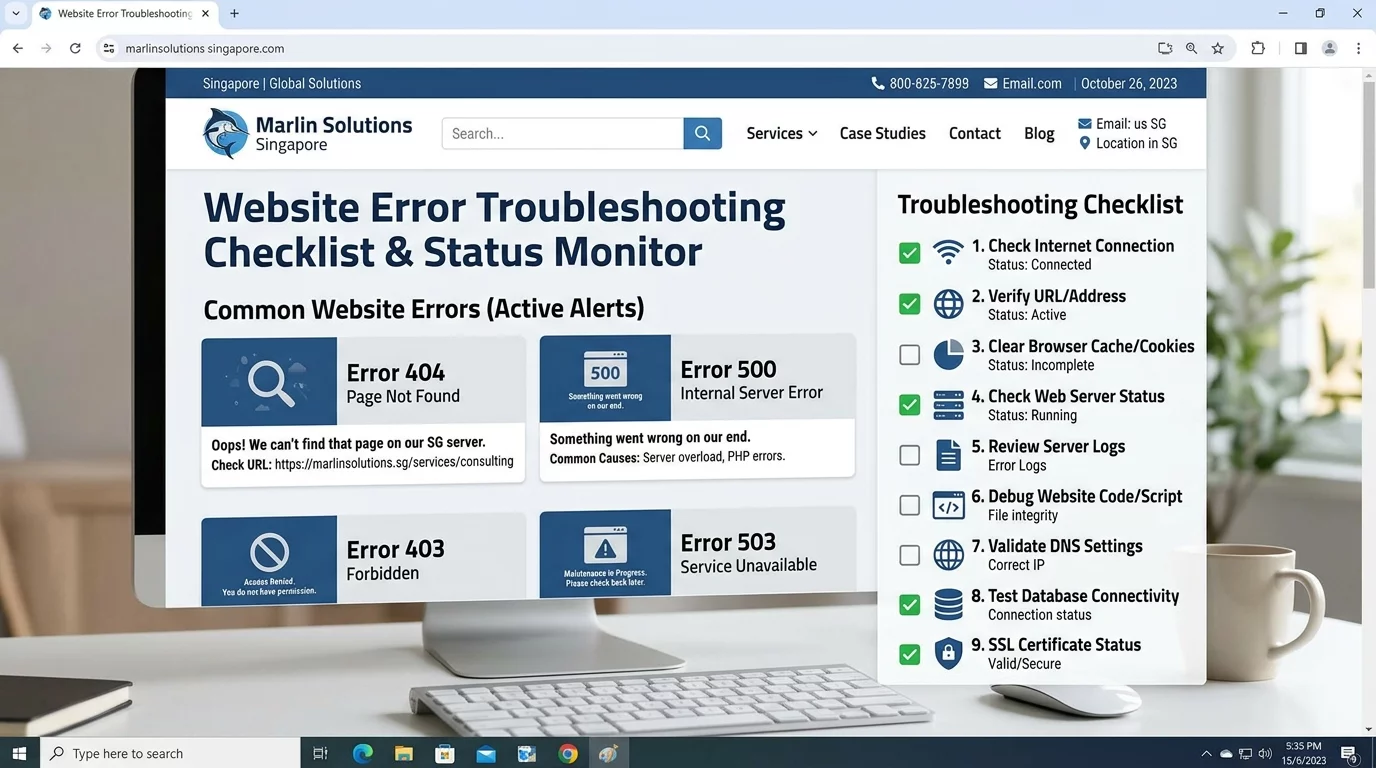
You visit your website and instead of your normal page, you see a white screen. Or maybe your contact form stopped sending emails. Or your website looks completely broken on mobile. These are the most common website errors, and they all have solutions — you just need to know where to look.
1. The White Screen of Death (Blank White Page)
This is one of the most alarming errors. Your website loads but shows nothing — just a blank white page. No error message, no explanation. Before you panic, know this: in most cases, it is caused by a PHP error that your server is hiding from visitors. Here is how to fix it step by step.
Step 1: Clear your browser cache. The page might actually be fine, but your browser is showing an old cached version. In Chrome, press Ctrl+Shift+R (Windows) or Cmd+Shift+R (Mac) to force refresh. Or go to Settings > Clear browsing data > Cached images and files.
Step 2: Check if the error is on your end. Ask a friend to open your website on their phone using mobile data (not your WiFi). If they see the same white screen, the problem is on your server, not your browser.
Step 3: Check your error logs. Log into your web hosting control panel (cPanel or similar) and look for an "Error Logs" section. This will tell you exactly what went wrong. Common causes include: a plugin that crashed, a theme update that broke compatibility, or a PHP memory limit exceeded.
Step 4: Deactivate your plugins one by one. If you use WordPress and suspect a plugin caused the white screen, log into your hosting file manager, go to wp-content/plugins, and rename the plugin folders one at a time to deactivate them. Check your website after each deactivation to find the culprit.
2. Contact Form Not Sending Emails
You test your contact form and press send, but the email never arrives. Not in your Inbox, not even in Spam. Here is why this happens and how to fix it.
The problem: Most contact form plugins send emails using PHP mail function, which is often blocked by email providers for security reasons (to prevent spam). Your hosting server is not authorized to send email on behalf of your domain.
The fix: Install an SMTP (Simple Mail Transfer Protocol) plugin on your WordPress site. Popular options include WP Mail SMTP or Contact Form 7 with an SMTP configuration. Then connect your form to an email service like Gmail, SendGrid, or Mailgun. This authenticates your emails so email providers trust them. Setup takes about 20 minutes and your emails will start arriving immediately.
If you use a website builder like Wix or Squarespace, their contact forms handle email delivery automatically. If emails are still not arriving, check your Spam folder first, then contact their support.
3. SSL Certificate Error ("Your Connection is Not Private")
When you or your visitors try to open your website, the browser shows a warning saying "Your connection is not private" or "This site is not secure." This happens when your SSL certificate has expired or is not properly installed.
Step 1: Check if your SSL has expired. Go to ssllabs.com/ssltest and enter your website domain. It will tell you if your SSL is valid and when it expires. Most SSL certificates last 1 year.
Step 2: Renew or install your SSL. If your SSL has expired, log into your hosting control panel and find the SSL/TLS section. Most hosts offer free SSL through Let's Encrypt — click Install or Activate. If you don't have this option, contact your hosting provider — they can usually install it for you in minutes.
Step 3: Force HTTPS after renewal. Once SSL is active, go to your website settings and set all traffic to redirect from HTTP to HTTPS. This ensures browsers always load the secure version.
Browsers flag SSL errors as dangerous because they indicate a potential security risk. Visitors who see this warning will leave immediately — and they won't come back.
4. Website Broken on Mobile (Desktop Version Stuck)
Your website looks fine on a computer but completely broken on a phone. The layout is messed up, text is tiny, or you have to scroll sideways to read. This usually happens when your website is not using responsive design.
Step 1: Check your website's viewport meta tag. In your website's HTML head section, there should be a line that looks like: <meta name="viewport" content="width=device-width, initial-scale=1">. If this line is missing or incorrect, your website won't adapt to mobile screens. If you use WordPress and this line is missing, go to your theme settings and enable the mobile viewport option.
Step 2: Clear mobile browser cache. Mobile browsers cache websites aggressively. Ask visitors to hard-refresh by closing all browser tabs, going to Settings > Safari (or Chrome) > Clear browsing data.
Step 3: If using WordPress, switch to a responsive theme. If your current theme doesn't support mobile, the only real fix is to switch to a theme that does. Most modern WordPress themes are responsive by default.
5. "Error Establishing Database Connection"
This scary red error message means your website cannot connect to its database — where all your content, posts, settings, and data are stored. Without this connection, nothing works.
Step 1: Check if your database server is down. Sometimes your web host's database server goes down temporarily. This is usually fixed within minutes. Try again in 10 minutes. If the error persists, the problem is likely something you changed.
Step 2: Check your database credentials. This error often appears after moving your website to a new host. Your website configuration file (wp-config.php for WordPress) contains your database username, password, and server name. If any of these are wrong, the connection fails. Check with your new hosting provider to confirm the correct database details, then update your config file.
Step 3: Check if your database quota is full. Some hosting plans limit your database size. If you have accumulated too much data, your database might be full. In your hosting control panel, look for "MySQL Databases" and check your current usage. If you are near the limit, you may need to optimize or upgrade your plan.
If none of these steps work, contact your hosting provider. Database connection errors can have technical causes that require server-level access to resolve.
6. Images Not Loading on Your Website
You uploaded images to your website but they show as broken icons or empty boxes. This is usually caused by one of three things.
Cause 1: Wrong file path or filename. Image paths are case-sensitive. If you uploaded "Product-Photo.jpg" but your website code references "product-photo.jpg" (with different capitalization), the image won't load. Check your image filenames — they should match exactly including case.
Cause 2: Image file permissions are wrong. In your hosting file manager, right-click the image file and check its permissions. Images should be set to 644 (readable by everyone, writable by owner only). If they are set to 000 or 777, fix them to 644.
Cause 3: Image file is corrupted. Try re-uploading the image. Use a different browser or device to confirm the issue is with the file and not a browser-specific problem.
7. Website Redirects to the Wrong Page or Gets Stuck in a Loop
You click a link on your website and instead of going to the right page, it redirects you somewhere else — or gets stuck in an infinite loop that never stops loading. This is usually caused by redirect rules in your .htaccess file or your CMS settings.
Step 1: Check your .htaccess file. This file controls how your server handles URLs. A corrupted or misconfigured .htaccess file can cause redirect loops. Go to your hosting file manager, find the .htaccess file (it is usually in the public_html or www folder), and rename it to .htaccess_old to temporarily disable it. Check your website — if it works now, the problem is in your .htaccess rules. You can generate a correct .htaccess file from your hosting control panel or WordPress dashboard.
Step 2: Check your WordPress URL settings. In your WordPress dashboard, go to Settings > General and check the WordPress Address (URL) and Site Address (URL). Both should be exactly the same — both HTTPS or both HTTP. If they don't match, you will get redirect loops.
Summary
Website errors are frustrating but almost always solvable. The key is staying calm and working through the problem systematically: clear caches first, check error logs for the actual cause, then fix the specific issue. Most errors can be resolved in under an hour by following these steps.
If you encounter an error that won't go away no matter what you try, WebCareSG can diagnose and fix any website problem. We handle errors quickly so your website is back to normal as soon as possible.
Related WebCare Solutions
Facebook Pixel Not Working? How to Troubleshoot
A comprehensive guide to diagnosing and fixing common Facebook Pixel issues, including events not firing, duplicate pixels, and browser restrictions, to ensure accurate ad campaign data.
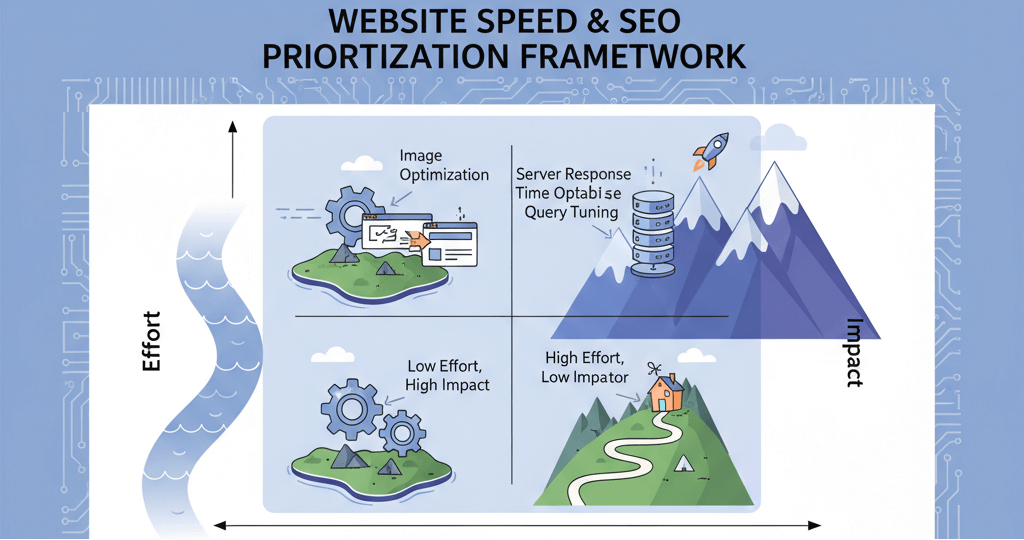
Speed vs. SEO: Prioritize Fixes That Give the Biggest Ranking Gains
A practical guide to prioritizing website speed fixes, using a framework to assess effort versus impact to improve both user experience and search rankings.
What Are Keywords and How Do I Find Them?
A beginner-friendly guide to understanding keywords and mastering basic keyword research. Learn about search intent and leverage free Google tools like search suggestions and "People also ask" to uncover what your customers are truly searching for.
Ready to get started?
Focus on your business while we fix your website. Contact WebCareSG today for fast, reliable solutions!
Whatsapp us on