You just finished a meeting with a potential customer. You send them your website link, excited to show off your business. Thirty seconds later, they're still staring at a loading spinner. They message you: "Sorry, your site took too long to load, I had to drop off." That customer is gone.
Page speed isn't just a technical metric. For Singapore small business owners, a slow website directly costs you leads, sales, and credibility. Google research shows that a one-second delay in mobile page load times can reduce conversions by up to 20%. If your site takes more than 3 seconds to load, you're likely losing half your potential customers before they even see your content.
The good news? You don't need to be a developer to make a real difference. Here are the practical steps to speed up your website in about 10 minutes.
## Why Page Speed Matters for Your Singapore Business
Every second your page takes to load costs you money. Research consistently shows that visitors abandon sites that are slow, and search engines like Google penalize slow sites by ranking them lower in search results. For local Singapore businesses competing for attention online, a fast site gives you a real competitive advantage.
## Step 1: Run a Free Speed Check First
Before you change anything, you need to know where you're starting from. Don't guess — use a free tool to measure your actual load time.
**Why:** You can't improve what you don't measure. A speed test tells you exactly what's slow and gives you a baseline to compare against after you make changes.
**How:** Go to [PageSpeed Insights](https://pagespeed.web.dev/) and enter your website URL. Google will give you a score out of 100 for both mobile and desktop, plus specific recommendations. Aim for a score above 50 as a minimum — above 80 is good.
## Step 2: Compress Your Images
Images are usually the biggest cause of slow load times on business websites. High-resolution photos look great but can be megabytes in size, which kills your load speed.
**Why:** A single uncompressed image can be larger than your entire page's HTML and code combined. Browser caching helps repeat visitors, but first-time visitors and Googlebot see the full weight.
**How:** Resize your images to a maximum width of 1200 pixels for web use. Save them as JPG or WebP format (not PNG unless you need transparency). Use a free tool like [Squoosh](https://squoosh.app/) to compress images before uploading them to your site. Aim to keep each image under 200KB.
If you're on WordPress, install a plugin like ShortPixel or Imagify — it compresses all your existing images automatically with one click.
## Step 3: Enable Browser Caching
When someone visits your website, their browser downloads all the files it needs to display the page. Browser caching tells their browser to keep a copy of those files locally so they don't have to download everything again on their next visit.
**Why:** Caching can reduce load times for repeat visitors by 50% or more. It's one of the highest-impact changes you can make, and most website owners forget about it entirely.
**How:** If you're on WordPress, install a caching plugin like LiteSpeed Cache or W3 Total Cache. If you're on a hosted platform like Shopify or Wix, caching is usually built in — check your settings panel to confirm it's enabled. For custom hosting, ask your web host to enable "Expires headers" on the server.
## Step 4: Minimize Unnecessary Plugins and Apps
More plugins means more code your browser has to download and run. Many Singapore business owners install plugins for features they stopped using years ago.
**Why:** Each active plugin adds JavaScript and CSS files to your page. Even inactive plugins can slow things down. Removing clutter is the fastest way to reduce your page's overall weight.
**How:** Go through your installed plugins or apps and ask yourself: "Would I notice if this was gone?" If the answer is no, deactivate and delete it. Aim to keep fewer than 15 active plugins total. Before deleting any plugin, check out our guide on [updating plugins safely to avoid breaking your site](https://webcare.sg/guide/updating-plugins-safely-avoid-breaking-your-site/).
## Step 5: Use a Content Delivery Network (CDN)
A CDN stores copies of your website files on servers around the world. When someone in Singapore visits your site, the CDN serves them from the nearest server instead of waiting for your main server to respond.
**Why:** Distance matters for load speed. If your web host's server is in Europe, every Singapore visitor is waiting for data to travel halfway around the world. A CDN eliminates that delay.
**How:** Many WordPress hosting providers include a CDN automatically. If yours doesn't, you can add Cloudflare's free CDN to your domain in about 15 minutes. Your web host can help you set this up.
## Step 6: Check Your Hosting Plan
If you've tried everything above and your site is still slow, your web hosting plan might be the bottleneck. Shared hosting plans (where your site shares a server with hundreds of others) are the most common cause of slow load times for small business websites.
**Why:** Shared servers mean you're competing with many other websites for the same resources. When another site on your server gets a traffic spike, your site slows down too. Upgrading your hosting is often the single biggest speed improvement you can make.
**How:** Check your hosting control panel to see what plan you're on. If you're on a basic shared plan and your site loads slowly, consider upgrading to a cloud VPS or managed WordPress hosting plan. Our post on [understanding Core Web Vitals and their impact on SEO](https://webcare.sg/guide/understanding-core-web-vitals-impact-seo/) explains how hosting quality directly affects your search rankings.
## Quick Wins Summary
Here's a recap of the fastest changes you can make right now: compress your images, enable browser caching, deactivate unused plugins, and check if your hosting plan is holding you back. Each of these takes under 10 minutes and can meaningfully reduce your load time.
Once you've made these changes, run another speed test on [PageSpeed Insights](https://pagespeed.web.dev/) to see your new score. Share the before and after with your team — it's motivating to see the improvement.
Still having trouble? You can [contact us](https://webcare.sg/contact-us/) and we'll help you figure out what's slowing your site down.
How to Speed Up Your Singapore Business Website in 10 Minutes
A slow website costs Singapore businesses customers and leads. This guide shows you 6 practical steps to speed up your site in 10 minutes, from compressing images to enabling browser caching.

Related WebCare Solutions

AI is Here: 5 Ways to Use Artificial Intelligence on Your Website Today
Artificial Intelligence is revolutionizing online businesses. Discover 5 simple, actionable ways to integrate AI into your website today—from 24/7 chatbots and content creation to personalized user experiences, AI-driven SEO, and unique image generation—focusing on free or low-cost tools.

AI Tools for Website Maintenance: Automation That Saves Hours
Discover how Singapore business owners can use AI automation tools to handle website maintenance tasks, saving time and reducing technical stress.
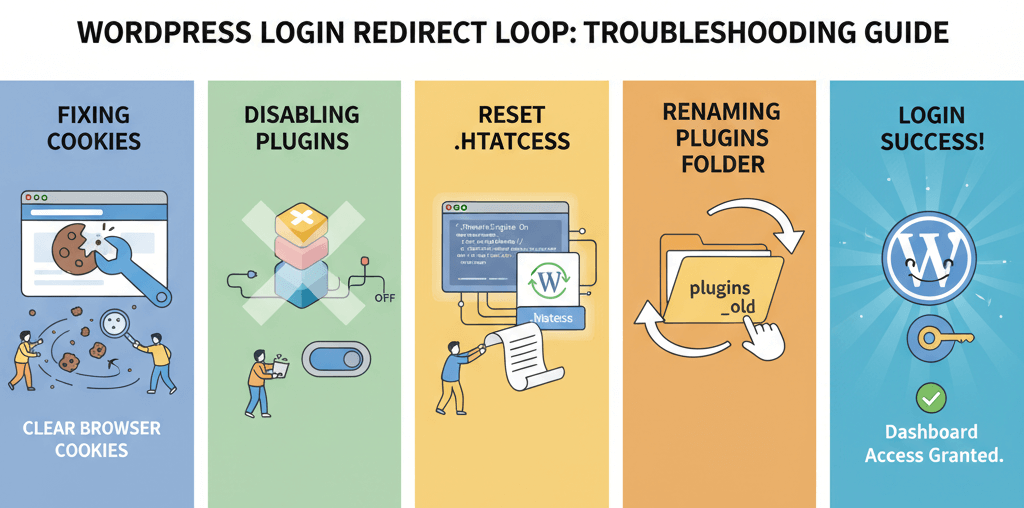
Unable to Login to wp-admin: Fix Login Page Redirect Loops
A practical guide to diagnosing and fixing WordPress login page redirect loops by clearing cookies, disabling plugins, resetting .htaccess, and inspecting for common culprits.
Ready to get started?
Focus on your business while we fix your website. Contact WebCareSG today for fast, reliable solutions!
Whatsapp us on