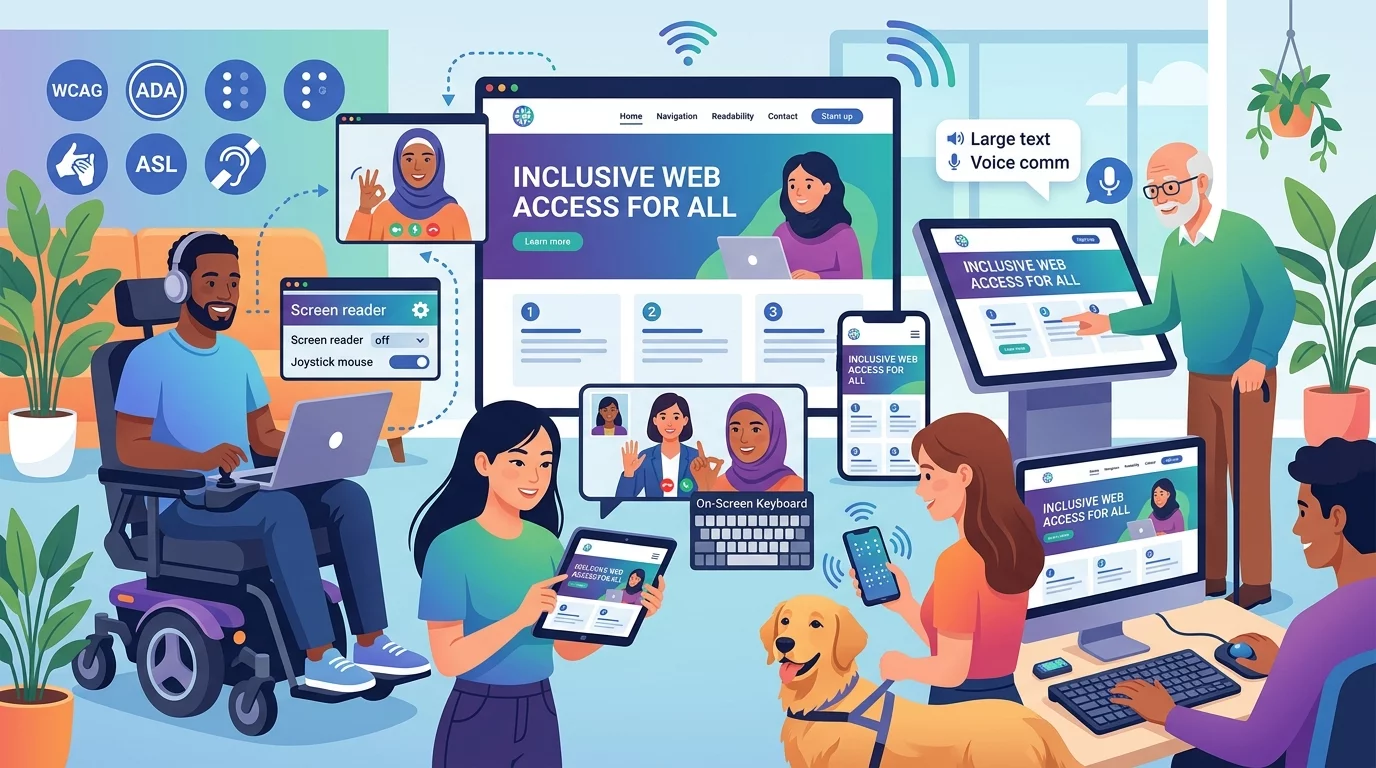
Imagine trying to order from your own website but the buttons are too small to tap, the text is impossible to read, and the checkout process only works with a mouse. For millions of people with disabilities, this is their daily experience on the web. As a Singapore business owner, making your website accessible is not just the right thing to do — it is quickly becoming a legal obligation and a competitive advantage.
The World Wide Web Consortium (W3C) recently published WCAG 3.0, the latest version of the international guidelines for web accessibility. This guide explains what changed, what it means for your business website, and the concrete steps you can take starting today to make your site work for everyone.
Step 1: Understand What WCAG 3.0 Means for Your Website
Web Content Accessibility Guidelines (WCAG) are the internationally recognised standards for making websites accessible. The original WCAG 1.0 came out in 1999, followed by WCAG 2.0 in 2008 and WCAG 2.1 in 2018. WCAG 3.0, published in 2023 and evolving through 2026, is the most significant overhaul of these guidelines to date.
Unlike previous versions which focused heavily on technical checkpoints, WCAG 3.0 introduces a new accessibility measurement system called ATOM (Accessible Testing and Optimization Method). Rather than just checking if specific features are present, ATOM evaluates how well a website actually works for people with disabilities across different contexts.
Key changes in WCAG 3.0 include:
- Wider scope — Covers mobile apps, e-commerce flows, and interactive content more thoroughly than previous versions.
- Outcome-based evaluation — Tests whether users can actually complete tasks rather than just whether certain code patterns exist.
- New conformance model — Instead of pass/fail on hundreds of individual checkpoints, websites receive an overall score from Bronze to Platinum.
For Singapore businesses, the most important thing to know is that the baseline still rests on WCAG 2.1 Level AA compliance — this is what accessibility regulations worldwide reference. WCAG 3.0 is the direction of travel.
Step 2: Check If Your Current Website Has Accessibility Problems
Before you can fix accessibility issues, you need to know what problems exist. There are several free tools Singapore business owners can use right now to audit their website:
- Google Chrome's Lighthouse — Open any page on your website, right-click, select Inspect, go to the Lighthouse tab, and click Generate Report. Look specifically at the Accessibility score and the specific failures listed.
- WAVE Web Accessibility Evaluation Tool — Visit wave.webaim.org and enter your website URL. This tool visually highlights accessibility issues directly on your page.
- axe DevTools — A browser extension from Deque Systems that provides detailed, developer-grade accessibility reports with clear guidance on how to fix each issue.
- WebAIM's Contrast Checker — Use this to verify your text colours meet the minimum contrast ratio of 4.5:1 against their background.
Run these checks on your homepage, at least two product or service pages, and your contact or checkout page. Document the results so you have a baseline to measure progress against.
Step 3: Fix the Most Common Accessibility Issues
Most accessibility failures fall into a handful of categories. Fixing these will get you a long way toward WCAG 2.1 Level AA compliance:
3.1 Add Alt Text to Every Image
Alt text is a written description of an image that screen readers read aloud to visually impaired visitors. Every image on your website needs descriptive alt text. This includes logos, icons, infographics, and product photos.
To add alt text in WordPress, click on any image in the media library or block editor and look for the Alt Text field in the sidebar. In Wix, select an image, click Settings, and enter your description in the Accessibility section.
For images that are purely decorative — such as a background texture or a divider — use an empty alt attribute (alt="") so screen readers skip over them.
3.2 Ensure Your Text Has Enough Contrast
Text that is too light against its background is one of the most common accessibility failures. A simple rule: your body text needs at least a 4.5:1 contrast ratio between the text colour and background colour. Large text (18px or 14px bold) needs at least 3:1.
Use WebAIM's Contrast Checker to test your current colour combinations. If your contrast is failing, darken your text colour or lighten your background. This also improves readability for all visitors regardless of ability.
3.3 Make Your Navigation Keyboard Accessible
Many visitors with motor disabilities cannot use a mouse and rely entirely on their keyboard to navigate websites. Your site needs to be fully usable with only the Tab, Shift+Tab, Enter, and arrow keys.
Test it now: Press Tab on your homepage. Can you reach every link and button? Press Enter to activate items. Can you close popups with Escape? Can you move through menus with arrow keys? If any of these feel difficult or impossible, that is an accessibility problem.
Common fixes include adding visible focus indicators (a clear outline when an element is selected) and ensuring all interactive elements are reachable and activatable via keyboard alone.
3.4 Use Proper Heading Structure
Screen reader users often navigate pages by jumping between headings. If your headings are out of order — such as jumping from H1 to H3 without an H2 — the page structure becomes confusing. Always use headings in sequential order: H1 for the page title, H2 for major sections, H3 for subsections within those sections.
In your page editor, the first heading you use should be H2 (since your page title is already the H1). Never skip heading levels and never use headings purely for visual styling.
Step 4: Make Your Forms Accessible
E-commerce websites and service sites in Singapore rely heavily on forms — for bookings, enquiries, checkout, and newsletter signups. Accessible forms are critical for all users.
Every form field needs:
- A visible label — Never rely on placeholder text as your only label. Placeholders disappear when users start typing, leaving them unsure what they are filling in.
- Clear error messages — When a form field has an error, tell the user exactly what went wrong and how to fix it. Messages like "Invalid input" are not helpful.
- Logical tab order — Users should be able to tab through form fields in a logical sequence.
In WordPress contact form plugins like WPForms or Contact Form 7, each field automatically gets a label if you configure it correctly. Always double-check your form renders correctly with labels visible, not just placeholder text.
Step 5: Check Responsiveness for Mobile Users
Singapore has one of the highest mobile internet usage rates in the world. Many accessibility issues become much worse on mobile devices. Before publishing any page, test it on your phone:
- Can you tap all buttons and links easily without accidentally hitting the wrong one?
- Does the text resize properly when you pinch to zoom?
- Can you complete key tasks like making a booking or filling a contact form?
WCAG 2.1 Level AA requires that content is reflowable without horizontal scrolling at 400% zoom. On a desktop browser, zoom in to 400% and check whether you need to scroll sideways to read content.
Step 6: Add Language and Region Metadata
Singapore's bilingual context makes this especially important. If your website serves both English and Chinese-speaking visitors, declare the language of each page so screen readers use the correct pronunciation engine.
In your website's HTML, the lang attribute on the html tag should specify the page language. For example, lang="en" for English pages or lang="zh" for Chinese pages. If a section of your page switches language — such as a Chinese phrase in an otherwise English article — use the lang attribute on that specific span to signal the change.
Search engines also use language declarations to serve the right content to the right audiences in search results.
Step 7: Plan for Ongoing Accessibility Maintenance
Accessibility is not a one-time fix. Every time you add new content, publish a new page, or update your design, you risk introducing new accessibility problems. Build accessibility into your regular website workflow:
- Add an accessibility check to your publishing checklist — Before any new page goes live, verify alt text, heading structure, and form labels are in place.
- Include accessibility in your brief to any designer or developer — Make WCAG 2.1 Level AA compliance a requirement, not an afterthought.
- Schedule quarterly accessibility audits — Run Lighthouse or WAVE on your key pages every three months to catch new issues.
- Ask users with disabilities for feedback — If possible, include an accessibility feedback form on your website so visitors can report problems directly.
Web accessibility ultimately comes down to one question: can every visitor who lands on your website complete the task they came to do? If the answer is no, you are leaving potential customers behind. The good news is that most accessibility issues are straightforward to fix once you know what to look for. Start with the seven steps above and work through them methodically — your visitors will thank you for it.