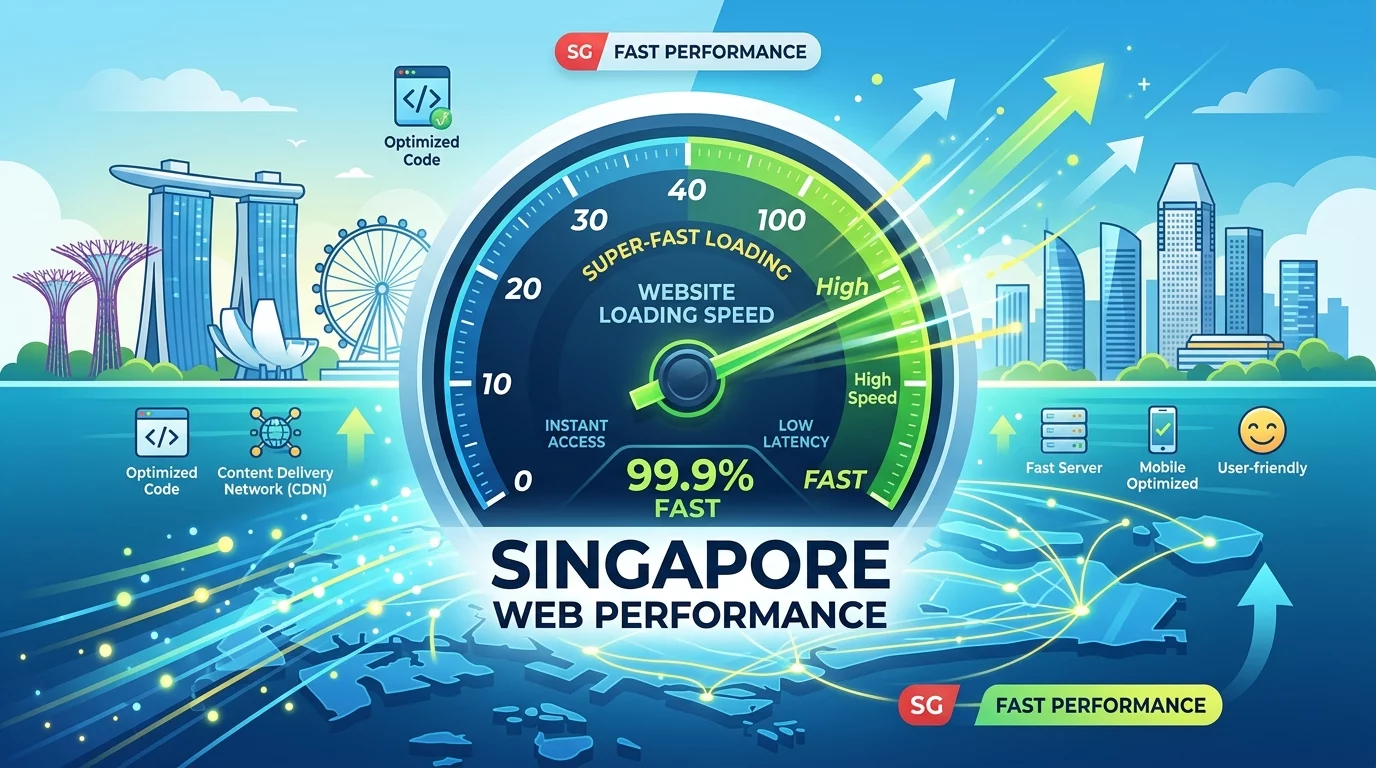
When was the last time you waited more than 5 seconds for a webpage to load? You probably left and went to a faster competitor. Your customers do the same thing. A study by Google found that 53% of mobile users leave a page if it takes more than 3 seconds to load. In Singapore, where mobile browsing dominates, a slow website is a customer loss machine.
The good news: speeding up your website is not as hard as it sounds. Most slow websites have the same common problems, and fixing them doesn't require a technical degree.
Why Website Speed Matters for Your Singapore Business
Every second of delay costs you money. Amazon found that every 100 milliseconds of delay reduces revenue by 1%. For a Singapore online store making $10,000 a month, a 2-second slowdown could mean losing $700 every month in sales. Beyond sales, Google also uses site speed as a ranking factor — slower websites appear lower in search results, meaning you get less organic traffic from Google.
Step 1: Test Your Current Website Speed
Before you fix anything, measure where you are. Go to Google PageSpeed Insights (just search for it in Google) and enter your website URL. Google will give you a speed score from 0 to 100, and a list of specific problems dragging your site down. Take a screenshot of the before state so you can compare later. Aim for a score of 90 or above. If you are below 50, don't panic — we will fix it step by step.
Step 2: Compress and Resize Your Images
Images are the number one cause of slow websites. Full-resolution photos from a camera can be 5 to 10 megabytes each. That's massive for a web page that should load in under 3 seconds. Resize your images before uploading: open your image in any photo editor (even Paint on Windows works), and reduce the dimensions to match your website's content width. If your website is 800 pixels wide, your images should be 1600 pixels wide at most (for sharp display on retina screens). Then use TinyPNG.com (it's free) to compress the image file size by up to 80% without visible quality loss. Do this for every image on your website and you might cut your load time in half.
Step 3: Remove Unnecessary Plugins and Extensions
Each plugin on your website adds code that must be loaded by your visitor's browser. More plugins = slower website. Go through your installed plugins and ask: do I really need this? If you haven't used a plugin in 6 months, you probably don't need it. Common unnecessary plugins include: plugin bundles you never use, social media sharing plugins (most themes have this built-in), and caching plugins if your host already provides built-in caching. Deactivate and delete plugins you don't need. This alone can improve load speed significantly.
Step 4: Enable Browser Caching
When someone visits your website, their browser downloads files (images, code, styles) to display the page. Browser caching tells their browser to keep a copy of these files locally so the next time they visit, the page loads almost instantly instead of downloading everything again. If your website uses WordPress, install a plugin like W3 Total Cache or WP Super Cache — these enable browser caching with one click. If your website is hosted on a platform like Wix or Squarespace, caching is usually automatic — you don't need to do anything.
Step 5: Minify Your Website Code
Your website's HTML, CSS, and JavaScript files contain spaces, comments, and extra code that makes them readable for developers but unnecessary for browsers. Minification removes all the extra characters without changing what the code does. If you use WordPress, the Autoptimize plugin handles this automatically. If you use a website builder, the platform usually does this automatically. If you have a custom-coded website, ask your developer to enable minification — it should take them less than 30 minutes.
Step 6: Use a Content Delivery Network (CDN)
A CDN stores copies of your website's files on servers around the world. When a visitor in Singapore loads your website, the CDN serves files from a Singapore server instead of your origin server in another country. This significantly reduces loading time for your local visitors. Cloudflare offers a free CDN plan that works for most small business websites. Setup takes about 15 minutes — you change your domain's nameservers to point to Cloudflare, and they handle the rest automatically.
Step 7: Upgrade Your Web Hosting if Needed
If you have tried all the steps above and your website is still slow, your web host might be the problem. Cheap shared hosting (where your website shares a server with thousands of other websites) is fine for a brand new site, but as your business grows, you need better resources. Look for hosting that offers: SSD storage (faster than traditional hard drives), at least 2GB RAM, server locations in Singapore or Asia Pacific, and HTTP/2 protocol support. Good Singapore hosting options include: SiteGround Singapore, Exabytes, and A2 Hosting. Expect to pay around $20 to $50 per month for a properly configured business website hosting.
How to Check if Your Fixes Worked
After making changes, go back to Google PageSpeed Insights and test again. Compare the score and load time to your before screenshot. If your score went up by 10 or more points, you are on the right track. Keep testing and refining until you hit 90 or above. Also test on your own phone — open your website, clear the browser cache, and time how long it takes to fully load. This real-world test is more important than any tool.
Common Speed Mistakes Singapore Websites Make
Uploading originals directly from phone: Photos taken on an iPhone can be 4000 pixels wide and 4MB each. Always resize before uploading to your website.
Too many tracking scripts: Facebook Pixel, Google Analytics, Hotjar, AdSense, chat widgets — each one slows your site. Keep only the tracking tools you actually check and use.
Not using lazy loading: Lazy loading means images only load when the visitor scrolls down to them. This dramatically speeds up initial page load. Most modern website builders enable this automatically.
Summary
Website speed is one of the highest-ROI improvements you can make. The 7 steps to speed up your site: test your current speed, compress images, remove unused plugins, enable browser caching, minify code, use a CDN, and upgrade hosting if needed. Most of these steps are free and take less than 30 minutes each. After implementing these fixes, expect your Google PageSpeed score to improve significantly and your visitors to stay longer on your site.
If you have tried these steps and still can't get your website speed where it needs to be, WebCareSG offers website speed optimization services. We diagnose and fix performance issues for Singapore business websites, often achieving dramatic improvements in load times and visitor retention.