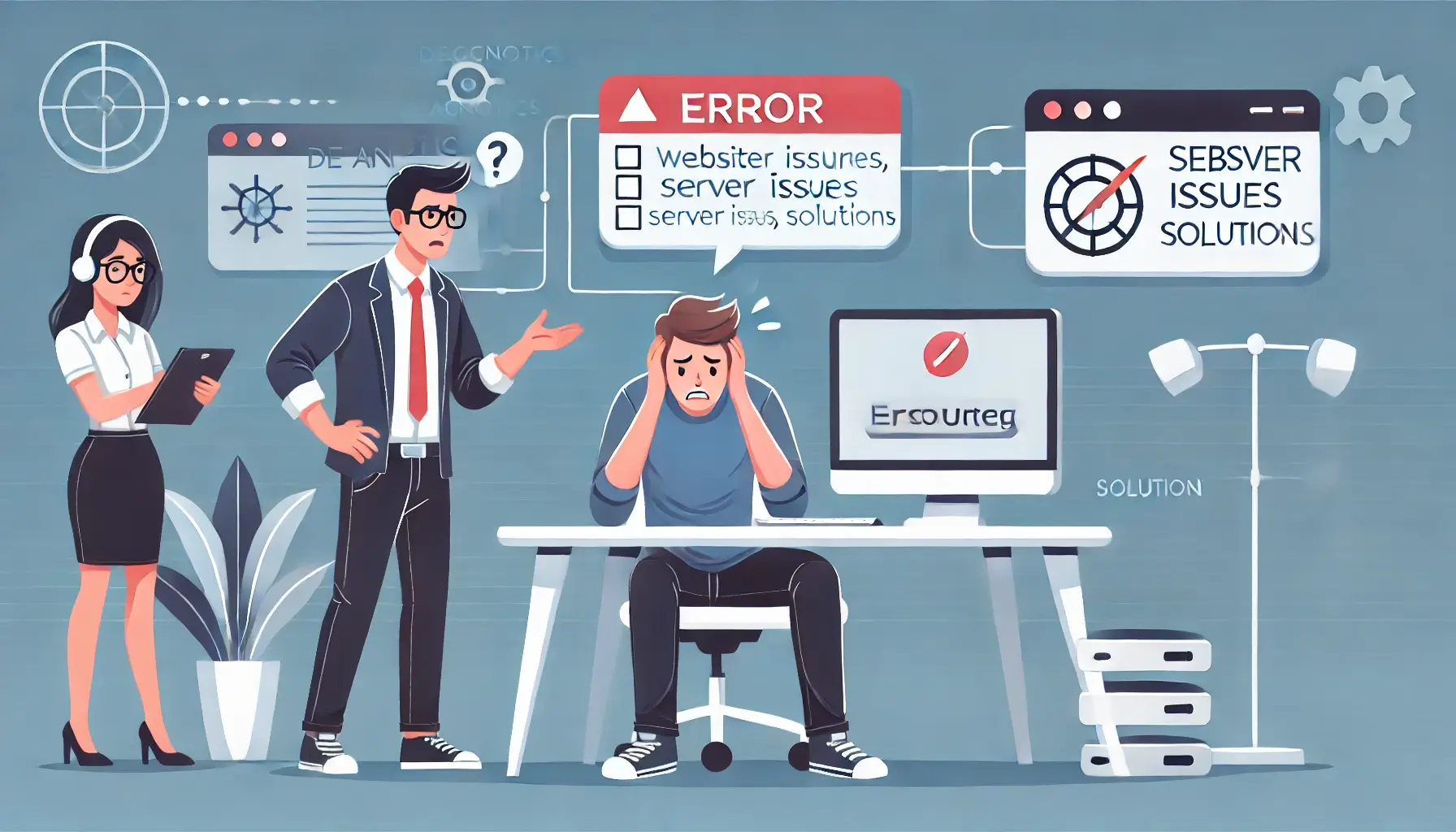
There's nothing more frustrating than a website that refuses to cooperate. Whether it's a critical business site or a personal blog, a non-functional website can disrupt your online presence and frustrate your visitors. If you've tried the usual fixes and your website is still not working, it's time to delve deeper. This guide provides a comprehensive checklist to help you troubleshoot common website issues before seeking professional help.
Step-by-Step Guide: Troubleshooting Checklist
1. Check Your Internet Connection
Before diving into complex troubleshooting, start with the basics. Ensure your internet connection is stable and working correctly. Try accessing other websites to rule out connectivity issues. If other sites are loading fine, the problem likely lies with your website.
2. Clear Browser Cache and Cookies
Sometimes, outdated cached data or corrupted cookies can interfere with website functionality. Clearing your browser cache and cookies can often resolve these issues. Here’s how:
- Chrome: Go to Settings > Privacy and security > Clear browsing data.
- Firefox: Go to Options > Privacy & Security > Clear Data.
- Safari: Go to Preferences > Privacy > Manage Website Data.
Select the appropriate time range and data types (cache and cookies) and clear them.
3. Try a Different Browser
Browser compatibility issues can cause websites to malfunction. Try accessing your website using a different browser (e.g., Chrome, Firefox, Safari, Edge). If the website works in another browser, the problem may be specific to your primary browser.
4. Disable Browser Extensions
Browser extensions can sometimes interfere with website functionality. Try disabling all extensions and then re-accessing your website. If the website works, re-enable extensions one by one to identify the culprit.
5. Check Your Website’s Status
Use online tools like Down for Everyone or Just Me (downforeveryoneorjustme.com) or Is It Down Right Now? (isitdownrightnow.com) to check if your website is down for everyone or just you. This will help you determine if the issue is server-related.
6. Review Server Logs
If you have access to your server logs, review them for any error messages. Common errors like 500 Internal Server Error or 404 Not Found can provide valuable clues about the problem.
7. Check DNS Settings
Incorrect DNS settings can prevent your website from loading. Ensure your domain’s DNS records are correctly configured with your hosting provider. You can use online tools like DNS Checker (dnschecker.org) to verify DNS propagation.
8. Examine Plugins and Themes
If you’re using a CMS like WordPress, outdated or incompatible plugins and themes can cause website issues. Try deactivating plugins one by one to identify the problematic one. Switch to a default theme to rule out theme-related problems.
9. Check Database Connectivity
For dynamic websites, database connectivity issues can lead to errors. Ensure your database server is running and that your website’s database credentials are correct.
10. Review Recent Changes
If the website suddenly stopped working, consider any recent changes made to the website, such as code modifications, updates, or new installations. Revert these changes to see if they resolve the issue.
When to Call the Experts
If you’ve completed these troubleshooting steps and your website is still not working, it’s time to seek professional help. Complex issues like server errors, database corruption, or security breaches may require specialized expertise. Here are situations where you should contact a website maintenance professional:
- Persistent server errors.
- Database connectivity problems.
- Security breaches or malware infections.
- Complex coding or scripting issues.
- Lack of technical expertise to resolve the problem.
If you’re still having trouble, don’t worry! WebCare SG is here to help. Contact us today for fast and reliable website fixes.