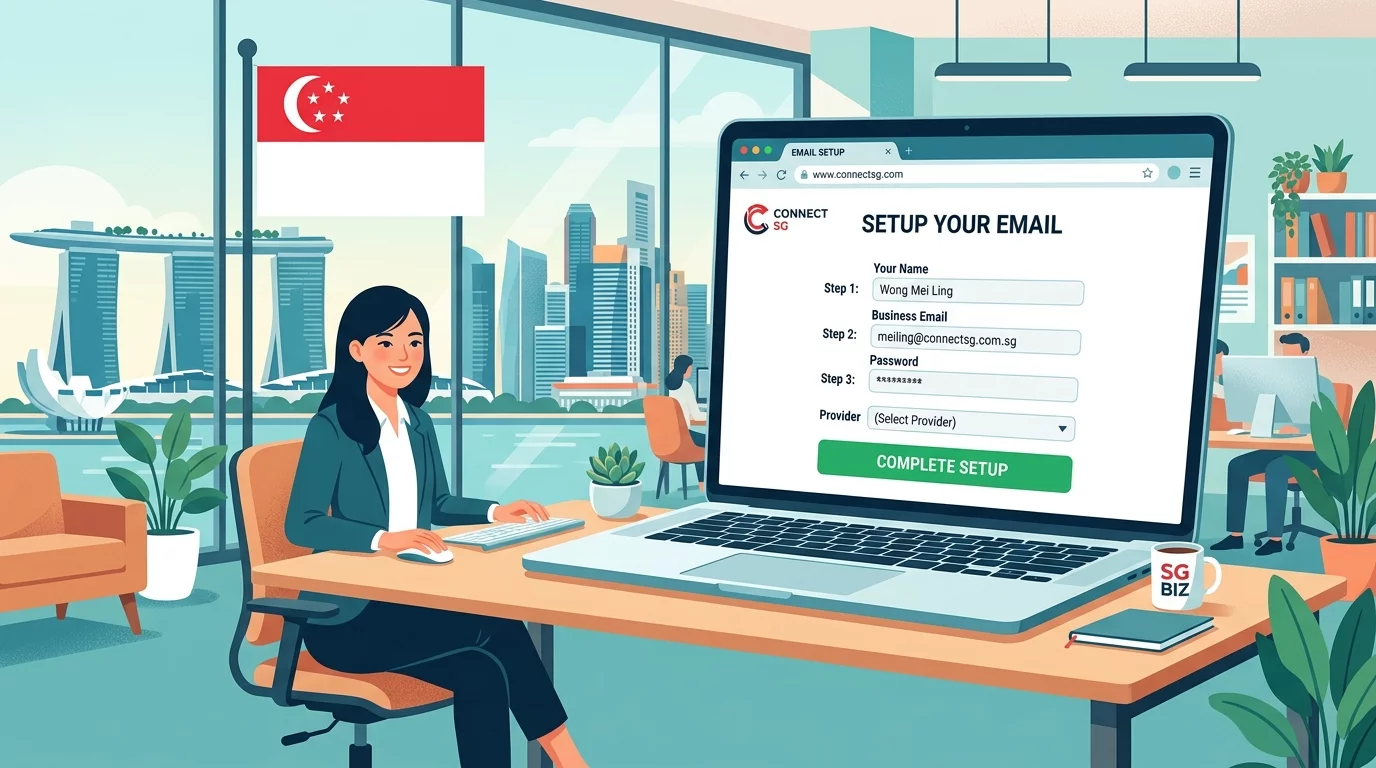
If you've ever filled out a contact form on a website only to hear nothing back, you know how frustrating it can be — for you and your customers. This is one of the most common website problems Singapore business owners face, and the good news is: you can often fix it yourself without calling a developer.
How Email Forms Work on Websites
When someone submits your contact form, the message doesn't just appear in your inbox by magic. Behind the scenes, several things need to happen in the right order. Your web server has to receive the form data, process it, and then hand it off to an email service to deliver it to your inbox. If any one of these steps breaks, your emails disappear.
Step 1: Check If Your Web Server Can Send Email
The first thing to check is whether your web server is configured to send emails at all. Many basic hosting plans (especially shared hosting) have email sending disabled or restricted. This is often done to prevent spam, but it can break your contact form too.
How to check: Log into your web hosting control panel and look for an email settings section. Try sending a test email from there. If it fails, your server may be blocking outgoing email.
Why it matters: Even if your contact form plugin is configured correctly, it can't send emails if the server won't let it.
Step 2: Verify Your Email Provider Settings
Most contact forms need a proper SMTP (Simple Mail Transfer Protocol) setup to send emails reliably. SMTP is like the postal service for the internet — it makes sure your message gets delivered to the right inbox.
What to check:
- Is your sender email address (the "From" address) actually existing and active?
- Are you using the correct SMTP port? The standard ports are 587 (for TLS) or 465 (for SSL).
- If you're using Gmail or Microsoft 365 as your email provider, does your form plugin support OAuth authentication? Plain password authentication may be blocked by these providers for security reasons.
Why it matters: Major email providers like Gmail and Outlook have tightened their security. A contact form using old-style SMTP authentication may suddenly stop working.
Step 3: Check Your Spam Folder
This sounds obvious, but it's the most overlooked step. Form submission emails frequently end up in spam — especially if your website domain doesn't have proper SPF, DKIM, and DMARC records set up.
How to check: Look through your spam folder for emails from your own website's domain name. If you find them there, that's actually a good sign — it means the emails ARE being sent, just not delivered to the right place.
Why it matters: If emails are going to spam, your customers might think you're ignoring them, when really the email never reached your inbox at all.
Step 4: Set Up Email Authentication Records
To prove to email providers that your website is allowed to send emails from your domain, you need three DNS records: SPF, DKIM, and DMARC. Think of them like ID checks at a building lobby — they prove you're legitimate.
How to set them up:
-
SPF Record: Add a TXT record to your domain DNS that lists which mail servers are allowed to send email for your domain.
-
DKIM Record: This adds a digital signature to your emails. You'll need to generate a key from your email provider and add it as a TXT record.
-
DMARC Record: This tells email providers what to do if an email fails authentication checks.
Why it matters: Without these records, major email providers like Gmail and Outlook will either block your emails or dump them straight into spam — even if everything else is configured correctly.
Step 5: Test Your Contact Form End-to-End
Once you've checked all the above, do a real test. Submit a message through your own contact form using a different email address than the one you expect to receive replies at. This mimics exactly what a customer would experience.
What to test:
- Does the form show a success message after submission?
- Did the email arrive in your inbox (not spam)?
- Does the sender's email address show up correctly?
Why it matters: Many contact form plugins show a success message even when the underlying email fails silently. A real end-to-end test is the only way to know for sure.
Still Having Trouble?
If you've gone through all these steps and your contact form still isn't working, you can
contact us for professional help. Sometimes the issue lies deeper — in your hosting configuration or in plugin conflicts — and that's exactly what we're here for.
Summary: A broken contact form usually comes down to one of these: server email restrictions, incorrect SMTP settings, emails landing in spam, or missing email authentication records. Work through each step systematically, and test at every stage. Most issues can be resolved without a developer — but if you hit a wall, you know where to find us.