Why Your Website Shows 'Not Secure' — And How to Fix It Fast
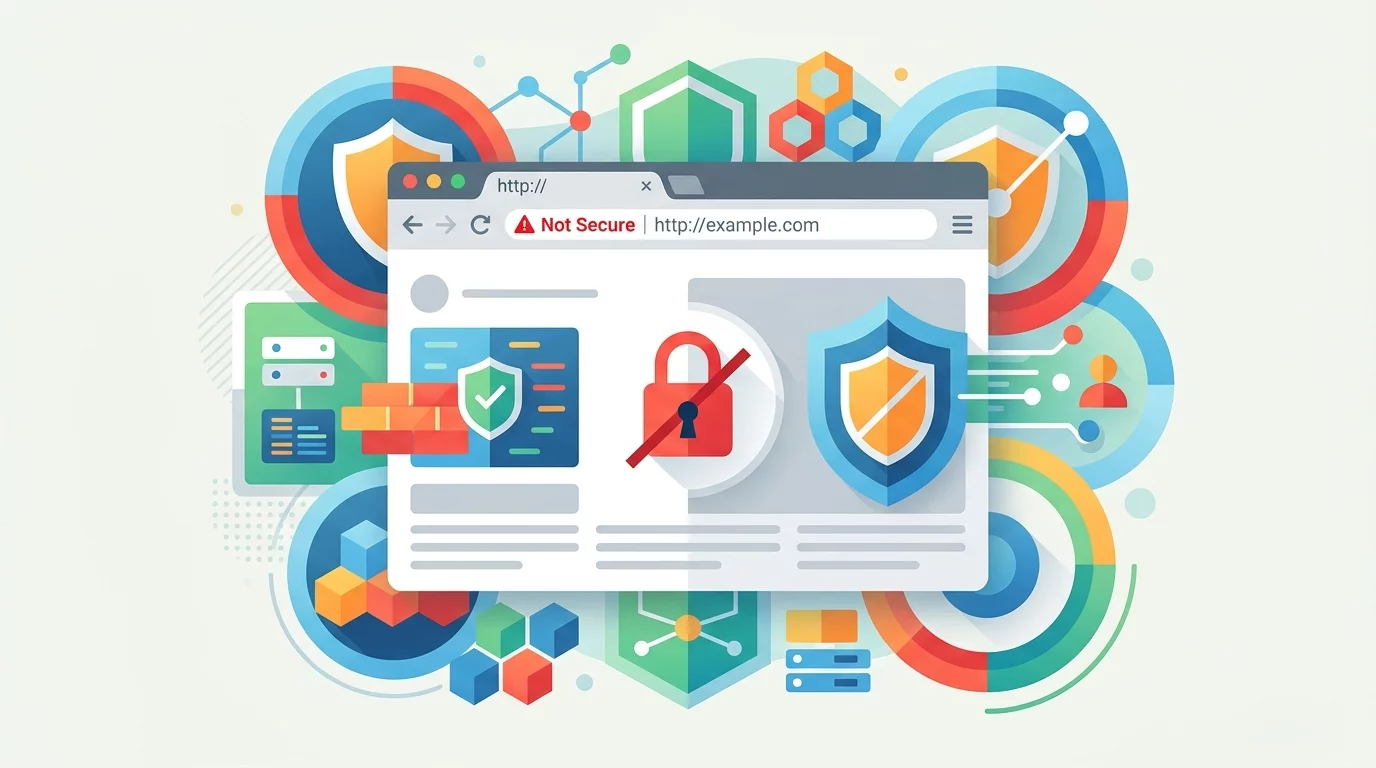
You open your browser, type in your business website, and there it is — a big red warning that says "Not Secure" next to your URL. Your heart sinks. What does this mean? Can customers still visit? Will they leave immediately? And why is this happening now when everything was fine last week?
If you run a small business in Singapore and you've spotted this warning, you're not alone. Many .sg website owners wake up to find their SSL certificate has expired, or discover that their hosting provider's free certificate wasn't renewed automatically. The good news: this is fixable, and you can do it yourself with the right guidance.
What Is the "Not Secure" Warning?
When your browser labels your site "Not Secure," it means your website is not using an SSL/TLS certificate to encrypt the connection between your server and your visitor's browser. SSL (Secure Sockets Layer) is the standard technology that creates an encrypted link — the padlock icon you see in the address bar of secure sites.
Without this encryption, any data transmitted between your site and your visitors — including names, emails, passwords, and payment information — can be intercepted by third parties. This is why browsers show the warning: they're protecting users from sending personal data over an unencrypted connection.
The warning typically appears in Google Chrome when a site has either no SSL certificate at all, or has an expired, self-signed, or misconfigured certificate. The visual cue is a padlock with a red strike-through, or the word "Not secure" in grey or red before your URL. Firefox, Safari, and Edge all show similar warnings.
For your Singapore business, this is more than a technical hiccup — it's directly affecting whether potential customers trust your site enough to fill out a contact form, sign up for your newsletter, or make a purchase.
Why Does Your Website Lose Its SSL Certificate?
There are several common reasons why your site suddenly shows "Not Secure," especially for small business websites in Singapore running on WordPress or similar platforms:
1. Certificate Expiry: Most SSL certificates are valid for one to two years. If your certificate expires and isn't renewed automatically by your hosting provider, visitors will immediately see the warning. Many budget hosting plans in Singapore don't include auto-renewal for SSL — you have to renew manually.
2. Mismatched Domain: If you recently changed your domain name or set up a staging version of your site, the SSL certificate may not cover the new domain. The certificate is tied to a specific domain, so any mismatch triggers browser warnings.
3. Mixed Content Issues: Even with a valid SSL certificate, if your site loads some resources (like images, scripts, or stylesheets) over plain HTTP instead of HTTPS, browsers will still show a warning. This is called "mixed content" and it's more common than you might think.
4. Hosting Changes: Switching web hosts or server configurations can break your SSL setup. If your new server doesn't have the SSL certificate properly installed, the warning will appear even if your certificate is technically still valid.
5. Free Certificates Not Renewed: Many Singapore hosting providers offer free SSL through Let's Encrypt, which automatically renews. But if your hosting plan has expired or you've moved providers, the auto-renewal stops and your certificate lapses.
Step-by-Step: How to Fix the "Not Secure" Warning
Step 1: Check Your Current Certificate Status
Before doing anything else, you need to understand what's wrong. Visit SSL Labs SSL Test and enter your domain name (e.g., yourbusiness.sg). This free tool will tell you whether you have a certificate, whether it's expired, and whether there are configuration problems. It gives a clear A through F grade so you know exactly where you stand.
If you're using Chrome, you can also click on the padlock icon in the address bar, select "Connection is secure," then "Certificate is valid" to see when your certificate expires. Make a note of the expiry date — this tells you how urgently you need to act.
Step 2: Log Into Your Hosting Control Panel
For most Singapore small business websites — whether hosted on Exabytes, Hostinger, SiteGround, or any other provider — your SSL certificate is managed through your hosting control panel (cPanel, Plesk, or a custom dashboard). Log in using the credentials your web host provided when you first set up your site.
Look for a section called "SSL/TLS," "Security," or "Certificates." The exact wording varies by host, but it's usually clearly labeled. If you can't find it, contact your host's support team — most Singapore-based hosts have live chat support in English and can guide you in minutes.
Step 3: Install or Renew Your SSL Certificate
If your certificate has expired, you'll need to renew it. Many hosts allow you to do this with one click through their control panel's "AutoSSL" or "Let's Encrypt" feature. Here's how:
In cPanel, go to SSL/TLS Status and look for domains showing "Expiring Soon" or "Expired." Click "Run AutoSSL" to have the system automatically issue and install a fresh certificate. This process usually takes 1-2 minutes and doesn't cause any downtime.
If your host doesn't offer AutoSSL, you'll need to generate a Certificate Signing Request (CSR) from your control panel, submit it to your SSL provider, and then install the certificate files they send back. The process sounds technical but most hosting dashboards walk you through it step by step.
For business owners using WordPress, another quick option is to install a plugin like Really Simple SSL. Once activated, it detects your certificate and forces your site to load over HTTPS. It also attempts to fix mixed content issues automatically, which saves you from having to update every image and script URL manually.
Step 4: Fix Mixed Content Issues
Even after installing a valid SSL certificate, if your site loads HTTP resources (images, videos, external scripts), browsers will still show a warning. This is called a mixed content error and it's one of the most common reasons the "Not Secure" message persists after you think you've fixed everything.
In WordPress, the Really Simple SSL plugin handles most mixed content fixes automatically. If you're not using WordPress, you'll need to manually update your site configuration. In your HTML files, change any references from http:// to https:// for all resources. This includes image tags, video embeds, stylesheet links, and JavaScript files.
For database-driven sites (like WordPress), you can run a find-and-replace on your database using a tool like phpMyAdmin, which is available in most hosting control panels. Search for http://yourdomain.sg and replace with https://yourdomain.sg. Make sure you back up your database before doing this.
If you're using external resources like Google Fonts, jQuery from CDN, or embed codes from YouTube, check that they're loaded over HTTPS. Most major services support HTTPS, but some older embed codes may still use HTTP.
Step 5: Force HTTPS Across Your Entire Site
Once your SSL certificate is installed and mixed content is resolved, you need to ensure every page on your site loads over HTTPS by default. This prevents visitors from accidentally accessing the unencrypted version.
If your site runs on Apache (common on shared hosting in Singapore), add these lines to your .htaccess file in your site's root directory:
RewriteEngine On
RewriteCond %{HTTPS} off
RewriteRule ^(.*)$ https://%{HTTP_HOST}%{REQUEST_URI} [L,R=301]
If you're on Nginx, add this to your server block configuration:
return 301 https://$host$request_uri;This ensures that anyone typing http://yourbusiness.sg is automatically redirected to https://yourbusiness.sg. The 301 redirect also tells search engines that your HTTPS version is the permanent, preferred version — which is important for maintaining your Google search rankings.
Step 6: Verify the Fix in Multiple Browsers
After completing these steps, test your site in several browsers and devices. Open Chrome, Firefox, Safari, and Edge. Try accessing your site from a mobile phone as well, since some SSL issues only appear on specific browsers or operating systems.
Check that the padlock icon appears in the address bar with no warnings. Click the padlock and confirm the certificate details — it should show your domain name, the certificate issuer, and a valid expiry date in the future. Tools like Why No Padlock? can help you quickly identify any remaining insecure elements on your pages.
For Singapore businesses with Google Business Profiles, make sure to update your website URL in Google My Business if you changed from HTTP to HTTPS — this ensures customers clicking through from Google Maps see the secure version of your site.
What This Means for Your Singapore Business
A valid SSL certificate does more than remove a red warning. Since 2014, Google has confirmed that HTTPS is a ranking signal in their algorithm. For Singapore businesses competing for local search visibility — especially for searches like "digital marketing agency Singapore" or "best bakery in Jurong" — having HTTPS can give you a slight edge over competitors still running on plain HTTP.
Beyond SEO, there's the trust factor. Singaporean consumers are increasingly savvy about online security. When they see the padlock icon, they know their data is protected. When they see "Not Secure," many will leave immediately — often within seconds. According to research, up to 85% of people will avoid submitting information to an unsecured site, and nearly 70% will not complete a purchase on one.
This is especially critical if you run an e-commerce store, accept bookings through your website, or collect customer enquiries. A single SSL expiry could cost you bookings during a busy holiday period — and your website being marked "Not Secure" during a Chinese New Year sales push could mean thousands in lost revenue.
How to Stop This Happening Again
The last thing any small business owner needs is an unexpected SSL expiry causing chaos. Here's how to put safeguards in place:
Set a calendar reminder 30 days before your certificate expires. Most hosts send renewal reminders, but don't rely solely on that. Add your own reminder so you have time to act even if the email goes to spam.
Choose a host with AutoSSL enabled. When comparing Singapore web hosts, check that they include automatic SSL renewal as part of their standard plans. Major providers like SiteGround, Exabytes, and Hostinger all include this, but it's worth confirming before you sign up.
Use a monitoring service. Free tools like UptimeRobot can be configured to alert you via email when your SSL certificate is approaching expiry. Some services also check daily and notify you 30, 14, and 7 days before expiry.
Document your hosting credentials. Keep a record of where you bought your domain, who your host is, and how to access your control panel. Many SSL emergencies become more complicated when business owners can't quickly log into their hosting account to renew the certificate.
When to Call in the Professionals
While the steps above are manageable for most small business owners, there are situations where professional help is genuinely worth it. If your site has complex mixed content issues spanning hundreds of pages, if you've experienced a security breach that's triggered the warning, or if your hosting provider's support can't resolve the issue quickly — that's the time to reach out to specialists.
Struggling with ongoing security warnings, certificate errors that keep coming back, or a site that's been flagged by Google as dangerous? These are exactly the kinds of problems the WebCareSG team handles every day for Singapore small businesses. Whether your SSL issue stems from an expired certificate on your .sg domain, a misconfigured hosting setup, or deeper security concerns like PHP exploits and vulnerabilities, we diagnose and fix it fast — so your business doesn't lose another visitor to a red warning screen.
Don't let an unsecured website cost you customers. Get in touch with WebCareSG today and we'll have your site showing the padlock again, properly secured, and ready to build trust with every visitor.
Related WebCare Solutions
How to Use Social Proof to Double Your Website Conversions
A deep dive into the psychology of social proof—including testimonials, case studies, and trust signals—and how to technically integrate them to skyrocket your conversion rates.
Preparing Your Site for AI Agents and Structured Data
Master advanced schema markup and semantic HTML to ensure your content is perfectly interpreted and recommended by AI search agents and generative engines.
Is Your Website Getting Lost in the Crowd? Fixing Poor SEO Optimization for Better Visibility!
If potential customers can't find you on Google, they will find your competitors instead. Learn the practical SEO steps every Singapore small business owner can do today to improve their Google ranking.
Ready to get started?
Focus on your business while we fix your website. Contact WebCareSG today for fast, reliable solutions!
Whatsapp us on