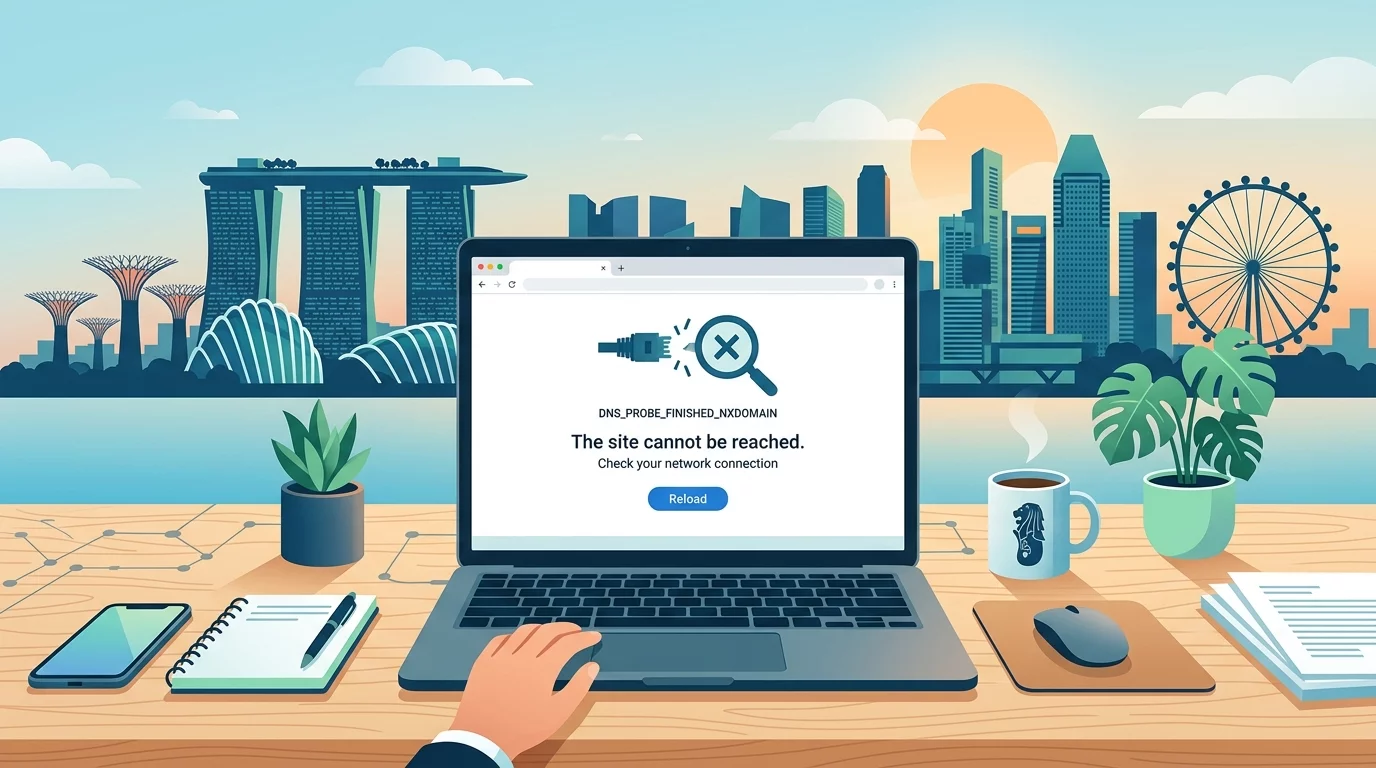
You just launched a new campaign. Potential customers are clicking your ads, clicking your social media links, typing in your URL directly—but nothing happens. The page just spins and spins, or worse, shows an error. You check your phone, your laptop, even your colleague's computer. Everyone gets the same result. After an anxious hour, you discover the culprit: a DNS misconfiguration that kept your domain pointing to the wrong server.
This scenario plays out across Singapore small businesses every week. According to industry data, DNS misconfiguration is responsible for approximately 15% of all website downtime issues reported by small business owners. And unlike a slow website or a broken plugin, DNS problems often feel completely mysterious—you're left wondering why your site works on some devices but not others, or why it worked yesterday but not today.
What is DNS and Why Does It Matter for Singapore Websites?
DNS stands for Domain Name System—think of it as the internet's phone book. When someone types in your domain name like yourbusiness.sg, DNS servers translate that human-readable address into a numeric IP address that computers use to communicate. For example, yourdomain.com might point to server IP 103.21.244.52. Without this translation, browsers would have no idea where to send visitors.
DNS propagation—the time it takes for DNS changes to spread across global servers—can take anywhere from a few minutes to 48 hours. During this window, different users might see different versions of your site, or no site at all. This creates confusion for your customers and lost revenue for your business.
Why DNS Issues Matter for Singapore Businesses
Singapore has one of the most connected populations in Southeast Asia, with internet penetration exceeding 90%. Your customers expect websites to load instantly, and research consistently shows that even a 2-second delay in page loading can increase bounce rates by over 30%. When DNS issues strike, you're not just dealing with a technical problem—you're potentially losing customers who assume your business is unreliable.
For Singapore businesses relying on e-commerce, booking systems, or lead generation forms, DNS downtime can be catastrophic. A 2019 survey by GoDaddy found that 83% of Singapore small business owners reported losing revenue due to website downtime, with DNS issues accounting for a significant portion of those incidents.
Step 1: Verify the DNS Issue Is Actually Your Problem
Before diving into DNS settings, confirm the issue isn't on the user's end. Ask affected customers to open their command prompt (Windows) or Terminal (Mac) and ping your domain. If they receive replies showing your server's IP address, the problem may be local caching or ISP-related. If they get errors like "Request timed out" or "Host not found," the DNS issue likely originates from your domain's configuration.
Another quick check: have them try accessing your site through a different network. If it loads on mobile data but not on their office WiFi, the problem is almost certainly local to their network provider—possibly a DNS resolver issue on their end. In this case, advise them to flush their local DNS cache or switch to a public DNS service like Google's 8.8.8.8.
If multiple networks and devices consistently fail to load your site, it's time to examine your DNS settings directly.
Step 2: Check Your Domain Registrar's DNS Settings
Log into your domain registrar's control panel—the company where you purchased your domain. Popular registrars used by Singapore businesses include GoDaddy, Namecheap, Hover, and regional providers like IP Mirror and Exabytes.
Once logged in, locate the DNS management or zone file section. Look for these critical records:
- A Records: Point your domain to your server's IP address. Example: yourdomain.com → 203.116.42.98
- CNAME Records: Create aliases for subdomains. Example: www.yourdomain.com → yourdomain.com
- MX Records: Direct email to your mail server's address
- TXT Records: Verify domain ownership and configure security features like SPF and DKIM
Common errors include accidental deletion of A records, typos in IP addresses (easy to do when you're manually entering numbers), or mismatched CNAME records causing redirect loops. If you recently switched hosting providers, your A record likely needs updating to point to your new server's IP address. For guidance on verifying your domain's current DNS status, check out our guide on identifying and resolving DNS configuration issues.
Step 3: Understand TTL Settings and Their Impact
Every DNS record has a Time To Live (TTL) value, measured in seconds. This tells other servers how long to cache that record before requesting fresh information. Standard TTL values range from 300 seconds (5 minutes) to 86400 seconds (24 hours).
When making DNS changes, always check your current TTL settings first. If your A record has a 24-hour TTL and you change it to point to a new server, some users will be directed to your old server for up to 24 hours after the change. Before making critical DNS updates, lower your TTL to 300 seconds 24-48 hours in advance. This ensures your changes propagate relatively quickly, and once everything stabilizes, you can raise the TTL again to reduce future lookup load.
Many Singapore business owners overlook this step, leading to extended periods of inconsistent site access after what should have been a simple DNS update.
Step 4: Diagnose with Online DNS Lookup Tools
Online tools can provide a clearer picture of how your domain is configured globally. Dig (using tools like Google Toolbox or WhatsMyDNS) queries DNS servers worldwide and shows what they currently report for your domain.
Run a lookup for your domain's A record and compare results across multiple global locations. If some locations show your old IP while others show your new IP, DNS propagation is still underway. If all locations show an unexpected IP, either someone else has control of your domain, or you've misconfigured your registrar settings.
For more complex diagnostics, use tools like MXToolbox which offers lookup capabilities for all major DNS record types, plus specialized checks for blacklists, SMTP issues, and DNS health scores.
Step 5: Check for DNSSEC Configuration Issues
DNSSEC (DNS Security Extensions) adds cryptographic signatures to your DNS records, ensuring visitors connect to your actual server and not an imposter. While DNSSEC improves security, misconfigured signatures can cause complete DNS resolution failures.
If your registrar offers DNSSEC and you've enabled it, verify that the DS record published in your domain matches what your DNS provider outputs. A single character difference in these cryptographic keys renders the entire validation chain broken. Some Singapore hosting providers like Vodien and SmarterMail include DNSSEC management in their control panels—take advantage of these built-in diagnostic tools if available.
If you're uncertain about DNSSEC setup, it's often safer to disable it temporarily during troubleshooting, then re-enable once everything works correctly. Your website's security benefits from DNSSEC, but only if properly configured.
Step 6: Examine Your Nameserver Configuration
Your domain's nameservers are the servers responsible for answering DNS queries about your domain. You can check your current nameservers using a WHOIS lookup tool. If your domain is registered through a different company than your DNS host, verify that the registrar's nameserver delegation matches your DNS provider's servers.
For example, if you use Cloudflare for DNS management (which many Singapore businesses do for performance and security), your domain registrar should list Cloudflare's nameservers (typically something like kate.ns.cloudflare.com and will.ns.cloudflare.com). If the registrar still points to your old hosting company's nameservers, DNS queries will never reach Cloudflare's infrastructure.
Changing nameservers requires extra caution—any errors mean your domain effectively disappears from the internet until corrected. If you're not comfortable making these changes yourself, contact your registrar's support team or engage a professional. For troubleshooting broader hosting and server connectivity issues, our guide on what to do when your web server goes down offers additional context.
Step 7: Clear Local Caches and Test Thoroughly
After making any DNS changes, clear your browser's DNS cache. On Windows, open Command Prompt and type: ipconfig /flushdns. On Mac, use the Terminal command: sudo dscacheutil -flushcache; sudo killall -HUP mDNSResponder.
Test your site from multiple devices and networks. Use at least three different internet connections—your office broadband, a mobile hotspot, and a public WiFi network at a cafe in Orchard or Raffles Place. Try incognito or private browsing modes to avoid cached page artifacts misleading your testing.
Document all testing results with timestamps. If your site loads on Singtel but not on StarHub, or works on mobile data but not on MyRepublic fiber, this pattern helps narrow down whether the issue is with your DNS configuration or specific ISP routing.
Step 8: Set Up Monitoring to Catch Future Issues
Once your DNS configuration is stable, implement ongoing monitoring to catch problems before they impact customers. Free tools like UptimeRobot and Pingdom can periodically check your site from multiple global locations and alert you via email or SMS when your site becomes unreachable.
For more comprehensive monitoring including DNS record tracking, consider paid services like DNSPerf or cloud-based solutions from AWS Route 53 or Cloudflare. These platforms maintain historical records of your DNS configuration, making troubleshooting much easier when issues arise.
Set up your monitoring to check every 1-2 minutes from at least 5-10 global locations. When alerts arrive, reference the pattern—sudden changes suggest accidental modification, while gradual degradation might indicate a propagation issue or nameserver problems. For a complete list of website maintenance tasks that should be part of your regular routine, our 5 must-do monthly website maintenance tasks guide covers DNS monitoring as one critical component.
If after all these steps you still can't fix the problem, or if the issue is too technical for you to handle alone, contact WebCare Singapore. Our team specialises in helping Singapore business owners resolve website issues quickly and affordably. Don't let a broken website cost you customers — reach out today and get your site back on track.