Imagine trying to navigate a shopping mall where every corridor looks identical, there are no signs, and the lift buttons have no labels. Frustrating, right? This is exactly what many disabled users experience when they visit websites that lack proper accessibility labels and landmarks. For Singapore business owners, ensuring your website is accessible is not just the right thing to do — it is also good business. The UN estimates that over 1 billion people worldwide live with some form of disability. In Singapore, that translates to roughly 400,000 people who may struggle to use your website if it is not properly labelled. Beyond the moral obligation, accessibility also affects your Google search rankings and can open your business to the legal risks of non-compliance with accessibility standards.
In this guide, you will learn exactly what ARIA labels and landmarks are, why they matter for your Singapore business website, and how even non-technical business owners can implement them step by step. We will keep things simple and practical, focusing on WordPress-based websites since most Singapore small businesses use them.
Understanding ARIA: What It Is and Why It Matters
ARIA stands for Accessible Rich Internet Applications. It is a set of special attributes you can add to your website code to help screen readers and other assistive technologies understand what different parts of your website do. Think of ARIA as adding braille labels and audio descriptions to your online store.
Screen readers are software programmes that read out loud what is displayed on a screen. They are used by blind and visually impaired users, as well as people with cognitive disabilities. When a screen reader encounters a button labelled "Click Here" with no context, it is meaningless. But when that same button has the ARIA label "Submit Order," the user knows exactly what will happen.
In Singapore, the government has been pushing for digital accessibility through the IMDA's assistive technology initiatives. While the law does not currently mandate private sector compliance, this is changing as the Online Safety Legislation and international standards influence local expectations. More importantly, as Singapore positions itself as a Smart Nation, users increasingly expect websites to work for everyone.
What Are ARIA Labels?
ARIA labels are text descriptions that you add to HTML elements so assistive technologies can communicate their purpose to users. There are three main types you need to know as a business owner:
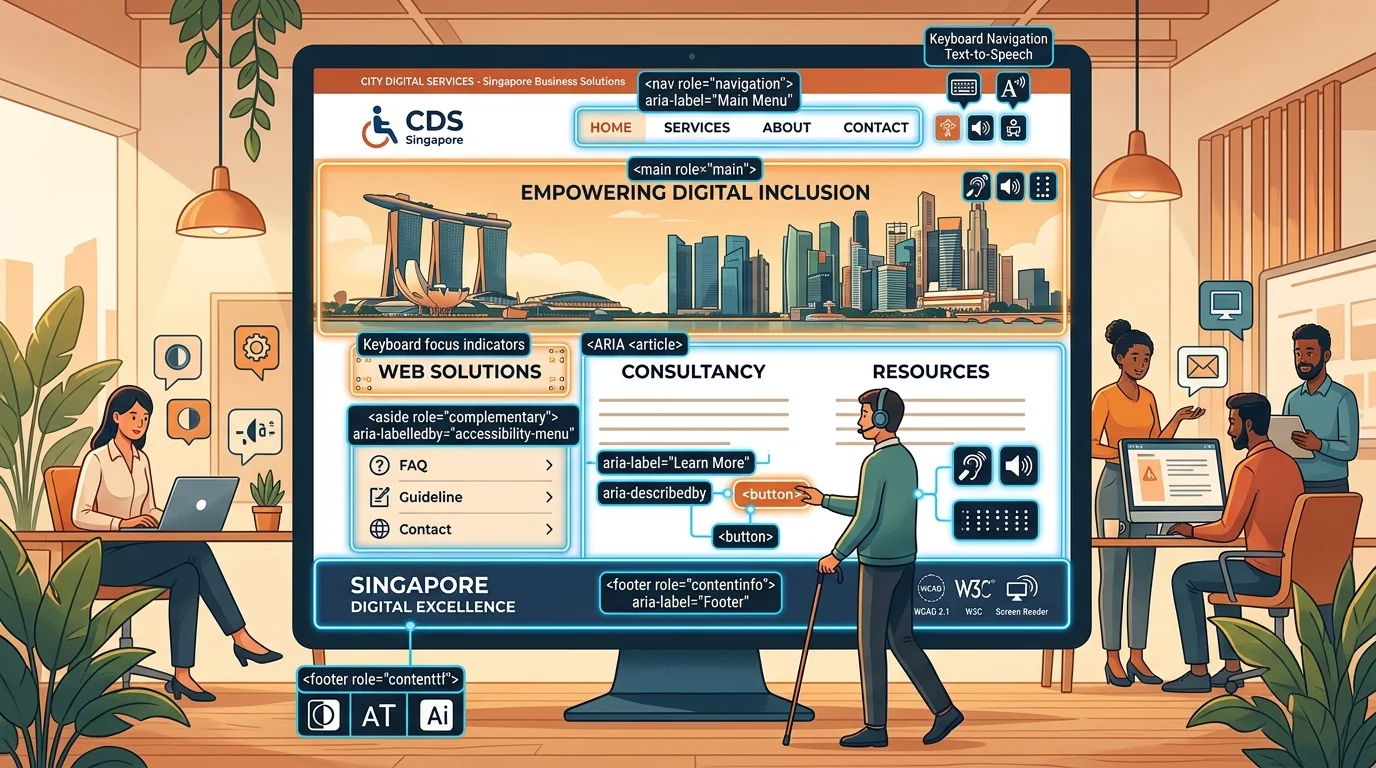
aria-label: This lets you write a text description directly on an element. For example, if you have a search icon button, you can add aria-label="Search" so screen readers announce it correctly.
aria-labelledby: This references another element on the page that contains the label. This is useful when you already have visible text that describes something and you want to link it programmatically.
aria-describedby: This provides additional description that users can access for more context. For example, a form field might have a label and then a longer explanation linked via aria-describedby.
What Are Landmarks?
Landmarks are special ARIA roles that identify major sections of your web page. They work like the floor directories in a shopping centre. Just as you expect to find "Level 1: Fashion," "Level 2: Electronics," landmark roles help users navigate between the main sections of your website without having to read through everything.
Common landmark roles include:
- banner: The header area with your logo and main navigation
- navigation: Your menu links
- main: The primary content area of your page
- complementary: Sidebars and supplementary content
- contentinfo: The footer with contact info and legal links
- search: Your search functionality
- form: Any form that users fill out
Modern websites often use semantic HTML5 elements like header, nav, main, aside, and footer, which automatically provide landmark information. However, older websites or custom-built themes may not have these properly implemented, creating accessibility gaps.
Step 1: Check If Your Website Needs ARIA Improvements
Before making any changes, you should understand your current accessibility situation. There are several free tools you can use from Singapore without any technical knowledge.
First, try the axe DevTools browser extension by Deque Systems. Install it on your Chrome browser, then visit your website. Click the axe icon and run a scan. It will list all accessibility issues, including missing ARIA labels and landmark problems. You will see each issue described in plain English, not code.
Second, try the WAVE Web Accessibility Evaluation Tool by WebAIM. This works similarly and provides visual feedback by placing icons directly on your web page showing where accessibility issues exist.
Third, try navigating your own website using only your keyboard. Press the Tab key repeatedly to move through interactive elements. Can you reach every button and link? Do you know where you are on the page at each step? If this is confusing for you, imagine how difficult it is for someone using a screen reader.
Document the issues you find so you can track your progress as you implement fixes.
Step 2: Add ARIA Labels to Your Buttons and Links
Buttons and links without clear labels are among the most common accessibility problems. Here is how to fix them in WordPress.
If you use a WordPress page builder like Elementor, you can edit button properties directly. Find the button widget, look for the Advanced or Style settings, and find the attribute fields. Add an ARIA label in the appropriate field. For example, a "Read More" button linking to a blog post about your bakery services could have aria-label="Read more about our Singapore bakery catering services."
If you use the classic WordPress editor or Gutenberg, you may need to work with your theme or plugin settings. Many modern WordPress themes have accessibility options in their customiser under Appearance, Customize. Look for Accessibility or a11y settings and enable landmark support.
For icon buttons that only display an icon, always add an aria-label. An icon button showing a magnifying glass should say aria-label="Search site" not just have an empty button.
Step 3: Label Your Form Fields Correctly
Forms are critical for Singapore business websites, whether for contact queries, quote requests, or e-commerce checkouts. Every form field must be properly labelled so screen reader users understand what information is needed.
In WordPress with a contact form plugin like WPForms or Contact Form 7, each form field has a label setting. Make sure every field has descriptive text. Instead of leaving a field labelled "Name," consider "Your Full Name as it appears on IC." This extra context helps users with cognitive disabilities and reduces errors in submissions.
For form fields that have placeholder text but no visible label, add aria-label to the input element. However, placeholder text alone is not sufficient because it disappears when users start typing and is often hard to read for users with low vision.
Use aria-describedby to link form fields to error messages. When a user makes a mistake, screen readers should announce what went wrong and how to fix it. In WPForms, you can enable this through the form's accessibility settings.
Step 4: Implement Proper Landmarks in Your Theme
Your WordPress theme should automatically include landmark regions if it follows modern coding standards. To check this, view your page source by pressing Ctrl+U on your keyboard. Look for the main structural elements like header, nav, main, aside, and footer.
If you see generic div tags everywhere instead of semantic elements like header and main, your theme may be outdated or poorly coded. In this case, you have two options: update to a theme that follows accessibility best practices, or hire a developer to add landmark roles.
For Singapore business owners using popular themes like Astra, GeneratePress, or Hello Elementor, you are generally in good shape as these themes are built with accessibility in mind. However, you should still verify by testing with the WAVE tool.
If you are using a custom theme or an older theme, you may need to add landmark roles manually. This involves editing your theme files, which is why many business owners prefer to use a managed WordPress solution or work with a Singapore-based web developer familiar with accessibility requirements.
Step 5: Add Skip Navigation Links
Skip links are invisible links that appear when keyboard users press Tab. They allow users to jump past repetitive navigation directly to the main content. Without skip links, a blind user must tab through every single menu item on every page before reaching the actual content.
To add skip links in WordPress, you can use a plugin like "One Click Accessibility" or "WP Accessibility." These plugins add skip link functionality automatically and are configurable from your WordPress dashboard.
If you prefer to add skip links manually, you can edit your theme's header.php file. The basic structure involves adding a link with href="#main-content" right after the body tag opens, styled to be visible only when focused. Most accessibility plugins handle this automatically.
Step 6: Test With Screen Readers
After making your changes, testing with actual screen reader software helps ensure everything works correctly. The two most popular screen readers for Windows are NVDA (free) and JAWS (paid). For Mac, VoiceOver is built in and free.
Try using NVDA, which is free to download and install. Press the NVDA key (usually the Insert key) plus the letter N to start the program. Navigate to your website and listen to how it reads the content. Does it announce headings in logical order? Are buttons and links described clearly? Does it announce form labels when you tab into each field?
Take notes on any confusing areas and refine your ARIA implementation accordingly.
Step 7: Ensure Images Have Proper Alt Text
While not strictly an ARIA label, alt text for images is fundamental to accessibility. Every image on your website needs descriptive alternative text that conveys its meaning to users who cannot see it.
In WordPress, click on any image in the media library or editor and fill in the Alt Text field. Avoid leaving alt text blank unless the image is purely decorative. A decorative image should have alt="" so screen readers skip it entirely.
For product images on e-commerce sites, describe what is in the image relevant to purchasing decisions. Instead of alt="photo," use alt="Red silk kebaya dress with pearl buttons, front view."
Common ARIA Mistakes to Avoid
While implementing ARIA, be careful not to create new problems. Some common mistakes include:
Using ARIA when semantic HTML would work better: If you can use a button element instead of a div with role="button," always choose the semantic option. Native HTML elements come with built-in accessibility support.
Labelling something incorrectly: An aria-label should accurately describe the element's purpose. Labelling a button with misleading text is worse than having no label at all.
Forgetting to update labels when content changes: If your search results update dynamically or your page content changes based on user actions, ensure your ARIA labels remain accurate.
Using role="presentation" incorrectly: This role removes the semantic meaning of an element. Only use it when you genuinely want an element to be ignored by assistive technologies.
Maintaining Accessibility Over Time
Accessibility is not a one-time fix. When you add new pages, products, or features to your website, you must ensure they also follow accessibility best practices. Train whoever manages your website content on basic accessibility principles. Make it part of your website maintenance checklist.
Consider setting up quarterly accessibility audits using the WAVE tool or axe DevTools. Check new forms, new page templates, and any custom code additions. Many issues can be caught early before they affect users.
Singapore's digital landscape is evolving rapidly, and accessibility awareness is growing. By making your website navigable for everyone, you are not just complying with best practices — you are genuinely helping members of our community access the services and information they need. Every improvement you make creates a more inclusive online experience for Singaporeans with disabilities, elderly users, and anyone else who benefits from clear, well-structured web content.
If you still need help, feel free to contact us at https://webcare.sg/contact for a free website health check.