Customizing Your Website Theme Without Coding Skills
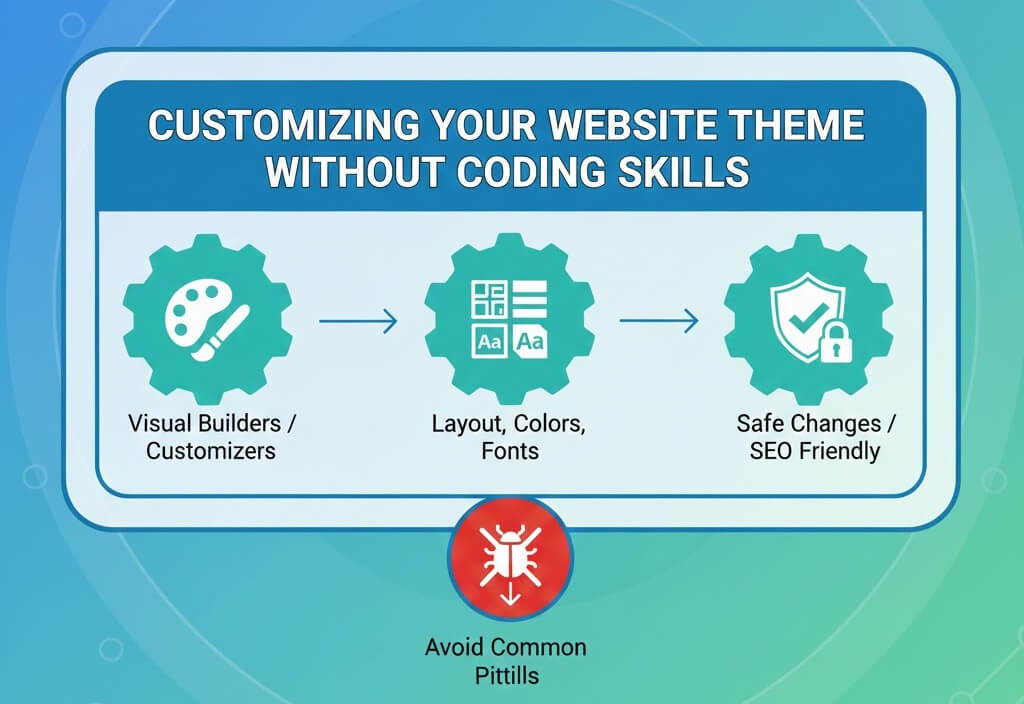
Making Your Website Your Own Without Code
Modern WordPress development has evolved to allow business owners to create stunning, unique layouts without ever touching a line of CSS or PHP. However, with great power comes the risk of slowing down your site or breaking its structure. Before making major design changes, you must ensure you have a recovery plan in place. Review the importance of backups for your website, as design experiments can sometimes lead to unexpected layout breaks.
Step 1: Using the Native WordPress Customizer
The safest way to start is with the built-in WordPress Customizer. It allows you to preview changes in real-time before they go live.
- Site Identity: Upload your logo and site icon (favicon). Ensure images are properly sized to maintain speed; check how to optimize website images without sacrificing quality.
- Colors and Typography: Most modern themes allow you to set global palettes. Stick to 2-3 colors and 2 fonts to maintain a professional look.
- Menus and Widgets: Organize your navigation clearly. If you change menu structures, be careful not to create 404 errors; see what is a 404 page and how to fix it.
Step 2: Leveraging Visual Page Builders
Tools like Elementor, Beaver Builder, or the Block Editor (Gutenberg) provide drag-and-drop functionality.
- Use Pre-built Templates: Instead of starting from scratch, use a professionally designed template and swap in your content.
- Responsive Editing: Always check the mobile and tablet views within the builder. If the layout looks broken, refer to how to fix poor mobile responsiveness.
- Avoid Elementor Bloat: Adding too many nested sections or animations can slow your site. This often leads to needing to reduce bounce rate by improving website speed later.
Step 3: Maintaining Site Performance and SEO
Design changes can unintentionally hurt your search engine rankings if they affect loading times or core vitals.
- Monitor Loading Times: After adding high-resolution images or complex modules, check your speed. Use our guide to speed up your site for optimization tips.
- SEO Settings: Ensure your builder isn''t stripping away H1 tags or Meta descriptions. If your rankings drop, check for fixing poor seo optimization.
- Internal Link Structure: Moving sections around might break links. Always identify fix broken internal links after a redesign.
Step 4: Safe Customization Pitfalls to Avoid
- Never Edit Core Theme Files: If you find a tutorial telling you to edit
style.css, use a Child Theme or the "Additional CSS" box instead. Otherwise, your changes will be wiped during the next update. This is why importance of regularly updating plugins and themes is a double-edged sword for DIYers. - Don''t Ignore Updates: Many builders require the latest WordPress version. Follow best practices for updating WordPress and plugins to keep your builder secure.
- Avoid Plugin Overload: Don''t install five different "Add-on" plugins for Elementor. This is a common cause for how to fix slow website performance.
When Design Changes Go Wrong
If you save a change and the site suddenly goes blank, you may be facing a fix wordpress white screen of death. This often happens due to memory limits or plugin conflicts. If you cannot undo the change, you will need to how to backup restore wordpress website to your previous state.
Customizing your site should be an exciting way to grow your brand. However, if you find that your design experiments are causing technical errors you can''t fix, WebCare SG is here to help. Contact us today for professional theme customization and troubleshooting.
Related WebCare Solutions
How to Fix the WordPress “Updating Failed” or “Publishing Failed” Error
Learn how to troubleshoot and resolve the “Updating Failed” or “Publishing Failed” errors in WordPress.
Turbocharge Your Website: 7 Simple Steps to Speed Up Your Site Today!
How do you turn that tortoise into a hare? Let’s dive into some effective strategies that will have your website zipping along in no time!
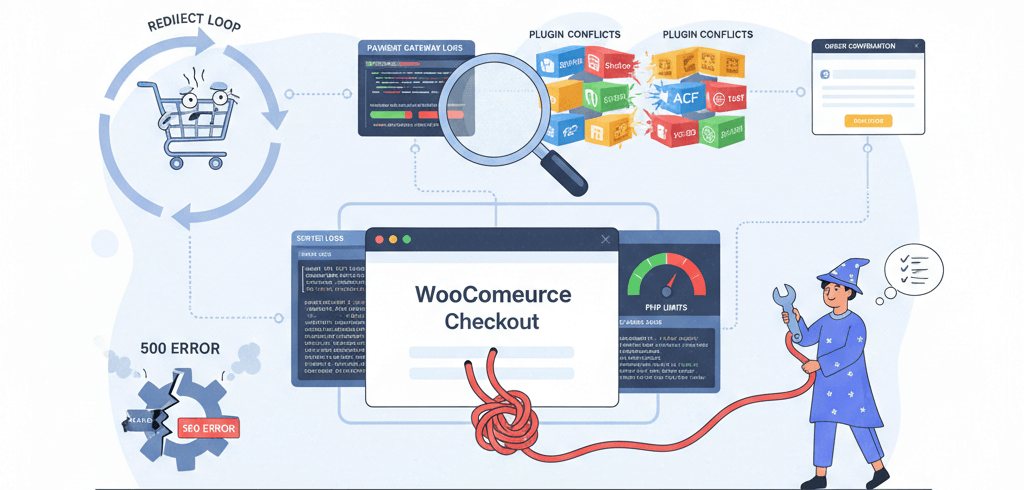
WooCommerce Checkout Errors: How to Fix Redirects and 500s on Purchase
A practical guide to troubleshooting and fixing WooCommerce checkout failures, including redirect loops and 500 errors, by checking payment gateway logs, plugin conflicts, and server error logs.
Ready to get started?
Focus on your business while we fix your website. Contact WebCareSG today for fast, reliable solutions!
Whatsapp us on