Fix a Blank Homepage (White Screen of Death)
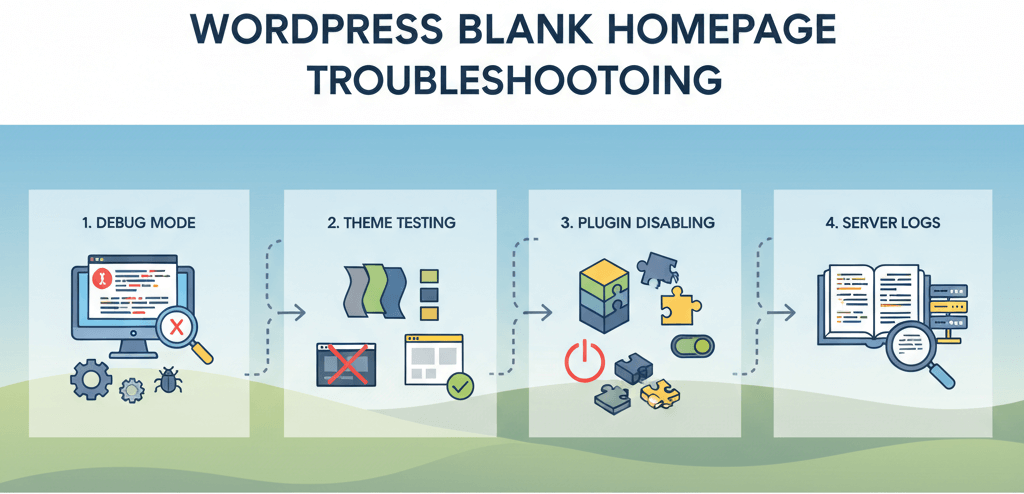
There are many ways a website can break, but none is quite as unnerving as the "White Screen of Death" (WSOD). You visit your homepage, expecting to see your vibrant, dynamic website, only to be greeted by a completely blank page. No error message, no code, just a frustrating emptiness. This common WordPress issue means your website’s code has crashed before it can even load, but it gives you no clue as to the cause. This guide will provide a practical, step-by-step troubleshooting checklist to help you quickly diagnose and fix the problem, restoring your homepage and getting your website back online. This is a crucial skill to have for any website owner and is a common website error to watch out for.
Step 1: Enable WordPress Debug Mode
The first step in fixing a blank homepage is to get an error message. By default, WordPress hides all errors from the public, but you can enable debug mode to display them. This can give you a clue as to which plugin or theme is causing the issue. This is a key part of your overall server maintenance checklist.
- Log in to cPanel or Your Hosting Dashboard: Use your hosting provider’s file manager to navigate to your website's root directory.
- Open the `wp-config.php` file: Find the
wp-config.phpfile and open it for editing. - Add the Debug Code: Find the line that says
define('WP_DEBUG', false);and changefalsetotrue. If that line doesn't exist, add the following code just above the line that says/* That's all, stop editing! Happy blogging. */:define('WP_DEBUG', true); define('WP_DEBUG_LOG', true); define('WP_DEBUG_DISPLAY', false);This code will log all errors to a file named
debug.loginside thewp-contentfolder and prevent them from being displayed on the front end of your website, which is a key part of troubleshooting website downtime. - Reload Your Website: Save the file and reload your homepage. If you see an error message, it will point you to the file and line of code that is causing the problem.
Step 2: Check Your Server Error Logs
Sometimes, enabling WordPress's debug mode isn't enough. Your server might have its own error logs that can provide more detailed information. This is especially helpful if your error is related to a server-side issue, like a memory limit or a fatal PHP error, which is a common cause of a blank page. For more on this, see our guide on troubleshooting a 500 Internal Server Error.
- How to Find Logs: Log in to your hosting dashboard (e.g., cPanel). Look for a section called "Logs," "Error Logs," or something similar.
- Review the Logs: Open the log file and look for a recent error that corresponds to the time you saw the blank screen. The error message will usually give you a hint as to the cause.
Step 3: The Plugin and Theme Conflict Test
If you don't get a clear error message from the first two steps, it’s almost certain that a plugin or theme is the culprit. The goal is to isolate the problem by disabling them one by one. If you have access to your WordPress dashboard, go to Plugins > Installed Plugins and start deactivating plugins one at a time, reloading your homepage after each deactivation to see if the problem is fixed.
If you are locked out of your dashboard, you can do this manually by using your file manager or an FTP client. This is a crucial technique you'll need to know if you're ever locked out of your site, similar to how you would recover lost admin access.
- Access Your Files: Go to your website's root directory and navigate to
/wp-content/. - Disable All Plugins: Rename the
pluginsfolder to something likeplugins-old. This will deactivate all your plugins. Reload your website. If it works, a plugin was the cause. You can then rename the folder back topluginsand reactivate them one by one to find the culprit. - Test a Default Theme: If your website is still blank after deactivating your plugins, your theme is likely the problem. Rename your current theme's folder in
/wp-content/themes/to something else (e.g.,mytheme-old). This will force WordPress to fall back to a default theme like Twenty Twenty-Three. If your website loads, your theme is the issue.
When to Call the Experts
While these steps will fix most blank homepage issues, some problems can be more complex. If you're dealing with a hacked website, a server-side configuration issue, or a fatal error that you can't decipher, it's time to call in a professional. An expert can use advanced tools to perform a deep-level diagnosis, identify malicious code, and safely restore your website. This is a clear example of a situation where DIY website fixes can make things worse and is one of the clearest 5 signs you need professional help to fix your website.
If you’re still having trouble, don’t worry! WebCare SG is here to help. Contact us today for fast and reliable website fixes.
Related WebCare Solutions
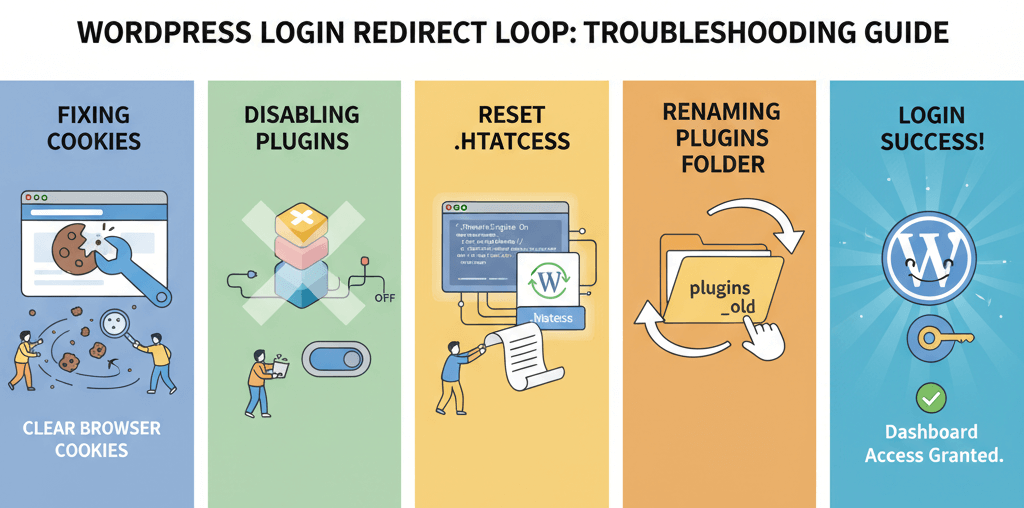
Unable to Login to wp-admin: Fix Login Page Redirect Loops
A practical guide to diagnosing and fixing WordPress login page redirect loops by clearing cookies, disabling plugins, resetting .htaccess, and inspecting for common culprits.
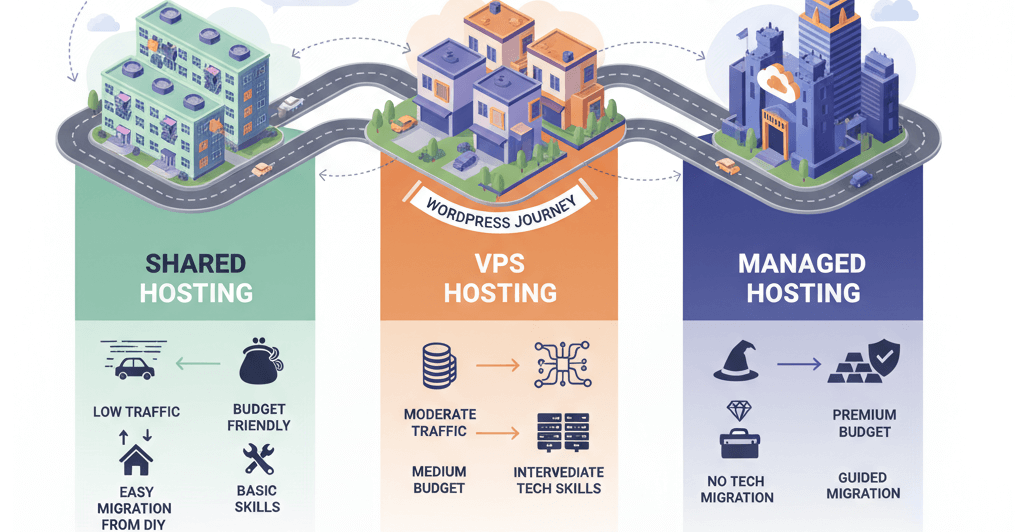
Choose the Right WordPress Hosting Plan: Shared vs VPS vs Managed
Practical guidance to match hosting types with site traffic, budget, and technical needs — plus migration tips.

The Future of Web Design: Trends to Watch in 2026
Discover the upcoming web design trends for 2026, including AI-driven personalization, immersive 3D elements, and the evolution of user-centric micro-interactions.
Ready to get started?
Focus on your business while we fix your website. Contact WebCareSG today for fast, reliable solutions!
Whatsapp us on