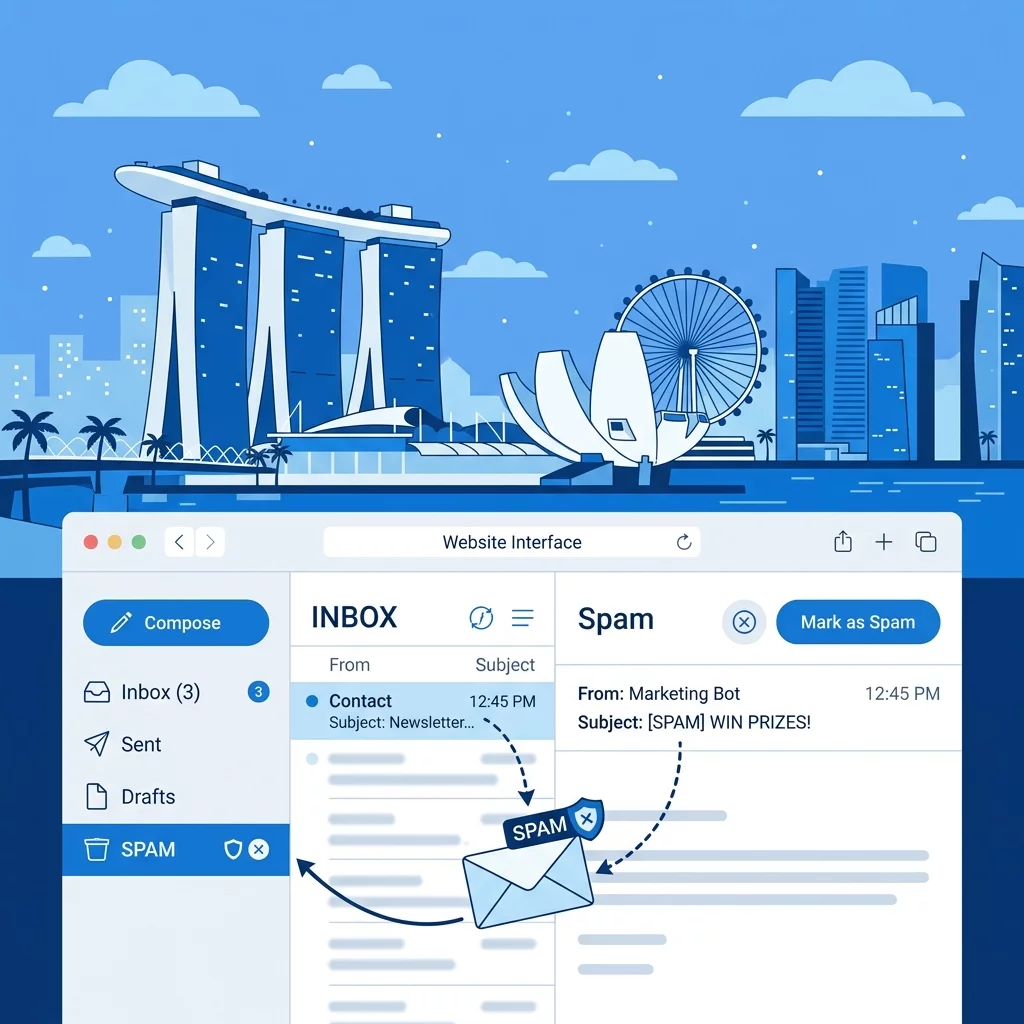
You just received a notification that a potential customer tried to contact you through your website. You eagerly open your email inbox to find... nothing. No new message. Then you check your spam folder and there it is — your customer is waiting, but you almost missed them entirely.
This scenario happens more often than you might think. In Singapore, where small businesses rely heavily on their website to generate leads and serve customers, contact form emails disappearing into spam is one of the most frustrating and costly problems you can face. Every message that lands in spam is a potential sale lost, a customer frustrated, or a partnership opportunity missed.
The good news? You do not need to be a technical expert to fix this. In this guide, I will walk you through exactly why this happens and what you can do about it, starting with the simplest solutions and moving to more technical fixes only if needed.
Why Are Your Contact Form Emails Going to Spam?
Before we dive into fixes, it helps to understand the problem. Email spam filters work by analyzing incoming messages and scoring them based on many factors. Your contact form emails face particular challenges because:
- They often come from different servers than the email provider (called sender mismatch)
- They may lack proper authentication records that big email providers expect
- Your web server IP address might have a poor reputation if shared
- The email content might trigger spam trigger words or suspicious patterns
Now let us look at concrete steps to fix this.
Step 1: Check Your Email Sender Settings in Your Contact Form Plugin
The first and easiest thing to check is how your contact form is configured to send emails. Most website owners use a plugin like Contact Form 7, WPForms, or Gravity Forms on WordPress. Open your form settings and look for these fields:
- From Email Address — This should be an email address on YOUR domain (like [email protected]), not a generic free email like gmail or hotmail. Using a free email address flags your message as suspicious.
- From Name — This should clearly identify your business, not say something vague like "WordPress."
- Reply-To Address — Make sure this is set to receive replies at your actual business email.
Log into your WordPress dashboard, go to Settings, then your contact form plugin settings. Verify the "From" email matches your domain. If you see a generic [email protected], change it immediately.
Step 2: Configure SPF and DKIM Records for Your Domain
This sounds technical but it is actually quite straightforward once you know what to look for. SPF (Sender Policy Framework) and DKIM (DomainKeys Identified Mail) are authentication records that tell email providers "yes, this email actually came from us."
To check if you have these records:
- Visit a free DNS lookup tool like MXToolbox.com
- Enter your domain name (for example, yourbusiness.sg)
- Look for an SPF record — it usually starts with "v=spf1"
- Look for a DKIM record if you have one set up
If you do not see an SPF record, you need to add one. Log into your domain registrar (the company where you bought your domain — common Singapore registrars include Exabytes, IPMS, or Namecheap for international domains) and add an SPF record that includes your web hosting provider's mail servers.
Once added, give it 24 to 48 hours to propagate across the internet.
Step 3: Use a Professional Email Service for Form Submissions
Here is a solution many Singapore business owners overlook: instead of relying on your web server to send emails (which is unreliable), route your contact form submissions through a professional email service.
Excellent options include Postmark (designed specifically for transactional emails), SendGrid (offers a free tier), and Mailgun (good deliverability with a free trial).
These services work by having your contact form send emails through their servers instead of directly from your web host. Their servers have excellent reputations with Gmail, Yahoo, and other email providers, which means your emails are much more likely to land in the inbox rather than spam.
Step 4: Avoid Spam Trigger Words in Your Email Content
Sometimes the content of your auto-response email triggers spam filters. Common triggers include ALL CAPS text, excessive exclamation marks, too many links, and words like "winner" or "congratulations."
If your auto-response email contains any of these elements, edit them to sound more natural and professional. A simple confirmation message like "Thank you for contacting us. We will respond within 24 hours" is less likely to trigger filters than a promotional-style message.
Step 5: Add a DMARC Record for Your Domain
DMARC (Domain-based Message Authentication, Reporting, and Conformance) builds on SPF and DKIM by telling email providers what to do when an email fails authentication. Having a DMARC record signals to Gmail, Yahoo, and other providers that you take email security seriously.
To add a DMARC record, log into your domain registrar, navigate to DNS settings, add a TXT record with the name "_dmarc", and set the value to: v=DMARC1; p=none; rua=mailto:your [email protected]
The "p=none" setting is a good starting point — it tells email providers to monitor but not reject emails that fail authentication.
Step 6: Check If Your Web Server IP Is Blacklisted
Sometimes the issue is not your domain but your web server's IP address. If your hosting provider has been flagged for sending spam (perhaps from other websites on shared servers), your emails might be blocked as a result.
Check your server IP at MXToolbox Blacklist Check. Enter your server's IP address (found in your hosting control panel or in your WordPress site health page) and see if it appears on any blacklists.
If your IP is blacklisted, contact your hosting provider and ask them to investigate. If they cannot resolve the issue, it might be worth migrating to a different host with better email practices.
Quick Troubleshooting Checklist
Before you spend time on complex fixes, work through this checklist:
- Verify the contact form actually sends test emails
- Confirm the recipient email address is correct
- Make sure your auto-response email does not contain suspicious phrases or excessive links
- Try submitting from a different email provider (Gmail vs Outlook) to see if the issue is consistent
- Ask the recipient to check their spam folder and mark emails as "Not Spam" if found
Related Issues You Might Encounter
If you are experiencing contact form problems, you might also find these guides helpful. Our article on why your contact form is not working covers additional technical issues beyond spam. And if your emails are not just going to spam but not arriving at all, our guide to resolving email deliverability goes deeper into SMTP configuration and server settings.
For WordPress users, our guide on fixing WordPress emails not sending covers plugin-specific solutions that can make a big difference.
When to Call in Professional Help
If you have worked through these steps and are still experiencing issues, it may be time to consult a professional. Email deliverability involves understanding your web host infrastructure, DNS configuration, and sometimes deeper technical issues that require hands-on expertise.
The team at WebCareSG specializes in troubleshooting exactly these kinds of problems for Singapore business owners. They can audit your website, identify the root cause of your spam issue, and implement a lasting solution. Visit https://webcare.sg/contact to get in touch — no question is too basic, and they are happy to explain everything in plain English.
Do not let another customer message disappear into the spam folder. Start with the steps above, and if you need assistance, the experts are just a click away.