Unable to Login to wp-admin: Fix Login Page Redirect Loops
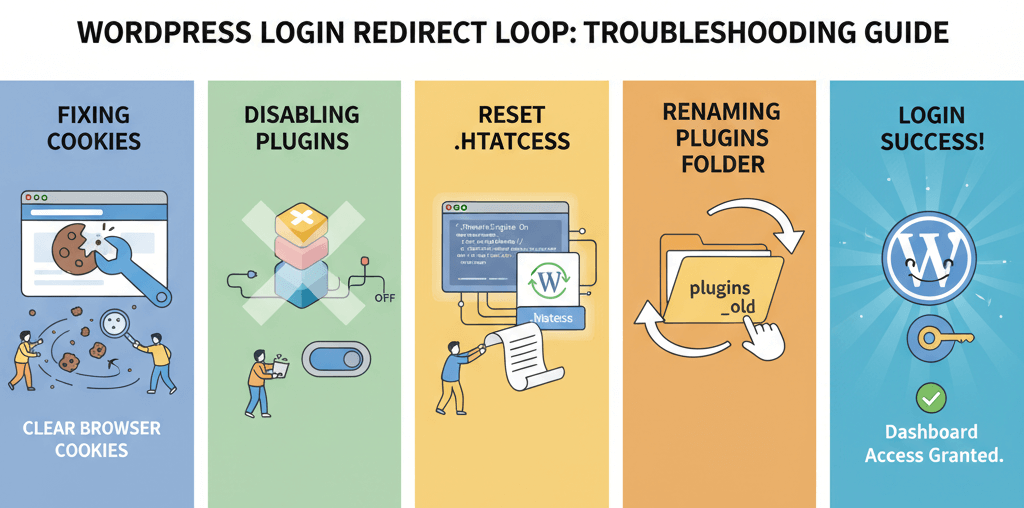
There are few things more frustrating than being locked out of your own website, especially when you know your username and password are correct. You enter your credentials on the WordPress login page, hit enter, and are sent right back to the login screen, creating an endless, infuriating loop. This problem, known as a login redirect loop, is a common WordPress issue that prevents you from accessing your admin dashboard and is often caused by plugin conflicts, incorrect URL settings, or a corrupted `.htaccess` file. This guide will provide a practical, step-by-step checklist to help you diagnose and fix the problem, getting you back into your dashboard and back in control of your website. This is a crucial skill for any website owner to have, similar to how you would recover lost admin access when you've forgotten your password.
Step 1: The Simple Fixes (Clear Cache and Cookies)
Before you dive into the more technical fixes, try the simplest solution first. Sometimes, the redirect loop is caused by your browser's cached data or cookies. Your browser may have stored a broken version of the login URL, causing the loop. This is a common issue that can also lead to other problems, as noted in our guide on fixing common tracking issues.
- Clear Your Browser's Cache and Cookies: Go to your browser's settings and clear your cache and cookies for your website.
- Try a Different Browser or Incognito Mode: If clearing your cache doesn't work, try logging in using a different browser or an incognito/private window. If you can log in, it confirms that the problem is a browser-related issue on your end.
Step 2: Check Your Website's URLs
A common cause of a login redirect loop is an incorrect WordPress URL setting. This often happens after a migration or a change to your website's domain name. WordPress has two crucial URL settings: `WordPress Address (URL)` and `Site Address (URL)`. If these two don't match or are incorrect, it can cause a redirect loop.
- Access the `wp-config.php` file: Log in to your hosting's file manager and open the `wp-config.php` file.
- Manually Set the URLs: Add the following two lines of code, replacing the URLs with your correct website address:
define('WP_HOME','https://www.yourwebsite.com');
define('WP_SITEURL','https://www.yourwebsite.com');
Save the file and try to log in again. This will override the database settings and should fix the issue.
Step 3: The Plugin and Theme Conflict Test
If the first two steps don't work, a plugin or theme is most likely the culprit. A plugin that handles redirects, security, or caching can cause a redirect loop if it is not configured correctly. The solution is to deactivate all your plugins and try to log in again. This is similar to how you would troubleshoot a blank homepage.
- Access Your Files: Log in to your hosting's file manager or use an FTP client.
- Disable All Plugins: Navigate to the `/wp-content/` folder and rename the `plugins` folder to something else, like `plugins-old`. This will deactivate all your plugins. Try to log in again. If you can, a plugin was the cause. You can then rename the folder back to `plugins` and reactivate them one by one to find the culprit.
- Disable Your Theme: If a plugin is not the problem, your theme is the next thing to check. In the `/wp-content/themes/` folder, rename your current theme's folder. This will force WordPress to use a default theme and should allow you to log in.
Step 4: Reset the `.htaccess` File
Your `.htaccess` file can also be a source of a redirect loop, especially if you have an incorrect redirect rule. If you have tried all the above steps, you should reset this file. This is a key step in a server maintenance checklist and can also help you fix issues like a 404 not found error.
- Back up the File: Log in to your hosting's file manager and make a backup of your `.htaccess` file by downloading it to your computer.
- Delete the File: Delete the `.htaccess` file from your server.
- Log in and Regenerate: Try to log in to your WordPress dashboard. If you can, go to Settings > Permalinks and click "Save Changes" to regenerate a new, clean `.htaccess` file.
When to Call the Experts
While these steps will fix most login redirect loops, some issues can be more complex. If you are not comfortable editing your website's files or if you are dealing with a more complex issue, it is time to call in a professional. An expert can diagnose complex issues, such as a misconfigured database or a malicious script, and ensure your website is fixed without any data loss. This is a clear example of a situation where DIY website fixes can make things worse and is one of the clearest 5 signs you need professional help to fix your website.
If you’re still having trouble, don’t worry! WebCare SG is here to help. Contact us today for fast and reliable website fixes.
Related WebCare Solutions
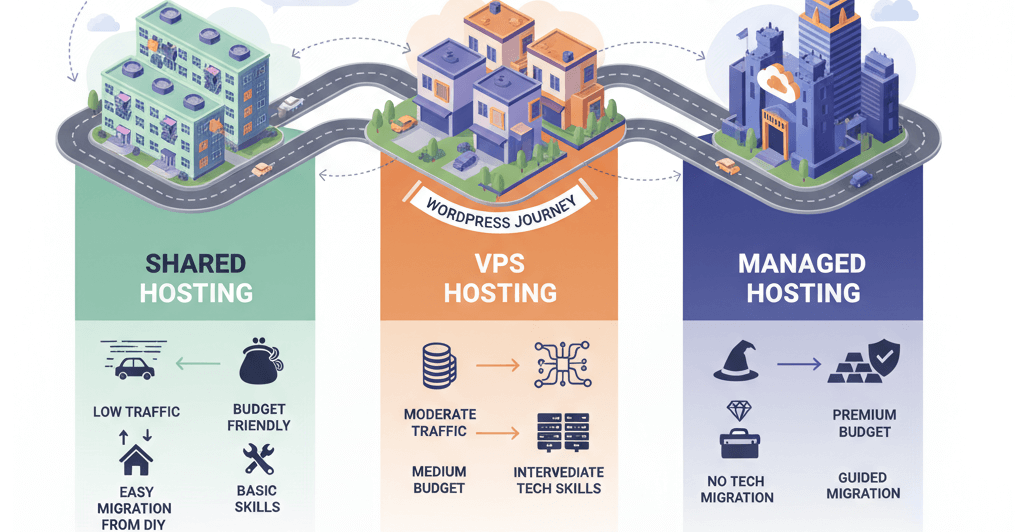
Choose the Right WordPress Hosting Plan: Shared vs VPS vs Managed
Practical guidance to match hosting types with site traffic, budget, and technical needs — plus migration tips.
Google Says ‘Noindex’ – How to Fix Indexing Issues
A comprehensive guide to diagnosing and fixing website indexing issues flagged by Google, focusing on meta tags, robots.txt, and Google Search Console.
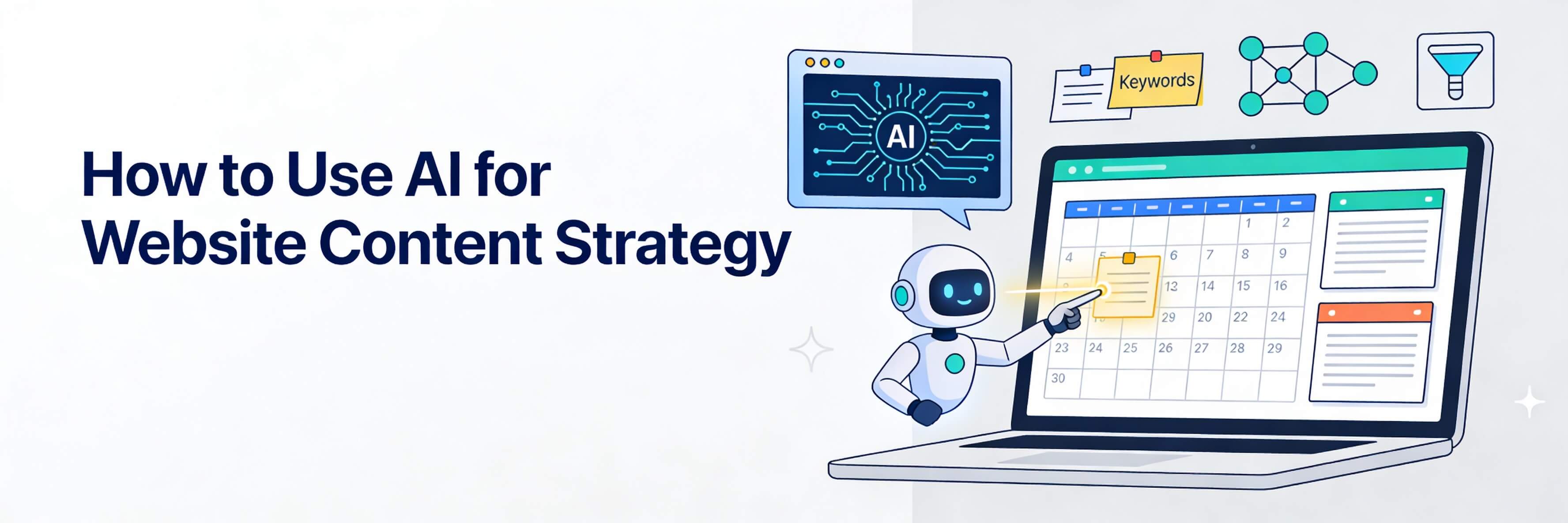
How to Use AI for Website Content Strategy
Learn how to leverage AI tools to brainstorm topics, build a content calendar, and perform gap analysis to keep your website relevant and authoritative.
Ready to get started?
Focus on your business while we fix your website. Contact WebCareSG today for fast, reliable solutions!
Whatsapp us on