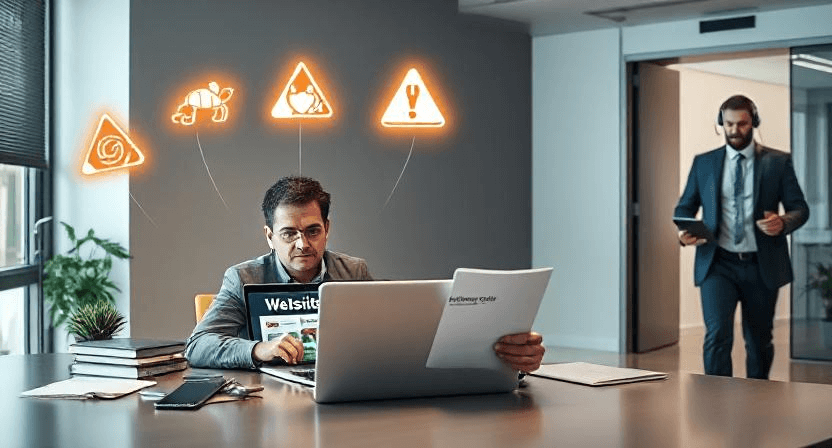
You launch your website to check if everything is working, and instead of your homepage, you see a big red warning screen. Your heart sinks. Is your site hacked? Is all your hard work gone? You're not alone — this happens to Singapore business owners more often than you think, and most of the time, it's fixable if you know where to look.
What Is a Website Warning Screen?
A website warning screen is a browser-level alert that appears when Google, Chrome, or your security software believes a site may be unsafe. It typically shows as a red "This site may be hacked" or "Not secure" warning. In Singapore, with our high internet penetration and savvy users, this warning can immediately stop potential customers from visiting your site — and they might never come back.
The warning screen is not just an inconvenience. According to Google research, visitors are 75% less likely to proceed past a security warning. For a small business in Singapore relying on your website for leads and sales, this can mean lost revenue every single day the warning stays up.
Common warning types include: "This site may contain malware," "The connection is not private," "Deceptive site ahead," and "Site is not fully secure." Each has a different cause, and each has a specific fix.
Why Does It Matter for Singapore Businesses?
Singapore has one of the highest internet usage rates in Asia. Your customers are smart — they know to look for the padlock icon in the browser and for the "https://" prefix. When they see a warning screen, they don't just leave your site. They leave and tell their friends and colleagues to avoid it too.
Beyond lost traffic, a warning screen can damage your Google search rankings. Google has explicitly stated that security issues like malware or phishing can cause your site to be removed from search results entirely. For a Singapore business that depends on Google to be found, losing your search ranking can be catastrophic.
The good news: in most cases, you can fix these warning screens yourself — without needing to hire an expensive developer. Let's walk through the steps.
Step 1: Check What Type of Warning Screen You Are Seeing
Before you do anything, you need to identify what kind of warning screen is showing. This determines everything else you do next. Open your website in Google Chrome and pay close attention to the exact message.
If you see a red padlock with a cross through it in the browser address bar, the issue is usually related to your SSL certificate — the security certificate that encrypts data between your site and your visitors. If you see a full-page warning with "This site may be hacked," the issue is usually malware or unauthorized code injected into your site. If you see "Connection is not private," it usually means your SSL certificate has expired or is not installed correctly.
Write down the exact warning message and which browser you are using. Take a screenshot. This information will be useful when you contact your web host or a professional for help.
Step 2: Check Your SSL Certificate Status
SSL certificates are what create the "https://" in your web address and the padlock icon. If this is missing, expired, or misconfigured, visitors will see a warning. In Singapore, most quality web hosts provide free SSL certificates through Let's Encrypt, but they need to be renewed every 90 days.
To check your SSL certificate status, visit SSLLabs.com and enter your website domain. Within a few minutes, you'll get a full report showing when your certificate expires, whether it is correctly installed, and any issues that need fixing. Look specifically at the "Valid" field — it should show a future date. If it shows "Expired" or "Invalid," that's your problem right there.
If your certificate has expired, log into your web hosting control panel. Look for the "SSL/TLS" or "Security" section. Most Singapore hosts like SiteGround, Exabytes, or Vodien have a one-click option to renew or install a fresh Let's Encrypt certificate. Click it, wait a few minutes, then clear your browser cache and reload your site.
Step 3: Scan Your Website for Malware
If the warning screen mentions hacking or malware, you need to scan your website immediately. Malware can be injected into your site through outdated plugins, weak passwords, or vulnerabilities in your web host's server. Singapore businesses are particularly targeted because many small business websites use outdated WordPress or Joomla installations.
Start by using a free online scanner like Google Safe Browsing. Enter your website URL and Google will tell you if they have detected any malware. You can also use Sucuri SiteCheck, which scans for known malware, injected spam code, and reverse backdoors that hackers leave behind.
If malware is detected, do not panic. The first thing to do is change all your website passwords — FTP password, database password, WordPress admin password, and your hosting account password. Use a strong password with at least 16 characters mixing letters, numbers, and symbols. Then contact your web host immediately and ask them to run a server-level malware scan.
Step 4: Update Your Website Software and Plugins
Outdated software is the most common way hackers get into Singapore business websites. If you are using WordPress, Shopify, or any other CMS, the plugins and core software need to be kept up to date. One outdated plugin can open a door that lets hackers take control of your entire site.
Log into your website admin panel. In WordPress, this is usually yourdomain.com/wp-admin. Look at the "Updates" section. Apply any pending core updates first — click "Update Now" for the WordPress version if one is available. Then go through your plugins one by one and update each one. If any plugin has not been updated in over a year and is no longer supported by its developer, consider replacing it with a modern alternative.
If your website is built on a platform like Shopify or Wix, updates are usually handled automatically by the platform. However, you still need to check that any custom code or third-party apps you have installed are up to date.
After updating everything, clear your browser cache again and check if the warning screen has disappeared.
Step 5: Contact Your Web Host for Help
If you have tried the steps above and the warning is still showing, it is time to call in professional help. Singapore quality web hosts like Exabytes, Vodien, and SiteGround all have security teams that can investigate server-level issues, remove malware, and restore your site from a clean backup.
When you contact your host, provide them with: the exact warning message, when you first noticed it, any recent changes you made to your site, and the screenshots you took in Step 1. The more information you give them, the faster they can help resolve it. Ask them to confirm your site is clean and to restore full SSL functionality.
If your web host cannot help or if the warning is caused by a serious security breach, you may need to bring in a specialist security firm to clean and harden your website. WebCare Singapore offers emergency website recovery services for Singapore businesses whose sites have been compromised — we work quickly to remove warnings and get your site back online safely.
If after all these steps you still cannot fix the problem, or if the issue is too technical for you to handle alone, contact WebCare Singapore. Our team specialises in helping Singapore business owners resolve website issues quickly and affordably. Do not let a broken website cost you customers — reach out today and get your site back on track.