Incorrect Time Zone: Why Your WordPress Posts Are Showing the Wrong Date
There's a subtle but crucial detail on every website that, when wrong, can cause a silent breakdown in trust with your visitors: the time and date. You publish a brand new article, but it displays a time from two hours ago, or you schedule a post to go live at a specific time, but it publishes in the middle of the night. This frustrating problem is often caused by a simple misconfiguration in your WordPress settings or, more likely, a conflict with your server's time. While it may seem like a minor issue, an incorrect time zone can lead to confusion for your audience, impact the accuracy of your analytics, and cause critical failures with scheduled content. This guide will provide a practical, step-by-step checklist to help you diagnose and fix incorrect time zones, ensuring your website is always in sync with the world. This is a crucial skill for any website owner to have, and it's a common problem you will encounter after you have a solid plan to fix a slow website.
Step 1: The First Line of Defense (WordPress Timezone Settings)
The first and most important step is to set the correct time zone in your WordPress settings. WordPress has a built-in feature that allows you to set your website's time zone, but it's a setting that is often overlooked. This is a crucial check, similar to how you would troubleshoot a contact form not working.
- Go to Settings > General: In your WordPress dashboard, navigate to Settings > General.
- Set the Timezone: Find the "Timezone" field and select your city or a generic UTC offset (e.g., UTC+8 for Singapore). Click "Save Changes." This should fix most time zone-related issues.
Step 2: Check Your Server Time
If your WordPress time zone is correct but your posts are still showing the wrong time, the problem may be with your server's time. Your web server has its own time zone and clock, and if it is not in sync with your WordPress settings, it can cause a variety of issues. This is a crucial step in a server maintenance checklist and can also help you fix issues like a 500 Internal Server Error.
- Use a Server Time Checker: You can use a plugin like WP Server Info to check your server's time. This will give you a clear picture of what time your server is using and if it is in sync with your WordPress settings.
- Contact Your Host: If your server's time is incorrect, you should contact your hosting provider and ask them to fix it. This is a server-side issue that you cannot fix on your own.
Step 3: Troubleshoot Scheduled Posts
Scheduled posts, in particular, can be affected by an incorrect time zone. If your website's time zone and your server's time zone are out of sync, a scheduled post can publish at the wrong time. This is a common website error to watch out for.
- Check the Scheduled Post Status: Go to your post editor and look at the "Publish" settings. Ensure that the scheduled time is correct and that the "Schedule" button is still active.
- Use a Scheduling Plugin: A plugin like WP Crontrol can help you manage your scheduled posts and ensure that they are running at the correct time.
Step 4: The Plugin and Theme Conflict Test
If the above steps don't work, a plugin or theme conflict may be the culprit. A plugin that modifies the date or time on your website can be causing the issue. The solution is to deactivate them one by one to find the one that is causing the issue. This is similar to how you would troubleshoot a blank homepage.
- Disable Plugins One by One: Go to Plugins > Installed Plugins and temporarily deactivate your plugins. After deactivating each plugin, check your website to see if the problem is fixed.
When to Call the Experts
While these steps will fix most time zone-related issues, some problems can be more complex. If you are not comfortable editing your website's files or if your time zone is still incorrect despite your best efforts, it is time to call in a professional. An expert can diagnose complex issues, such as a misconfigured server or a malicious script, and ensure your website is fixed without any data loss. This is a clear example of a situation where DIY website fixes can make things worse and is one of the clearest 5 signs you need professional help to fix your website.
If you’re still having trouble, don’t worry! WebCare SG is here to help. Contact us today for fast and reliable website fixes.
Related WebCare Solutions
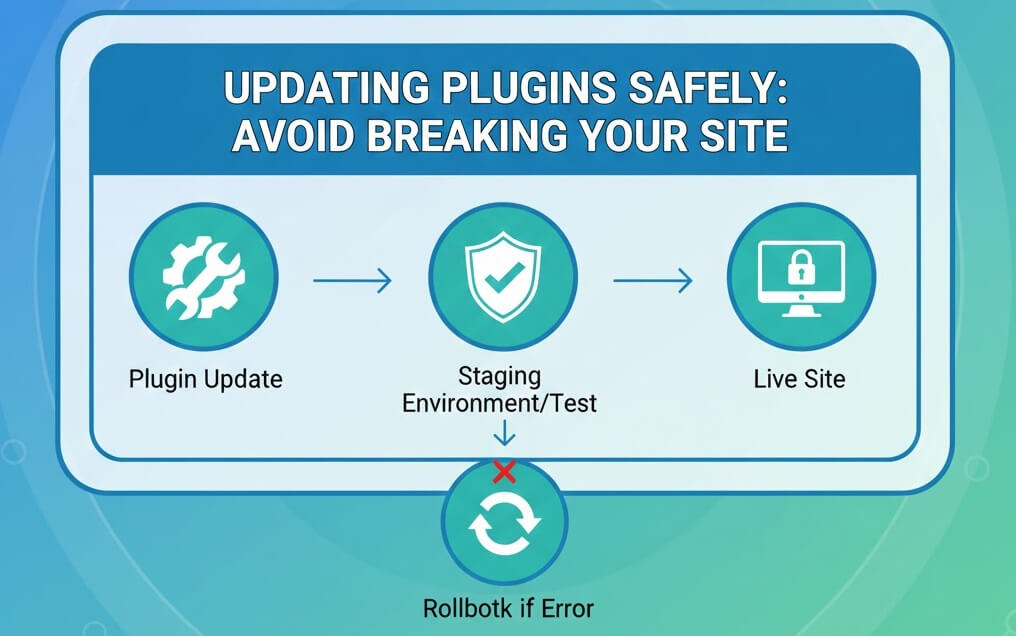
Updating Plugins Safely: Avoid Breaking Your Site
A comprehensive step-by-step tutorial on maintaining WordPress stability through safe plugin update protocols, staging tests, and troubleshooting.

How to clear your browser cache and cookies (Chrome/Firefox/Safari/Edge)
A step-by-step guide to clearing your browser cache and cookies on Chrome, Firefox, Safari, and Edge to resolve common website loading issues and improve performance.

How to Fix ‘No Events Received’ in Facebook Events Manager
A comprehensive guide to troubleshooting and resolving the "No Events Received" status in Facebook Events Manager, focusing on common issues with CAPI setup and server-side tracking errors.
Ready to get started?
Focus on your business while we fix your website. Contact WebCareSG today for fast, reliable solutions!
Whatsapp us on