You have spent months building your business website. The design looks great, your products are listed, and your contact details are right there. But something is wrong. Visitors arrive and leave within seconds. They never fill out your contact form. They never call you. They never buy anything.
If this sounds familiar, the problem might not be your products, your prices, or your wording. The problem might be your website navigation. Navigation is the map that helps visitors find what they need. When that map is confusing, messy, or hard to use, people simply give up and go to a competitor instead. For Singapore small business owners, this is a silent revenue drain that often goes unnoticed.
The good news is that fixing website navigation does not require a developer or a big budget. In this guide, you will learn how to identify common navigation problems and fix them yourself, step by step.
Why Navigation Usability Matters for Your Business
Before we dive into fixes, let us talk about why this matters. Navigation usability is about how easily visitors can move around your website and find information. When your navigation works well, visitors can find your services, pricing, and contact page within seconds. When it does not, they get frustrated and leave.
For a local Singapore business, every visitor matters. Whether you run a clinic in Jurong, a law firm in the CBD, or a retail shop in Orchard, your website is often the first point of contact with potential customers. If they cannot figure out how to navigate your site, they will not convert into paying customers. That is why improving navigation usability is one of the most impactful things you can do for your website, and you do not need any technical background to make real improvements.
Step 1: Test Your Website Navigation as a First-Time Visitor
The first thing you need to do is see your website through fresh eyes. This means pretending you have never seen your own website before. Open your website in a private or incognito browser window. Do not log in. Just browse as a regular visitor would.
Ask yourself these questions as you navigate:
- Can I find the main services or products within 3 seconds?
- Is there a clear menu bar at the top of the page?
- Are the menu labels easy to understand, or do they use confusing words?
- Can I easily find the contact page or the phone number?
- Is there a search box if I want to look for something specific?
- Can I click on a logo or company name to go back to the homepage?
Write down every issue you notice. Even small friction points matter. A menu that is hard to read, a button that is hard to click on a phone, or a label that does not match what a visitor is actually looking for, these are all navigation problems that add up and push visitors away.
Step 2: Audit Your Main Menu Structure
Your main menu is the most important navigation element on your website. It is usually displayed at the top of every page. A good menu has between 3 and 7 items. Too few items and visitors cannot find what they need. Too many items and the menu becomes overwhelming and hard to scan.
List out every item currently in your main menu. Then ask yourself whether each item belongs there. Common unnecessary menu items include general labels like Solutions that do not actually tell visitors what you offer, duplicate items that say the same thing in different words, and one-off pages that do not need prominent placement.
A clean menu structure might look like this for a local service business: Home, Services, About Us, Pricing, Contact Us. That is five items, which is the ideal range. Each item should be specific enough that a first-time visitor knows exactly what will happen when they click it.
If you use a platform like WordPress, you can edit your menu by going to Appearance and then Menus in your dashboard. If you use a website builder like Wix, Squarespace, or Shopify, look for a Navigation or Menu section in your settings. Most modern platforms make it easy to add, remove, or reorder menu items without touching any code.
Step 3: Make Your Navigation Labels Crystal Clear
One of the most common navigation mistakes is using business jargon or clever marketing words instead of plain language. Your menu labels should immediately tell visitors what they will find. If a visitor cannot guess what is on a page just by reading the menu label, that label needs to change.
Instead of a menu label that says Solutions, write Our Services. Instead of Portfolio, write Our Work. Instead of Insights, write Blog or Articles. This might seem too simple, but plain language dramatically reduces confusion and keeps visitors on your site longer.
Singapore visitors in particular tend to prefer direct and practical language. They want to know what they are getting without guessing. Keep your labels specific and actionable. When possible, use nouns that match what your visitors are actually searching for, rather than creative alternatives that sound good but mean nothing to a first-time customer.
Step 4: Put the Most Important Pages Where Visitors Expect Them
There are certain pages that almost every business website visitor wants to find. These are your most important pages, and they should be easy to reach from any page on your website.
The three pages that should always be reachable within one or two clicks from anywhere on your site are your Contact page, your Services or Products page, and your Homepage. Your logo or company name should always link back to the homepage. This is a universal web convention that visitors rely on, even if they do not consciously notice it.
Place your main navigation menu in a consistent position on every page. The best practice is to keep it at the top of the page. If you have a sidebar menu on some pages but not others, visitors will feel lost. Consistency is key. When visitors know exactly where to find the menu on every page, they navigate with confidence instead of frustration.
Step 5: Check Your Mobile Navigation
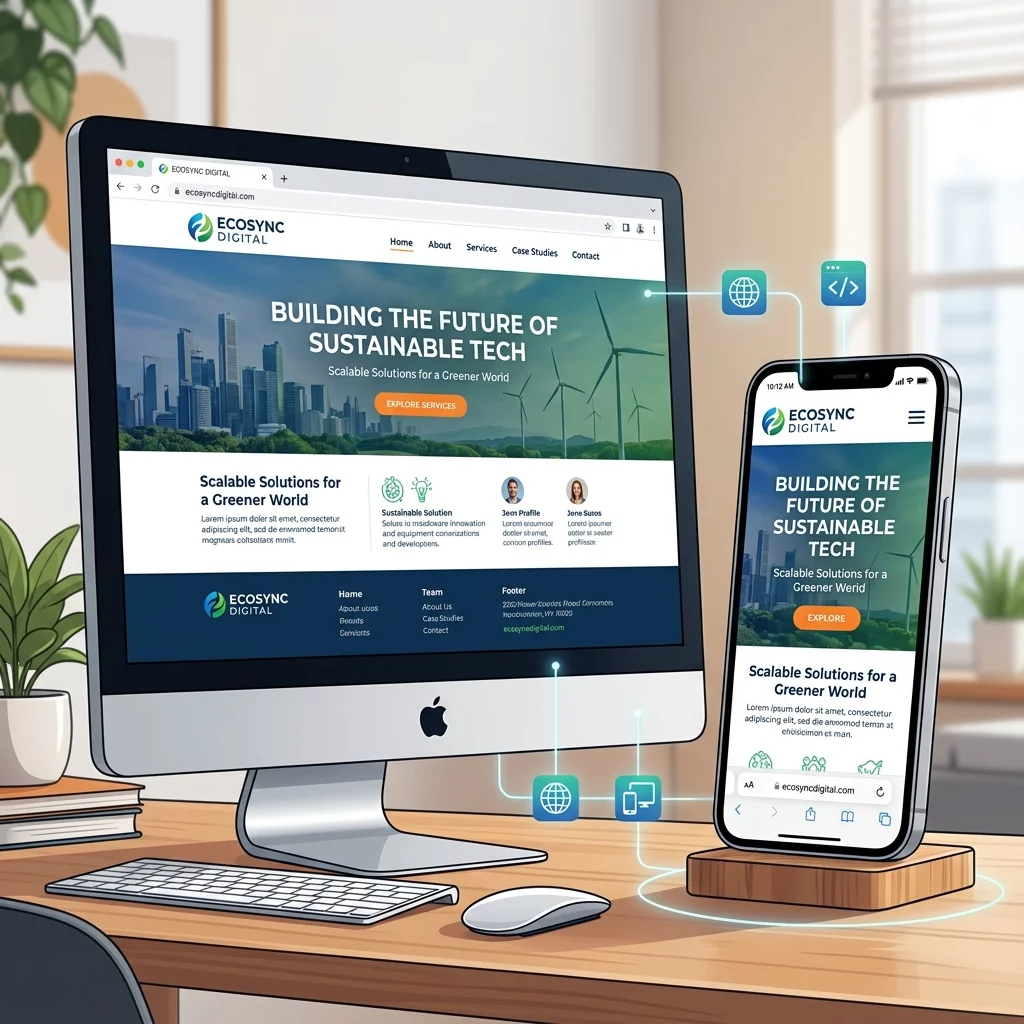
More than half of web traffic in Singapore now comes from mobile phones. This means your mobile navigation is just as important, if not more important, than your desktop navigation. A common mistake is having a great desktop menu but a broken or confusing mobile menu.
Test your website on your own phone. Does the menu open when you tap on it? Are the buttons large enough to tap easily with a thumb? Can you still see the key pages like Contact Us? Is the text readable without zooming in? These are the kinds of small mobile usability issues that silently drive visitors away from your site.
On mobile, a hamburger menu (the three-line icon that expands when tapped) is the standard. Make sure it is clearly visible and easy to tap. Keep the mobile menu items large, at least 44 pixels wide or tall, which is the minimum touch target size recommended for mobile usability. Stack menu items vertically so they are easy to read and tap one at a time.
Step 6: Add Internal Links to Guide Visitors Between Pages
Good navigation is not just about the main menu. Internal links throughout your content also guide visitors deeper into your website. When you write content for your website, include links that point to related pages. This helps visitors discover more of what you offer without having to rely solely on the menu.
For example, if you have a Services page that describes your offerings, include hyperlinks in the text that lead to more detailed pages about each individual service. If you have a blog article that relates to a specific service, link from the article to that service page. These internal links keep visitors engaged and reduce your bounce rate, which is the percentage of visitors who leave after viewing only one page.
A related step is to make sure your most important pages are linked from multiple places on your site, not just the main menu. Having a Contact Us button in your website footer, within your page content, and in your main menu gives visitors multiple easy ways to reach you. The more paths you provide to important pages, the more likely visitors are to follow one of them.
Step 7: Add a Search Function if You Have Many Pages
If your website has more than 20 pages, a search function becomes important. Visitors who know exactly what they are looking for often prefer to search for it rather than clicking through menus. Without a search box, these visitors may leave your site if they cannot find what they need quickly.
Adding a search box is usually straightforward in most website platforms. In WordPress, you can add a search widget to your sidebar or header through the Widgets section. In Wix or Shopify, search functionality is often built in or available through an app. Place the search box in a visible location, typically in the header area at the top of the page, so visitors can find it easily.
Step 8: Review Your Footer Links
Your website footer is the section at the bottom of every page. While many business owners overlook it, visitors often scroll down to look for links in the footer when they cannot find what they need in the main menu. A well-organised footer can serve as a secondary navigation system that catches visitors who would otherwise leave.
Include links to your most important pages in the footer as well. Common footer links include Contact Information, About Us, Services, Privacy Policy, and Terms of Service. You can also include your social media links in the footer. Keep the footer organised with clear headings and avoid cluttering it with too many links. A focused footer that reinforces your key pages is far more useful than a long list of every page on your site.
Step 9: Test Again After Making Changes
After you have made your navigation improvements, test your website again using the same incognito browser method from Step 1. Ask yourself whether the issues you identified earlier have been resolved. Can you now find the key pages more quickly? Is the menu easier to read? Does the mobile experience feel smooth?
If possible, ask someone else to test your website. A colleague, friend, or family member who has never seen your site before can give you honest feedback about where they got confused or stuck. This outside perspective is invaluable because you are too close to your own website to notice familiar friction points.
You can also use free tools like Google Mobile-Friendly Test to check whether your website passes basic mobile usability standards. Enter your URL and the tool will tell you whether your site is mobile-friendly and highlight any issues it detects. This is a quick way to get an objective assessment of your mobile navigation.
Common Navigation Mistakes to Avoid
As you work through these steps, keep an eye out for these common mistakes that Singapore business websites frequently make. Using drop-down menus that are too deep, with multiple sub-levels, makes it hard for visitors to know where they are in the navigation hierarchy. Too many menu items grouped under one label confuses visitors about what each sub-item actually covers. Inconsistent menu placement across pages makes visitors feel lost. Broken links in the navigation menu create a terrible user experience and signal to Google that your website may be poorly maintained.
If you have been running your website for more than a year, there is a good chance that some of your navigation elements have become outdated. Pages have been added, removed, or renamed without updating the menu. Regularly auditing your navigation ensures that every link in your menu actually works and leads to the right page.
Quick Navigation Usability Checklist
Run through this checklist regularly to keep your navigation in good shape:
- Main menu has 3 to 7 items and all labels are in plain language
- Logo links back to the homepage on every page
- Contact page is reachable within one or two clicks from any page
- Mobile menu is easy to open, read, and use
- Internal links connect relevant pages throughout your content
- Footer includes links to key pages and is well-organised
- All menu links work and lead to the correct pages
- Search box is visible if your site has more than 20 pages
- Navigation is consistent across all pages of your website
- Website passes the Google Mobile-Friendly Test
When to Call a Professional
If you have worked through these steps and your website still does not feel easy to navigate, it may be time to call in help. Sometimes navigation problems are tied to deeper design or structural issues that require someone with technical experience to untangle. A professional website audit can identify problems you may have missed, and a designer can rebuild your navigation from the ground up if needed.
If your website is built on a complex platform or has custom code, making big navigation changes on your own could risk breaking other parts of your site. In those cases, professional help is the safer and faster option. The cost of fixing your navigation is usually far less than the revenue you lose from visitors who give up and leave.
Need help fixing your website navigation or want a professional to audit your entire site? The team at WebCareSG specialises in fixing Singapore business websites. Visit WebCareSG Contact to get in touch and find out how they can help you turn your website into a customer-generating tool that actually works.