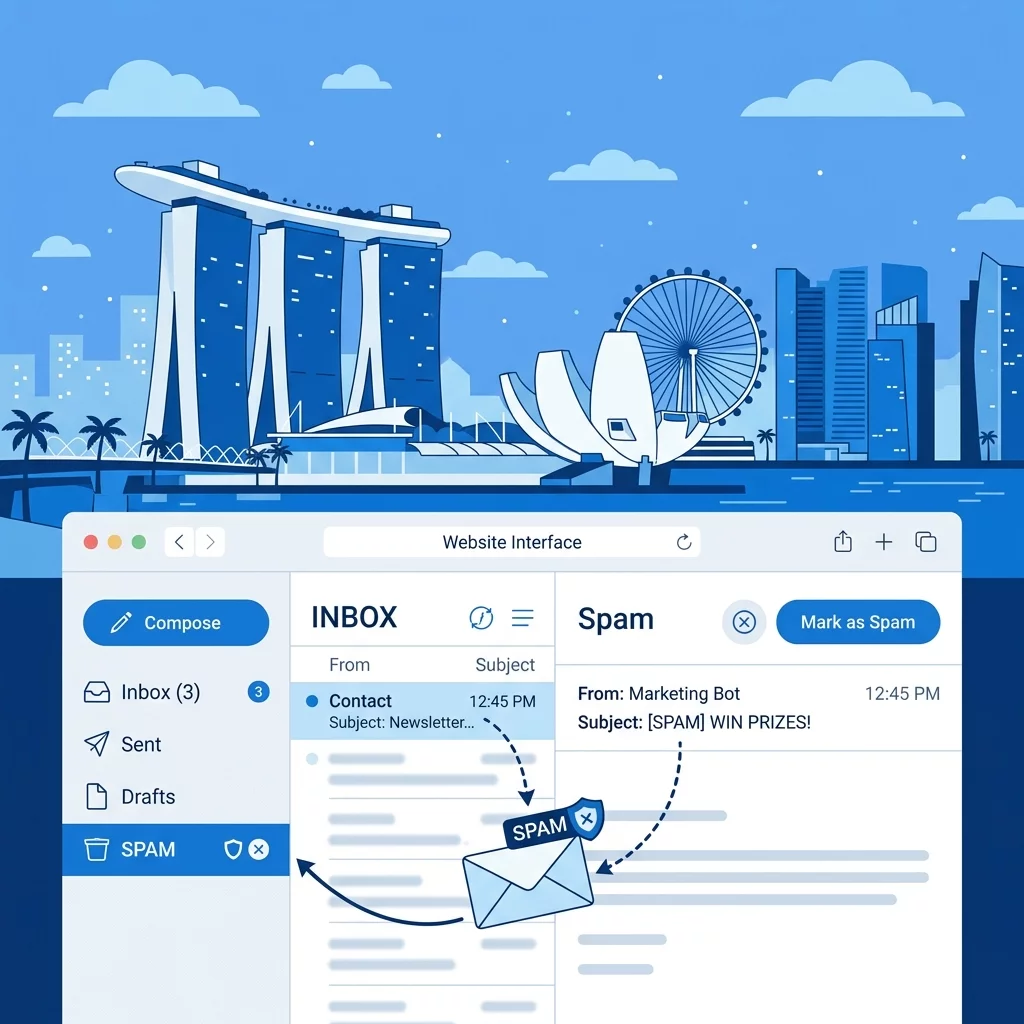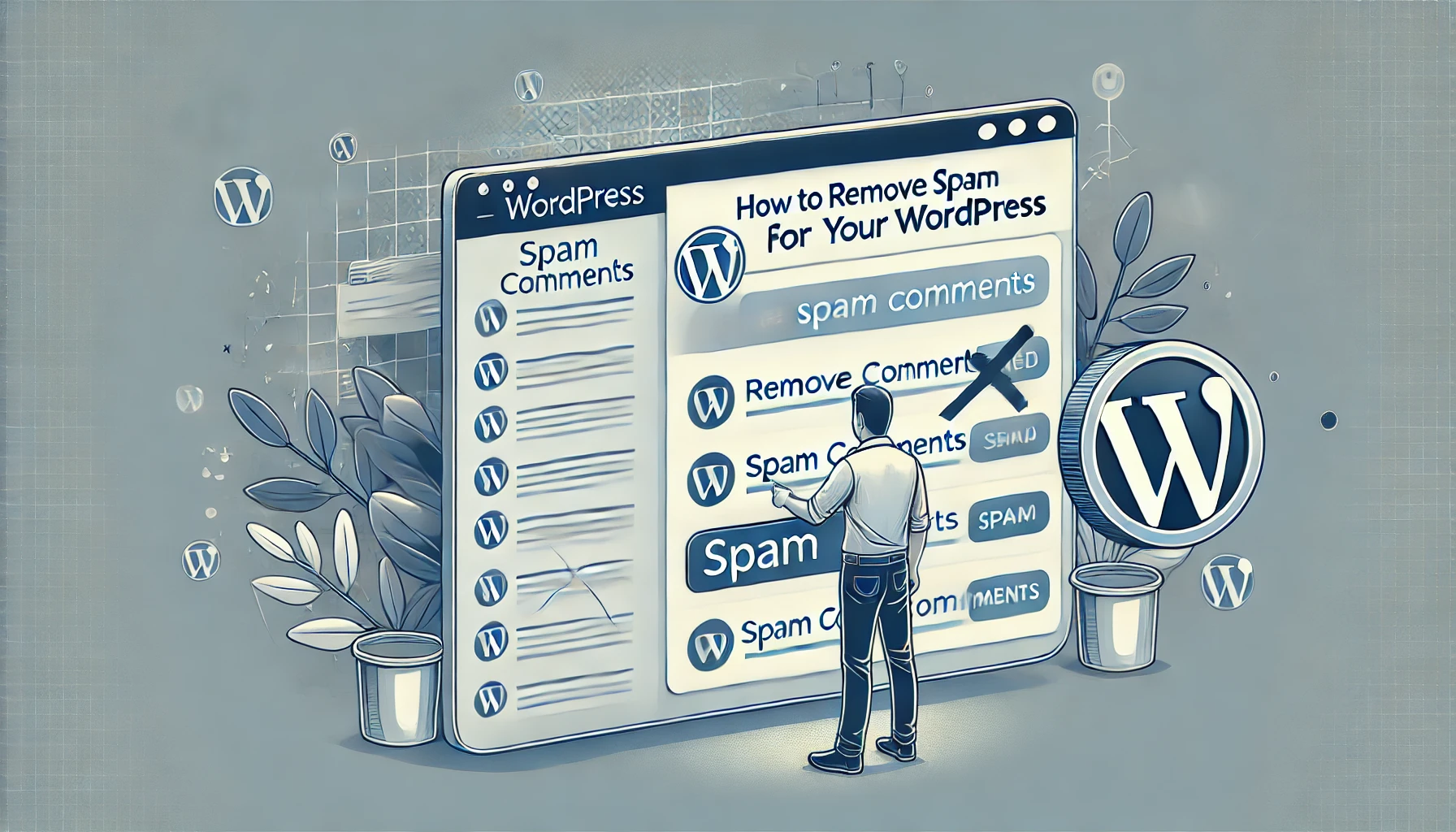
Spam comments can clutter your WordPress website, affect its credibility, and even harm its SEO. Managing and removing these unwanted messages is essential to maintain a professional and user-friendly site. In this guide, we’ll cover how to identify, remove, and prevent spam comments effectively.
Why You Need to Remove Spam Comments
- Protect SEO: Spam comments can include malicious links that harm your website’s search engine rankings.
- Maintain Professionalism: A clean comment section improves user trust and experience.
- Prevent Malware: Some spam comments contain harmful scripts or phishing links that can compromise your site.
Steps to Remove Spam Comments
1. Use the WordPress Admin Dashboard
Navigate to the "Comments" section in your WordPress dashboard to manage and delete spam comments manually. Select the comments you want to remove, then click "Move to Trash." To permanently delete them, go to the Trash folder and select "Empty Trash."
2. Install an Anti-Spam Plugin
Plugins like Akismet or Antispam Bee can automatically filter and block spam comments. To install:
- Go to "Plugins > Add New" in your WordPress dashboard.
- Search for the plugin, click "Install Now," and then "Activate."
- Configure the plugin settings to suit your needs.
3. Enable Comment Moderation
Go to "Settings > Discussion" and enable comment moderation. This allows you to manually approve comments before they appear on your site. Set filters to automatically hold comments containing links or specific keywords.
4. Use Captcha Verification
Install a captcha plugin like Google Captcha (reCAPTCHA) to prevent bots from submitting spam comments. This adds a verification step for users, significantly reducing automated spam.
5. Disable Comments on Old Posts
Spam often targets older posts. Disable comments on posts older than a certain date by going to "Settings > Discussion" and selecting "Automatically close comments on posts older than X days."
6. Block IP Addresses
Identify repeated offenders by reviewing spam comments and blocking their IP addresses. To block IPs:
- Navigate to "Settings > Discussion".
- Add the IP addresses to the "Comment Blacklist" field.
Preventing Future Spam Comments
- Enable Login Protection: Limit login attempts to prevent bot attacks.
- Regular Updates: Keep WordPress, plugins, and themes updated to reduce vulnerabilities.
- Use Security Plugins: Tools like Wordfence can help monitor and block spam activities.
Conclusion
Managing spam comments is essential for maintaining a clean and professional WordPress website. Implementing the steps outlined above can help you effectively remove and prevent spam, ensuring a better user experience. If you need expert assistance, don’t hesitate to contact WebCareSG. We’re here to help with all your website maintenance needs!