WordPress New Posts Not Appearing on Homepage: The Cache Conundrum
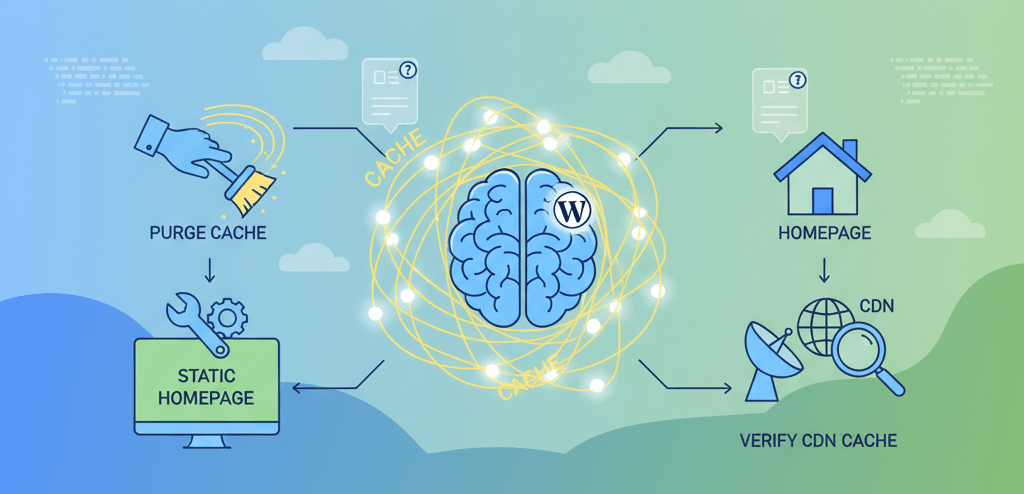
There's nothing more frustrating than publishing a new blog post or updating your content, only to find that it's not appearing on your website's homepage. You hit "publish," you check the live site, and... nothing. The old version is still there, static and unchanging. This is a tell-tale sign that your website's caching system is serving stale content. While caching is a powerful tool for improving website speed, a misconfigured or improperly cleared cache can create a silent but critical issue. This guide will provide a practical, step-by-step checklist to help you diagnose and fix the problem, ensuring your new content is visible to the world the moment you publish it. This is a crucial skill for any website owner to have, and it's a common problem you will encounter after you have optimized your website with a guide like Configure WordPress Caching: Optimal Settings for Speed and SEO.
Step 1: The First Line of Defense (Purge All Cache)
Before you dive into the more technical solutions, the first and simplest step is to clear your website's cache. If a cache is not cleared, your website will keep serving the old, static version of your homepage, even after you have published new content. This is a common website error to watch out for.
- Clear Your WordPress Plugin Cache: If you are using a caching plugin like WP Rocket, W3 Total Cache, or LiteSpeed Cache, go to the plugin's settings and find the option to "Clear All Cache," "Purge All Cache," or "Delete All Cache."
- Clear Your CDN Cache: If you are using a Content Delivery Network (CDN) like Cloudflare, you need to clear the cache at the CDN level as well. Go to your CDN provider's dashboard and find the option to "Purge Cache" or "Purge Everything." This is a crucial step if your website is slow for some users, a topic we cover in our guide on How to Diagnose a Site That is Slow for Some Users.
- Clear Your Browser Cache: Sometimes your browser may be serving a cached version of your website. Clear your browser's cache and cookies, or try viewing the page in an incognito/private window.
Step 2: Check Your Reading Settings
If clearing the cache doesn't work, the next step is to check your WordPress settings. A common mistake is to set a static page as your homepage, which prevents new blog posts from being displayed. This is a simple but often overlooked cause of the problem.
- Go to Settings > Reading: In your WordPress dashboard, navigate to Settings > Reading.
- Verify Your Homepage Display: Ensure the option "Your homepage displays" is set to "Your latest posts." If it's set to "A static page," your homepage will never update with new posts. You can change it back to your latest posts or, if you want to keep a static homepage, you can create a separate "blog" page and link to it in your main navigation.
Step 3: Temporarily Disable Caching Layers
If the problem persists, you need to diagnose which caching layer is causing the issue. This includes your WordPress caching plugin, your CDN, and any server-side caching from your hosting provider. This is a crucial step in any server maintenance checklist.
- Disable Your Caching Plugin: Go to Plugins > Installed Plugins and temporarily deactivate your caching plugin. Reload your homepage and see if the new post appears. If it does, you know the plugin is the cause, and you can dive into the settings to fix it.
- Temporarily Disable Your CDN: You can temporarily disable your CDN from your CDN provider's dashboard. This will remove the CDN as a possible cause of the issue and can help you diagnose a problem with your website's performance, as seen in our guide on Speed vs. SEO: Prioritize Fixes That Give the Biggest Ranking Gains.
- Check for Server-Side Caching: Many hosting providers (especially managed WordPress hosts) have their own server-side caching. Log in to your hosting dashboard and look for a setting to clear or disable the server cache.
When to Call the Experts
While these steps will fix most caching issues, some problems can be more complex. If you have a custom-coded website, are dealing with a complex caching setup, or are unable to find the culprit, it is time to call in a professional. An expert can perform a deeper analysis, configure your caching layers for optimal performance, and ensure your website is fast and reliable. This is a clear example of a situation where DIY website fixes can make things worse and is one of the clearest 5 signs you need professional help to fix your website.
If you’re still having trouble, don’t worry! WebCare SG is here to help. Contact us today for fast and reliable website fixes.
Related WebCare Solutions

Ethical AI Content: Avoiding Plagiarism and Google Penalties
Learn the best practices for using AI in content creation while maintaining authenticity, avoiding plagiarism, and staying in Google''s good graces.
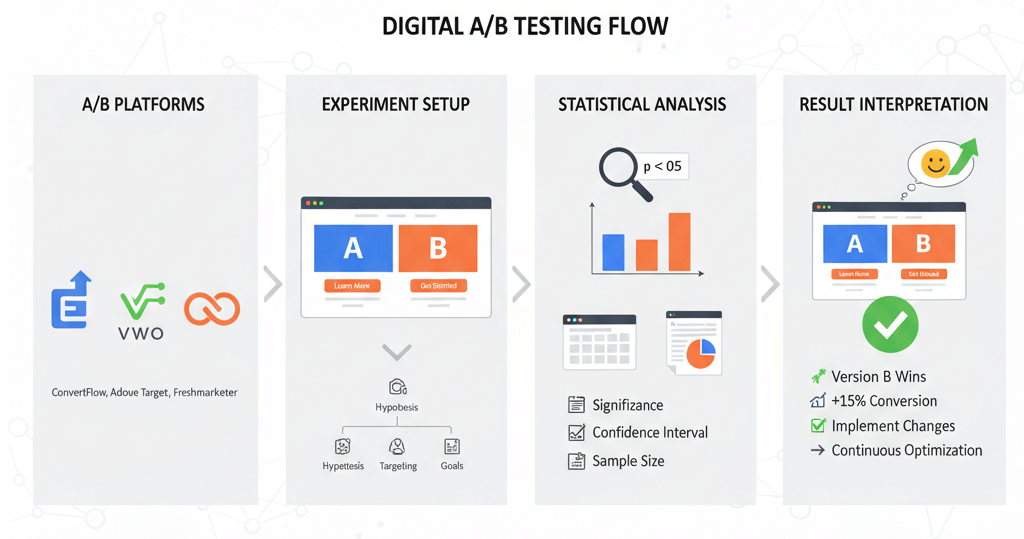
Set Up A/B Testing with Google Optimize Alternatives and Measure Results
A practical guide to setting up and measuring A/B tests using popular tools, understanding statistical basics, and interpreting results to make data-driven decisions.

How to Fix Website Downtime & Server Errors (500, 502, 503)
Learn how to diagnose and fix common server errors (500, 502, 503) to restore website functionality.
Ready to get started?
Focus on your business while we fix your website. Contact WebCareSG today for fast, reliable solutions!
Whatsapp us on