WooCommerce Checkout Errors: How to Fix Redirects and 500s on Purchase
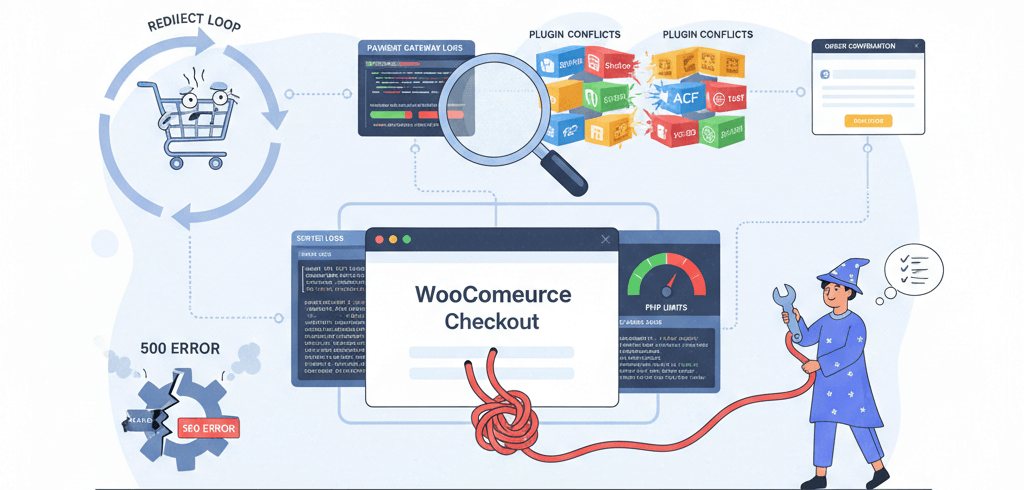
The checkout page is the most critical part of any e-commerce website. It's the final hurdle between a browsing visitor and a paying customer. So when a customer encounters a redirect loop or a vague "500 Internal Server Error" during the checkout process, it's a critical emergency. These errors can cause you to lose a sale and severely damage customer trust, as well as create a bad user experience. These errors can stem from a variety of sources, from a plugin conflict to a server-side resource limit. This guide will provide a practical, step-by-step checklist to help you diagnose and fix checkout failures, ensuring a smooth and reliable payment process for your customers. This is a crucial step to follow after you've made sure your server is not slow.
Step 1: Check Payment Gateway and Order Status
Before you dive into technical fixes, the first step is to check if the issue is related to your payment gateway. Most payment gateway plugins have a log that records every transaction and can provide a crucial clue as to what went wrong. This is a common issue that can also lead to other problems, as noted in our guide on WooCommerce orders not sending confirmation emails.
- Go to WooCommerce > Status > Logs: In your WordPress dashboard, navigate to WooCommerce > Status > Logs. From the dropdown, select the log for your payment gateway (e.g., PayPal, Stripe) and look for any errors or failed transactions.
- Check Order Status: Go to WooCommerce > Orders and look for the failed order. If the order exists, it can give you a clue as to where the process failed.
Step 2: Troubleshoot Plugin and Theme Conflicts
The most common cause of a checkout error is a conflict between plugins or between a plugin and your theme. A plugin that modifies the checkout process, a security plugin, or even a caching plugin can be the culprit. The solution is to deactivate them one by one to find the one that is causing the issue. This is similar to how you would troubleshoot a blank homepage.
- Disable Plugins One by One: Go to Plugins > Installed Plugins and temporarily deactivate your plugins, starting with those that affect the checkout process, security, or caching. After deactivating each plugin, try to complete a test purchase to see if the problem is fixed.
- Activate a Default Theme: If a plugin is not the problem, your theme is the next thing to check. In Appearance > Themes, activate a default WordPress theme like Twenty Twenty-Four. If the checkout works, your theme is the issue, and you should contact the theme developer for help.
Step 3: Check PHP Limits and Server Logs
Sometimes, a checkout error is caused by a server-side issue, such as a low PHP memory limit or a fatal PHP error. In these cases, your website will often display a 500 Internal Server Error, which can be difficult to diagnose without looking at your server logs. This is a crucial step in a server maintenance checklist and can also help you fix issues like a 500 Internal Server Error.
- Check Your PHP Limits: Log in to your hosting's cPanel or dashboard and find the "Select PHP Version" or "PHP Settings" tool. Ensure that your
memory_limitandmax_execution_timeare set to a reasonable number (e.g., 512M and 180). - Inspect Server Error Logs: Log in to your hosting dashboard and look for a section called "Logs" or "Error Logs." Look for a recent error that corresponds to the time you saw the checkout failure. The error message can often provide a "stack trace" that points to the exact file and line of code causing the problem.
Step 4: Check for a Redirect Loop
If your checkout page keeps redirecting, it is often a sign of a misconfigured plugin or a corrupted `.htaccess` file. This is a common issue that can also lead to other problems, as noted in our guide on fixing infinite redirect loops.
- Disable Redirect Plugins: If you are using a redirect plugin, temporarily deactivate it and see if the problem is fixed.
- Reset the `.htaccess` File: Back up your `.htaccess` file and replace it with a fresh one to rule out any issues.
When to Call the Experts
While these steps will fix most checkout failures, some problems can be more complex. If you are not comfortable editing your website's files or if your checkout is still failing despite your best efforts, it is time to call in a professional. An expert can diagnose complex issues, such as a misconfigured payment gateway API or a malicious script, and ensure your checkout process is smooth and reliable. This is a clear example of a situation where DIY website fixes can make things worse and is one of the clearest 5 signs you need professional help to fix your website.
If you’re still having trouble, don’t worry! WebCare SG is here to help. Contact us today for fast and reliable website fixes.
Related WebCare Solutions
The Anatomy of a Perfect Blog Post in 2026
A template-style guide covering the essential elements of a high-ranking blog post: from AI-optimized headers to semantic keyword placement and deep-click CTAs.

How to Fix “Page Not Indexed” in Google Search Console
Learn why Google is not indexing your pages and how to fix indexing issues in Google Search Console.
DIY vs. Professional Website Repair: Which is Right for You?
Deciding between fixing website issues yourself or hiring an expert? This guide helps you weigh the pros and cons to make the best choice for your website's health and your peace of mind.
Ready to get started?
Focus on your business while we fix your website. Contact WebCareSG today for fast, reliable solutions!
Whatsapp us on