WordPress Core Update Failed: How to Recover Your Website

There are few things more anxiety-inducing for a website owner than watching a WordPress core update fail. The progress bar freezes, the screen goes blank, and you're left with a website that is either completely broken or stuck in maintenance mode. A failed core update can be caused by a variety of issues, from a server timeout to a plugin conflict, but the result is always the same: a non-functional website. This guide will provide a practical, step-by-step checklist to help you recover from a failed WordPress core update, ensuring you can restore your website to a working state with minimal downtime. Before you begin, always make a complete backup of your website, as this is the most reliable way to recover from any major issue. This is a crucial skill to have for any website owner and is a common website error to watch out for.
Step 1: The First Line of Defense (Remove the .maintenance file)
When WordPress goes into a core update, it puts your website into "maintenance mode" by creating a hidden file named `.maintenance` in your website's root directory. If the update fails, this file may not be removed, leaving your website stuck in maintenance mode. This is similar to how you would troubleshoot a database connection error that is preventing your site from loading.
- Access Your Files: Log in to your hosting's file manager or use an FTP client.
- Find and Delete the File: Navigate to your website's root directory and look for the `.maintenance` file. Delete it.
- Reload Your Website: Reload your website. If it loads, you're back online. If you get a different error, like a blank screen or a database error, move on to the next steps.
Step 2: Manually Reinstall WordPress Core
If your website is still broken, the next step is to manually reinstall WordPress core files. This will replace any corrupted or missing files without affecting your content, themes, or plugins. This is a crucial step to follow after you have tried to fix an issue and it has not worked, as noted in our guide on how to update your website without breaking it.
- Download the Latest WordPress Version: Go to the official WordPress website and download the latest version in a ZIP file.
- Extract and Upload the Files: Extract the ZIP file on your computer. Using your FTP client, upload the files from the `wordpress` folder to your website's root directory. Make sure you overwrite the existing files. Do not upload the `wp-content` folder, as this can delete your themes, plugins, and media files.
- Run the Database Update: After the files are uploaded, visit your website's admin page at
yourwebsite.com/wp-admin. You may see a message that says "Database Update Required." Click the "Update WordPress Database" button.
Step 3: Repair the Database
A failed update can also corrupt your database. WordPress has a built-in feature to repair the database, which can fix many common issues. This is a key part of your overall server maintenance checklist.
- Access the `wp-config.php` file: Log in to your hosting's file manager and open the `wp-config.php` file.
- Add the Repair Code: Add the following line of code just before the line that says
/* That's all, stop editing! Happy publishing. */:define('WP_ALLOW_REPAIR', true); - Run the Repair Tool: Go to
yourwebsite.com/wp-admin/maint/repair.phpin your browser. You will see an option to either "Repair Database" or "Repair and Optimize Database." Choose one and let the tool do its work.
When to Call the Experts
While these steps will fix most failed core updates, some problems can be more complex. If you are not comfortable using an FTP client or editing your website's files, or if your website is still broken despite your best efforts, it is time to call in a professional. An expert can diagnose complex issues, such as a server-side problem or a malicious script, and ensure your website is fixed without any data loss. This is a clear example of a situation where DIY website fixes can make things worse and is one of the clearest 5 signs you need professional help to fix your website.
If you’re still having trouble, don’t worry! WebCare SG is here to help. Contact us today for fast and reliable website fixes.
Related WebCare Solutions
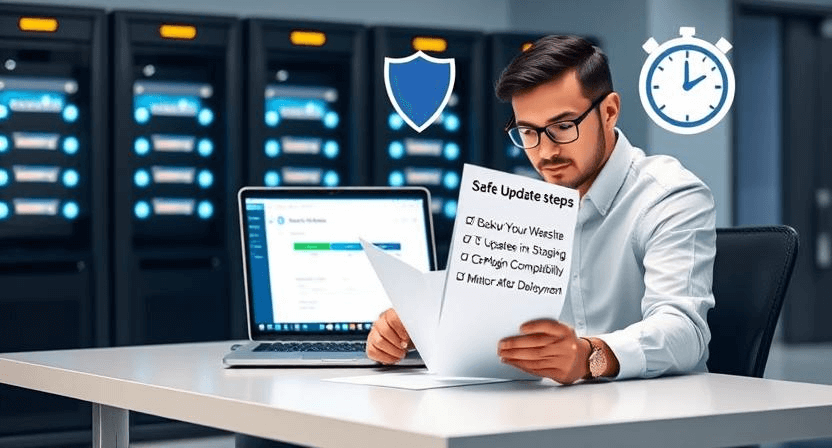
How to Update Your Website Without Breaking It
Learn essential steps to update your website safely and efficiently, minimizing risks and ensuring a seamless user experience.
How to Identify and Fix Database Connection Errors on Your Website
Learn how to identify and fix database connection errors on your website with this step-by-step guide. Avoid downtime and keep your site running smoothly!
Step-by-Step Guide to Fixing Broken Links for Better SEO
Learn how to identify and fix broken links on your website to improve SEO, user experience, and site performance.
Ready to get started?
Focus on your business while we fix your website. Contact WebCareSG today for fast, reliable solutions!
Whatsapp us on