You have just a few seconds to convince a visitor to stay on your website. If they cannot find what they are looking for within those first few moments, they will click away — and very likely never come back. Confusing website navigation is one of the top reasons small business owners lose potential customers, and the worst part is that many do not even realise it is happening on their own site.
This guide will walk you through exactly how to identify navigation problems and fix them, step by step. You do not need any technical skills — just your willingness to look at your website from your customer's perspective.
Why Navigation Matters More Than You Think
Your website navigation is like the floor plan of a shop. If customers cannot find the exit, the product they want, or the checkout counter, they will leave frustrated. The same logic applies online. Every extra click a visitor has to make to find information costs you potential business.
Good navigation also helps search engines understand your website structure. When pages are logically organised and easy to access, Google can index them more effectively — which means better rankings for your business. This is why fixing navigation issues is not just about user experience, but also about your search engine visibility.
Step 1: Put Yourself in Your Visitor's Shoes
Before you change anything, you need to see your website through the eyes of a first-time visitor. Ask yourself these questions:
- Can I find the main menu within 2 seconds of landing on the page?
- Does the menu use simple, everyday language — or does it use technical or industry jargon?
- Can I reach the most important pages (like your services, pricing, and contact information) in three clicks or fewer?
- Is the navigation consistent across every page of the website?
If you answered no to any of these questions, you already have a navigation problem worth fixing. Write down the specific issues you noticed — this will form your action plan.
Step 2: Audit Your Current Navigation Menu
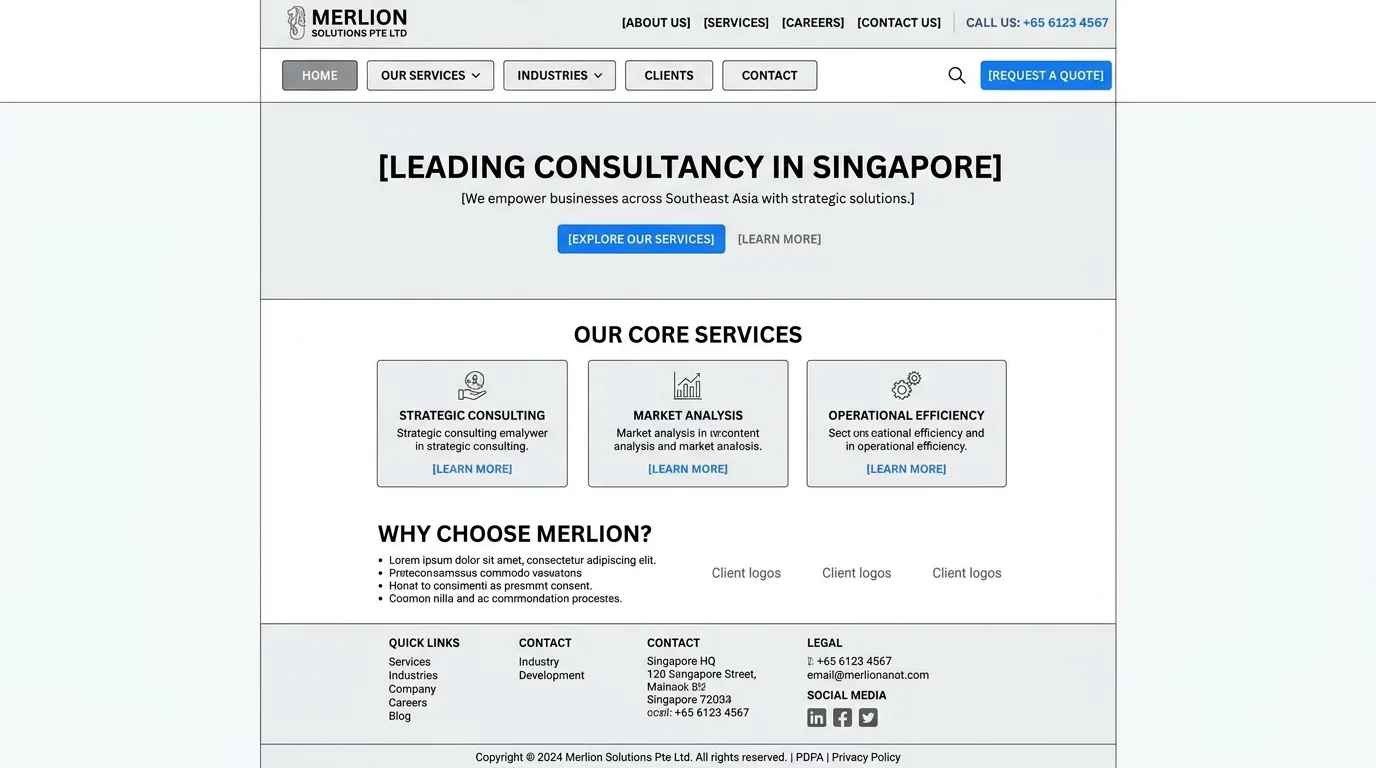
Write down every item currently in your main menu. A typical small business website might have items like Home, About Us, Services, Blog, and Contact. That seems straightforward — but the problem often lies in what those menu items actually link to.
For each menu item, ask yourself whether the destination page is:
- Actually useful and relevant to what the visitor expected when they clicked
- Still active and not showing a 404 error page
- Updated recently with real content
If you find any broken links or outdated pages in your menu, those need to be fixed or removed immediately. A broken link in your navigation gives visitors a bad first impression and signals to Google that your site is not well maintained. If you want to learn more about fixing broken links on your site, check out our guide on step-by-step guide for fixing broken links for SEO.
Step 3: Simplify and Prioritise Your Menu
Less is more when it comes to website menus. If your menu has more than seven items, your visitors may feel overwhelmed. A study by Columbia University found that the human brain can comfortably hold about seven items in short-term memory at once — which is why most effective menus keep things simple.
Here is how to prioritise your menu items:
- List all the pages you currently have in your navigation.
- Ask yourself: if a visitor could only access three pages, which three would be most important for my business?
- Those three pages should be the first items in your menu.
- Group less important pages under a single parent menu item. For example, instead of listing individual blog posts, link to a single Blog or Resources page.
For example, a cleaning services company in Singapore might structure their menu as: Home, Services (with sub-pages for residential, commercial, and move-in/out cleaning), About Us, FAQ, and Contact. This keeps the main menu clean while still giving visitors access to everything they need.
Step 4: Use Clear, Descriptive Labels
One of the most common navigation mistakes is using clever or vague labels that visitors do not immediately understand. Your menu labels should clearly communicate what the visitor will find on the next page.
Avoid these vague menu labels:
- Solutions (what kind of solutions?)
- Insights (is this a blog? A newsletter?)
- Who We Are (is this an About Us page?)
- Learn More (learn more about what?)
Instead, use specific, action-oriented labels that make sense to someone who has never visited your site before. For instance, a Singapore physiotherapy clinic might change their menu from "Services" to "Our Treatments" — a small but meaningful difference that immediately tells the visitor what to expect.
Step 5: Make Your Navigation Mobile-Friendly
More than half of all web traffic in Singapore comes from mobile devices. If your navigation menu does not work well on a phone or tablet, you are turning away the majority of your potential visitors.
Check the following on your mobile website:
- The menu button is clearly visible and easy to tap — it should be at the top right or left corner
- Links in the menu are spaced far enough apart that you do not accidentally tap the wrong one
- The menu covers the full screen when opened so visitors can see all options clearly
- Any dropdown menus open and close easily with a single tap
If you are unsure whether your current menu is mobile-friendly, ask a friend or colleague to try navigating your website on their phone while you watch. Their struggle will quickly reveal any problems. For more tips on mobile usability, read our article on how to fix poor mobile responsiveness and keep users engaged.
Step 6: Add a Search Function if You Do Not Have One
Not every visitor wants to browse through a menu. Some people arrive on your website knowing exactly what they want — they just need to find it quickly. A search bar gives these visitors a shortcut directly to the information they need.
Most website platforms like WordPress have built-in search functionality. If your current theme does not include a search bar in the header, you can usually add one through the theme settings or a simple plugin. Place it somewhere visible — most visitors expect to find it in the top right corner of the page.
Step 7: Add Breadcrumb Navigation for Deep Pages
If your website has more than two levels of pages (for example, a Services page that links to individual service pages), breadcrumb navigation is essential. Breadcrumbs are the small text trails that appear near the top of a page, showing visitors where they are in the website hierarchy.
A typical breadcrumb trail looks like this: Home > Services > Residential Cleaning. This helps visitors understand where they are and gives them an easy way to go back to a parent section without using the browser back button. Both visitors and search engines find breadcrumbs helpful — they improve usability and can also appear in search results, making your listing more informative.
Step 8: Test Your Navigation With Real Users
Once you have made your changes, test them with real people. This does not have to be a formal usability study — even asking a friend or family member to complete a specific task on your website (like finding your contact page or reading your pricing) can reveal problems you missed.
Watch where they hesitate, where they click unnecessarily, and where they get confused. Note every moment they seem lost or frustrated. These observations are more valuable than any guess you could make on your own.
Quick Navigation Checklist for Singapore Business Owners
Before you finish, run through this checklist to make sure your navigation is in good shape:
- Your main menu has no more than seven items
- All menu labels use plain, everyday language
- Every menu link leads to a working, relevant page
- Your most important pages are reachable in three clicks or fewer
- The mobile version of your menu is easy to use and tap
- You have added a search bar to the header
- Deep pages have breadcrumb navigation
- You have tested your navigation with a real person outside your business
Common Navigation Mistakes to Avoid
Even after fixing the main issues, many business owners still fall into these common traps:
- Putting too much in the footer: While a footer menu can be helpful, it should not replace your main navigation. Most visitors look to the top of the page first.
- Using dropdown menus that are hard to discover: If a menu item has sub-pages, visitors should be able to see those sub-items without clicking first. Hover menus work well on desktop but are often frustrating on mobile — consider making sub-items visible at all times or using an accordion-style menu.
- Inconsistent navigation across pages: Every page on your website should have the same navigation menu in the same position. If a visitor lands on an interior page and sees a completely different menu structure, they will feel lost.
- Forgetting to update navigation after adding new pages: When you add a new page to your website, remember to add it to your menu if it is important enough for visitors to find through navigation.
When to Call in a Professional
Some navigation issues are easy to fix on your own — renaming a menu item, removing a broken link, or adding a search bar are all straightforward tasks. However, if your website uses a complex custom design or if you are restructuring multiple levels of pages, it is worth consulting a professional to avoid accidentally breaking other parts of your site.
If you have tried the steps above and your website still has high bounce rates or low time-on-page metrics, the root cause is likely deeper than just the menu. Your website theme, page loading speed, or content structure may also be contributing to the problem. A professional website audit can identify all the issues at once and give you a clear roadmap for fixing them.
If you need help reviewing your website navigation or want a full audit of your site's performance, the team at WebCareSG is ready to assist. Visit https://webcare.sg/contact to get in touch and take the first step toward a website that truly works for your business.