Setting Up Automatic Backups for Your Website
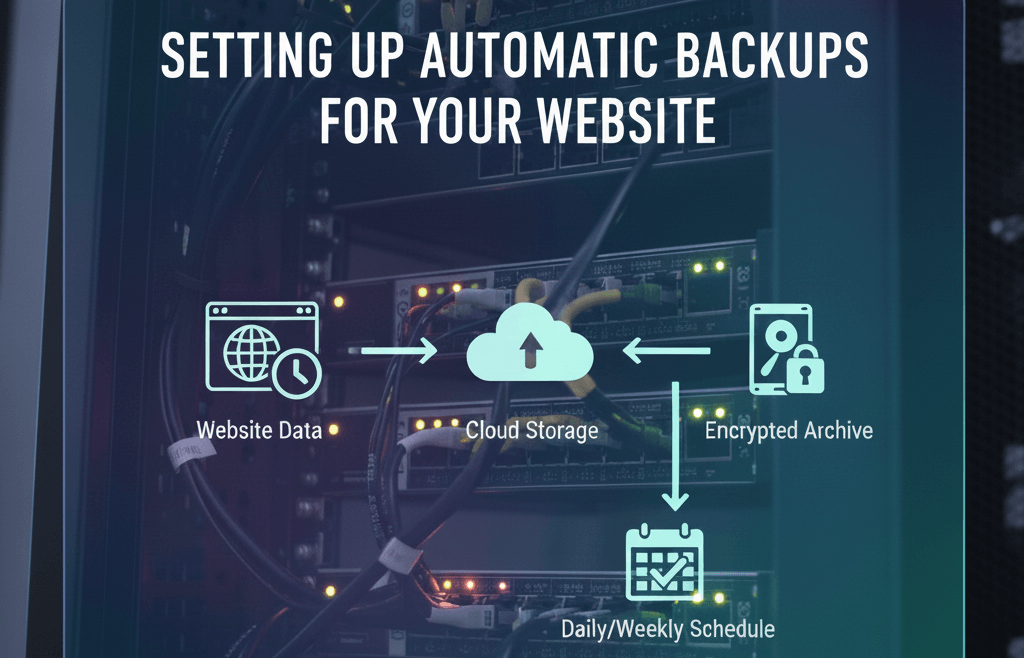
In the world of web management, it is not a matter of "if" something goes wrong, but "when." Whether it is a failed plugin update, a server crash, or a malicious cyberattack, your website is constantly at risk. The only true safety net is a recent, functional backup. Understanding the importance of backups for your website is the first step toward business continuity. This guide provides a comprehensive, step-by-step approach to setting up automatic backups, ensuring you never lose a single byte of data.
Step 1: Choose Your Backup Method
There are several ways to back up a WordPress site. For the best security, you should use a combination of these methods to ensure redundancy.
- Hosting-Level Backups: Most premium managed hosts offer daily backups. While convenient, you should not rely on these exclusively as they are often stored on the same server as your site.
- Plugin-Based Backups: Tools like UpdraftPlus, BackupBuddy, or Jetpack allow you to control the schedule and storage location from your WordPress dashboard.
- Manual Backups: This involves exporting your MySQL database via phpMyAdmin and downloading your files via FTP. While reliable, it is too time-consuming for daily use.
- Incremental Backups: Advanced services like BlogVault only back up changes made since the last save, reducing the load on your server.
Step 2: Install and Configure UpdraftPlus (The Free Method)
UpdraftPlus is the most popular free plugin for how to backup and restore your WordPress website. Here is how to set it up:
- Installation: Go to Plugins > Add New and search for "UpdraftPlus." Install and activate it.
- Access Settings: Navigate to Settings > UpdraftPlus Backups and click on the "Settings" tab.
- Set the Schedule: For most business sites, set both "Files backup schedule" and "Database backup schedule" to "Daily." If you post multiple times a day, choose "Every 4 hours" or "Every 12 hours."
- Choose Retention: Set the retention to at least 14. This gives you two weeks of history to roll back to if a hack goes unnoticed for a few days.
Step 3: Connect to Remote Storage (Crucial Step)
Storing backups on your web server is a major security risk. If your server is hacked or the disk fails, you lose both your site and your backups. You must store them "off-site."
- Google Drive: A common free option. UpdraftPlus makes it easy to authenticate your account and create a dedicated folder.
- Dropbox: Another reliable consumer-grade option for smaller websites.
- Amazon S3 or Google Cloud Storage: Professional-grade options that are extremely cheap and offer higher reliability for large websites.
- Remote FTP: You can send backups to a completely different server if you have a secondary hosting account.
Step 4: Establish a Maintenance Routine
Automation does not mean you can ignore your backups entirely. Part of importance regular website maintenance involves verifying that your automation is actually working.
- Check Success Notifications: Configure your plugin to send you an email only if a backup fails.
- Monitor Disk Space: Ensure your remote storage (like Google Drive) isn''t full, which would cause backups to stop.
- Update Your Backup Plugin: Just like any other software, follow best practices for updating WordPress and plugins to keep your backup tool secure.
- Perform a Monthly Test Restore: At least once a month, restore a backup to a staging site to ensure the files aren''t corrupted.
Step 5: How to Restore from a Backup
If you face a "White Screen of Death" or a broken layout after an update, you need to act fast. Knowing how to restore is just as important as knowing how to back up.
- Identify the Issue: If the site is down, check our guide on how to troubleshoot and fix website downtime to see if a simple fix exists before restoring.
- Access the Restore Tool: Inside UpdraftPlus, go to the "Existing Backups" tab.
- Choose Your Components: You can choose to restore just the Database, Plugins, Themes, Uploads, or Others. If you just broke the site with a plugin update, restoring the "Plugins" folder and "Database" is usually enough.
- Follow the Prompts: Click "Restore" and wait for the process to finish. Do not close your browser tab during this time.
Step 6: Backups and Security
Backups are a core component of your security strategy. If your site is defaced, you will need a clean backup to recover a website from a hacked defacement. Without a backup, you might have to pay for expensive WordPress malware removal or, in the worst-case scenario, rebuild the entire site from scratch.
- Back up Before Changes: Always trigger a manual backup before you follow a server maintenance checklist or make major CSS changes.
- Encrypt Your Backups: If your plugin supports it, encrypt your backup files so that if your remote storage is hacked, your database remains unreadable.
Common Backup Pitfalls to Avoid
Many site owners think they are safe when they are actually at risk due to poor configuration.
- Relying Only on the Host: If your hosting account is suspended for non-payment or a legal dispute, you lose access to your host-level backups. Always have your own copy.
- Backing Up Too Infrequently: If you run an e-commerce store and only back up once a week, a crash on Friday means you lose all the orders from Monday through Thursday.
- Storing Backups on the Web Root: Never store backup
.zipfiles in a publicly accessible folder. Hackers can guess the filename and download your entire database.
When to Seek Professional Help
While setting up a basic plugin is straightforward, enterprise-level backup strategies can be complex. You should reach out to experts if:
- Your website files are larger than 5GB, making standard plugins slow or prone to timeout errors.
- You need to migrate your site to a new server using a backup.
- You are experiencing persistent "Database Connection Errors" that prevent backups from completing.
- You want to set up a real-time mirroring system for a high-traffic WooCommerce store.
Related WebCare Solutions
The 2026 Small Business Guide to Cybersecurity
A non-technical roadmap for protecting your business from modern threats, including AI-driven phishing, data breaches, and ransomware.
Website Blocked by Browser? How to Remove ‘Dangerous Site’ Warnings
A comprehensive guide on how to address and remove 'Dangerous Site' warnings displayed by web browsers, focusing on Google Safe Browsing and malware cleanup.
Why Website Backups Matter: How to Create and Test Them
Learn why website backups are essential and how to create and test them effectively to safeguard your data. Avoid data loss with this comprehensive guide.
Ready to get started?
Focus on your business while we fix your website. Contact WebCareSG today for fast, reliable solutions!
Whatsapp us on