Updating Plugins Safely: Avoid Breaking Your Site
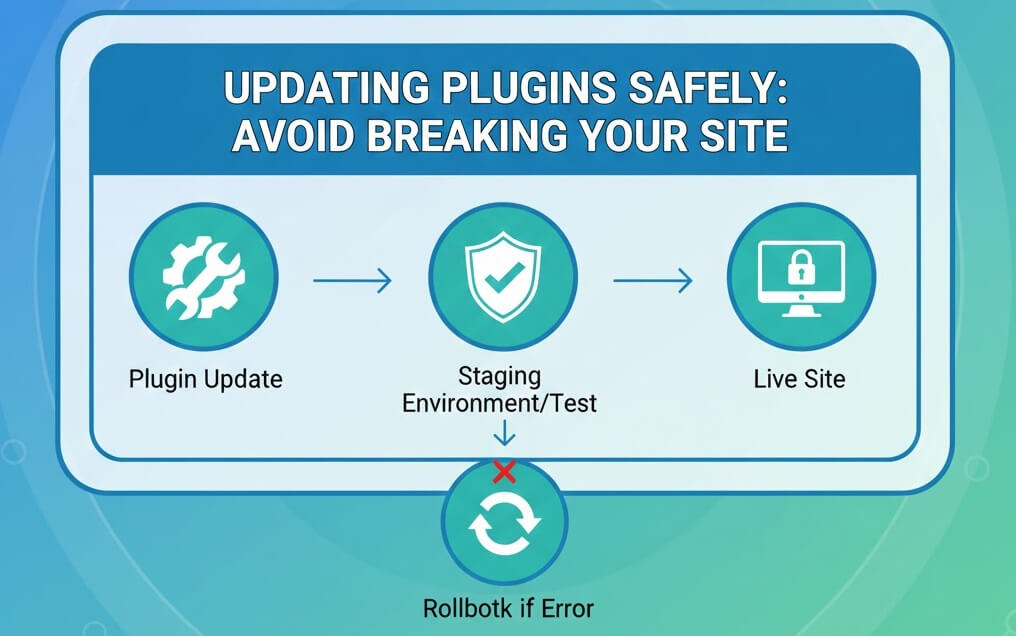
The Gold Standard for Plugin Updates
Plugins are essential for WordPress, but they are also the leading cause of site instability. Following best practices for updating WordPress and plugins is the only way to ensure your site remains online while staying secure. This guide provides a technical, point-by-point workflow.
Step 1: Preparation and Backups
- Verify Backup Integrity: Never click update without a fresh backup. Refer to the importance of backups for your website to understand why this is your only safety net.
- Check Documentation: Read the plugin version history. Major version jumps (e.g., v2.0 to v3.0) often contain changes that break custom CSS or older PHP versions.
- Timing: Perform updates during low-traffic periods. If a crash occurs, you want to minimize the impact on active users.
Step 2: Testing in a Staging Environment
A staging site is a safe sandbox. If an update causes a fix wordpress white screen of death, your live business remains unaffected.
- Sync Staging: Ensure your staging site is an exact mirror of your live site.
- Bulk vs. Single: In staging, you can update all at once to see if there is a massive conflict. On live, you must always update one by one.
- Visual Regression: Check your headers, footers, and contact forms. Use a tool to verify is your website mobile-friendly after the update, as some updates can break responsive layouts.
Step 3: The Live Update Workflow
- Maintenance Mode: Enable a maintenance page so users don''t see a broken site during the 30 seconds the update is running.
- Update and Clear Cache: After the update, clear your server cache and CDN (like Cloudflare).
- Functional Testing: Immediately test your core features. If you see a fix wordpress updating publishing failed error, it is a sign of a REST API or plugin conflict.
Step 4: Troubleshooting Failures
If the update fails or breaks the site, follow these steps:
- Deactivation: If you cannot access the dashboard, use FTP to rename the plugin folder, which forces deactivation.
- Server Errors: Check for a 500 error. Our guide on troubleshooting 500 internal server error provides the fix for memory limit issues.
- Database Repair: If the update was interrupted, you may need to how to fix database connection errors.
Step 5: Post-Update Verification
Once updated, ensure the site is optimized. This is part of your importance regular website maintenance.
- SEO Check: Ensure no updates have added "noindex" tags. Check fix page not indexed google search console for more details.
- Speed Audit: If the update added bloat, follow our tips to speed up your site.
- Internal Links: Ensure URLs haven''t changed by using a tool to identify fix broken internal links.
If you''re still having trouble, don''t worry! WebCare SG is here to help. Contact us today for fast and reliable website fixes.
Related WebCare Solutions
Google Tag Manager Not Working? Debugging Guide
A comprehensive debugging guide for Google Tag Manager issues, covering container errors, preview mode problems, and conflicting scripts to ensure your tags fire correctly.
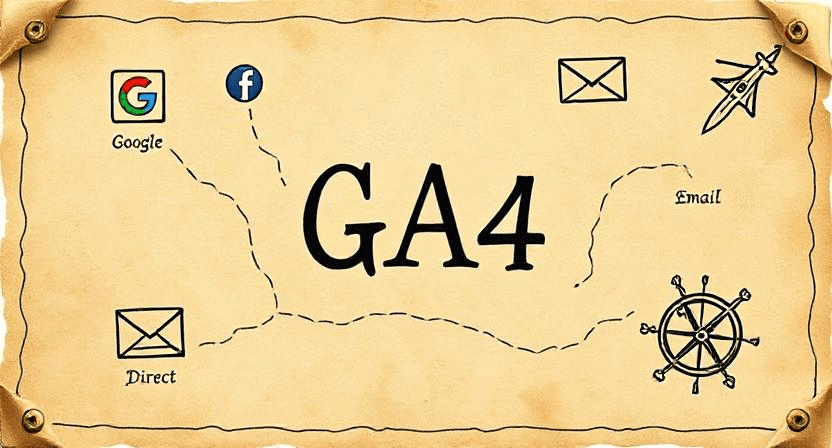
Where Is My Traffic Coming From? Understanding Your Acquisition Report in GA4
Discover how to leverage Google Analytics 4 (GA4) Acquisition Reports to understand exactly where your website traffic originates. Learn the definitions of key channels like Organic Search, Direct, Referral, and Social, and use these insights to pinpoint which of your marketing efforts are truly driving results.
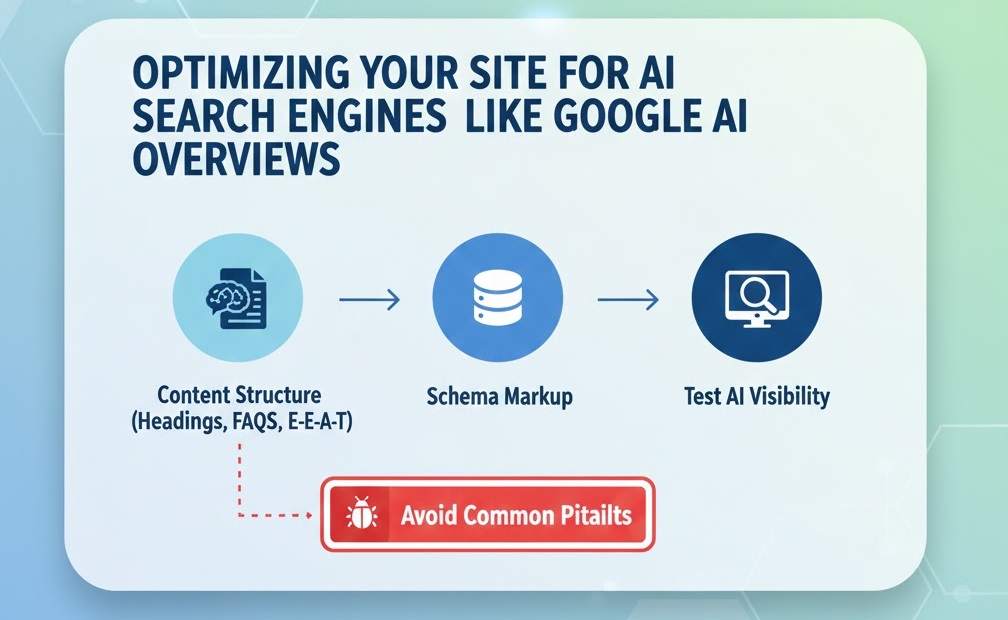
Optimizing Your Site for AI Search Engines Like Google AI Overviews
A guide to Generative Engine Optimization (GEO), focusing on structuring content for AI summaries, E-E-A-T signals, and schema markup to boost visibility in the age of AI search.
Ready to get started?
Focus on your business while we fix your website. Contact WebCareSG today for fast, reliable solutions!
Whatsapp us on