Your website is working today, so you probably think it is fine. That is exactly what many Singapore business owners assume until their site suddenly goes down, loads painfully slowly, or gets flagged as insecure by Google. The truth is that websites need regular maintenance to stay in good shape. Small problems that you ignore for months can turn into expensive emergencies that take days to fix. The solution is simple: perform a quarterly health check on your website. This guide shows you exactly what to check and how to do it, even if you are not technical.
Why Quarterly Checks Matter More Than You Think
Imagine you run a bakery in Jurong and your website shows a special promotion for Hari Raya. A potential customer clicks on your ad, lands on your site, and sees an error message instead of your products. That customer will not try again. They will move on to your competitor and never come back. A simple quarterly check could have caught that error before it cost you a sale.
Beyond lost sales, there are other reasons to maintain your website regularly. Search engines like Google prefer websites that load quickly and have no technical errors. If your site has broken links, slow pages, or security issues, Google will rank it lower in search results. This means fewer people will find your business when searching online. In Singapore is competitive market, you cannot afford to lose rankings because of something you could have fixed in twenty minutes.
Step 1: Check That All Pages Load Correctly
Start your quarterly check by visiting your website as a customer would. Click through every main menu item and every important page. Look for error messages, missing images, or pages that look broken. Pay special attention to your homepage, your services or products pages, and your contact page.
Common problems to watch for include pages that show text in the wrong order, images that appear as blank boxes instead of pictures, and forms that do not let you type in them. If you have an online store, test the complete purchasing flow from adding an item to the cart to reaching the payment page. Do not actually complete a purchase, but go far enough to confirm each step works.
Use a Automated Checker to Find Hidden Errors
Your own browsing will not catch every problem. Use a free tool like Google Search Console to see if Google has detected any errors when it tries to crawl your site. Google will often tell you about pages that return error codes, pages that take too long to load, or pages that Google cannot even find. Log into Search Console at least once per quarter and review any warnings Google has flagged.
Step 2: Test Your Contact Form and Email Notifications
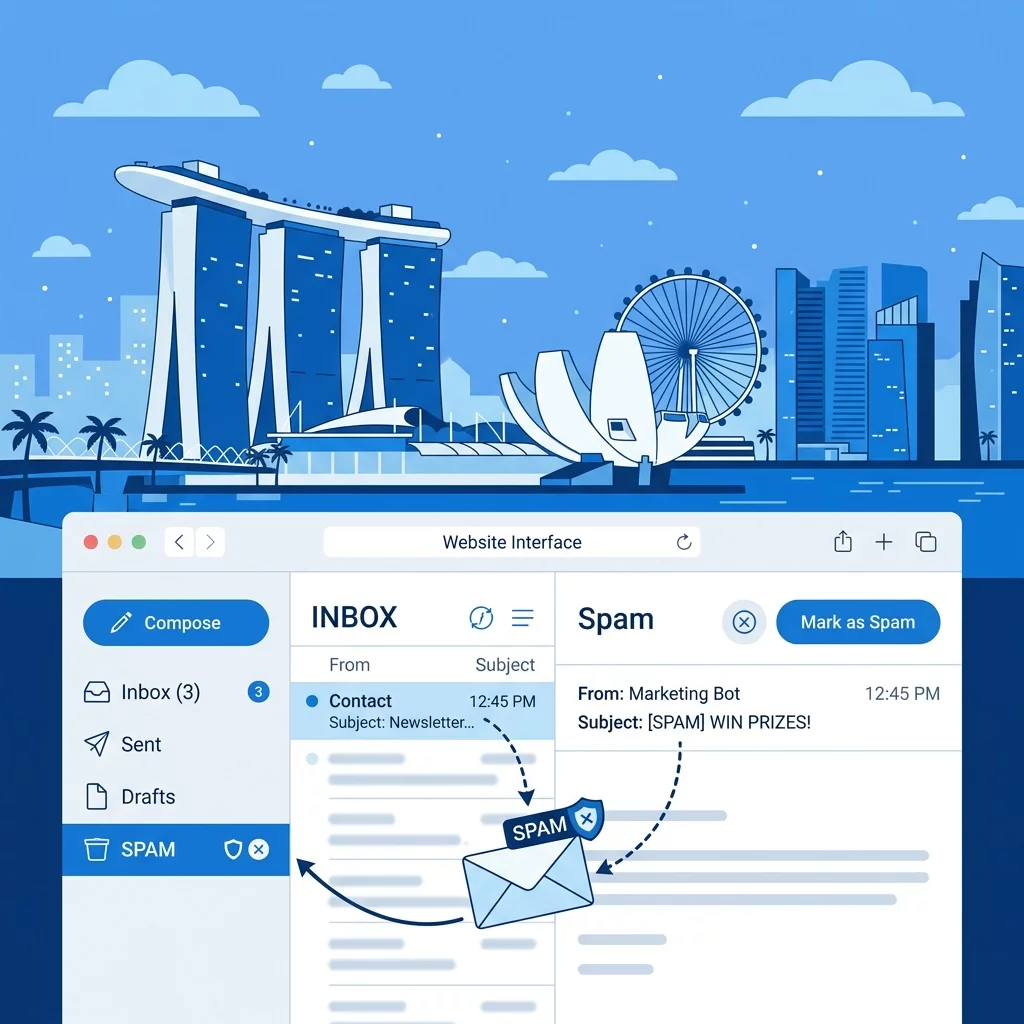
Your contact form is how potential customers reach you. If it is broken, you are losing business without even knowing it. Send a test message through your own contact form and confirm that it arrives in the email inbox where you expect it. Check that the sender email address is correct and that the message content makes sense.
If you use multiple email addresses for different purposes on your site, test each one. Some businesses have separate forms for sales inquiries, support requests, and partnership proposals. Make sure each one routes to the correct address. For more guidance on keeping your forms working, read our article on why contact forms stop working and how to fix them.
Step 3: Verify All Links Are Working
Broken links are one of the most common website problems. They frustrate visitors and hurt your search engine rankings. Over time, you will delete pages, change page addresses, or move to new hosting providers. Each of these changes can leave old links pointing to places that no longer exist.
Use a free broken link checker to scan your entire website. These tools will visit every page and test every link, reporting any that return error codes. Fix each broken link by either restoring the missing page or setting up a redirect that sends visitors to a relevant active page. Do not leave broken links sitting on your site for months hoping no one will notice. Visitors will notice, and they will leave.
Step 4: Check Your Website Speed
Slow websites lose visitors. Research shows that if a page takes more than three seconds to load, most people will leave and look elsewhere. This is especially important in Singapore where internet speeds are among the fastest in the world. Your visitors expect your site to load almost instantly.
Use a free tool like Google PageSpeed Insights or GTmetrix to check how fast your pages load. These tools will give you a score and tell you specific things you can improve, such as resizing large images, enabling compression, or reducing the number of scripts your site loads. Aim for a loading time of under three seconds on both desktop and mobile devices. If your site is slower than that, start with the easiest fixes first, such as compressing your images and removing plugins you no longer use. For detailed speed optimization steps, see our guide on how to speed up your website in seven simple steps.
Step 5: Confirm Your SSL Certificate Is Active
Your SSL certificate is what makes your website show a padlock icon in the browser address bar. It encrypts the connection between your website and your visitors, protecting sensitive information like passwords and credit card numbers. Without it, browsers will show a warning that your site is not secure, and visitors will likely leave immediately.
Open your website in your browser and look for the padlock icon in the address bar. Click on it to confirm the certificate is valid and issued to your correct domain name. Check when the certificate expires. Most certificates last for one to two years. If yours is expiring within the next month, renew it right away. An expired certificate causes the same warning as having no certificate at all. To learn more about SSL certificates and common issues, read our article on resolving SSL certificate issues on your Singapore website.
Step 6: Review and Update Your Content
Outdated content makes your business look unprofessional. If a visitor sees a promotion for last year's Christmas sale or a team photo with someone who left the company two years ago, they will question how actively you run your business.
Once per quarter, go through your main pages and update any information that has changed. This includes prices, business hours, service descriptions, team member bios, and special offers. Add a note to your calendar to check your About Us page, your Services page, and any blog posts that contain time-sensitive information. If you have blog posts older than a year, consider updating them with fresh information or removing them if they are no longer relevant.
Step 7: Verify Your Backups Are Working
Backups are your safety net when something goes wrong. If your website gets hacked, if your hosting company has a failure, or if you accidentally delete important files, a good backup lets you restore your site quickly. Without a backup, you could lose everything.
Check that your automated backup system is actually running. Log into your hosting account or your backup plugin and confirm that backups have been made on schedule within the past week. Test one backup by downloading it to your computer and confirming the file size looks reasonable. A backup that is suspiciously small might be incomplete. Also verify that you know how to restore from a backup, because you do not want to figure this out for the first time when you are in the middle of an emergency. For step-by-step backup guidance, read our article on how to set up automatic backups for your website.
Step 8: Check Mobile Responsiveness
More than half of all web browsing in Singapore happens on mobile phones. If your website does not display properly on phones, you are alienating the majority of your potential visitors. Open your website on your own phone and browse through it naturally. Does everything fit on the screen without needing to scroll sideways? Are buttons large enough to tap with a finger? Can you read the text without zooming in?
If you notice any problems, note them specifically so you can report them to whoever manages your website. Common mobile issues include text that is too small to read, images that overflow the screen width, and menus that are difficult to use on touchscreens. For a complete guide to fixing mobile problems, see our article on how to fix poor mobile responsiveness and keep users engaged.
Your Quarterly Website Health Check List
- Visited every main page and checked for visible errors.
- Reviewed Google Search Console for any crawl errors or warnings.
- Tested the contact form and confirmed it delivers messages correctly.
- Ran a broken link checker and fixed any dead links found.
- Tested website loading speed using PageSpeed Insights or GTmetrix.
- Confirmed the SSL certificate is active and not expiring soon.
- Updated outdated content on key pages.
- Verified that automated backups are running and files look complete.
- Tested the website on a mobile phone for usability issues.
Make This a Habit
Bookmark this checklist and set a reminder in your calendar every three months. Put it on the same day you do your GST filing or your quarterly business review. The task will only take thirty minutes to an hour, but it can save you from major headaches down the road. Small problems caught early are always cheaper to fix than major disasters.
If you discover technical issues during your quarterly check that you do not know how to fix, do not panic and do not ignore them. Contact WebCareSG through our contact page and let our team help you resolve them quickly. Regular maintenance is the easiest way to protect your website investment and keep your Singapore business running smoothly online.